
A properly working 802.11n WLAN driver is essential for maintaining a reliable wireless connection on a Windows computer. When the driver becomes outdated, disappears after a system update, or no longer matches the wireless adapter, you may notice weak Wi-Fi performance, connection drops, missing networks, or a wireless adapter that stops working altogether. Rather than immediately blaming the router or internet service, checking the WLAN driver can often reveal the real problem. Below, you'll find several simple methods to identify, download, install, and update the correct 802.11n WLAN driver for your PC.
Why the "802.11 n WLAN Driver" Matters
Think of the "802.11 n WLAN driver" as the translator between your computer's wireless hardware and the Windows operating system. It enables your PC to understand and use the 802.11n wireless standard. This standard is a big deal; it offers faster speeds and better range compared to older ones.
Without the right "802.11n driver":
- Your internet speed could crawl.
- You might keep getting disconnected from Wi-Fi.
- Your PC may not even detect nearby networks.
Updating or installing this driver is like giving your wireless connection a much-needed boost.
Method 1: Manual Download Drivers
You can get the "802.11 n WLAN driver" directly from the maker of your wireless network adapter. But be warned; it's a bit of a hassle.
Step 1: Figure Out Your Network Adapter
First, find out the brand and model of your wireless network adapter:
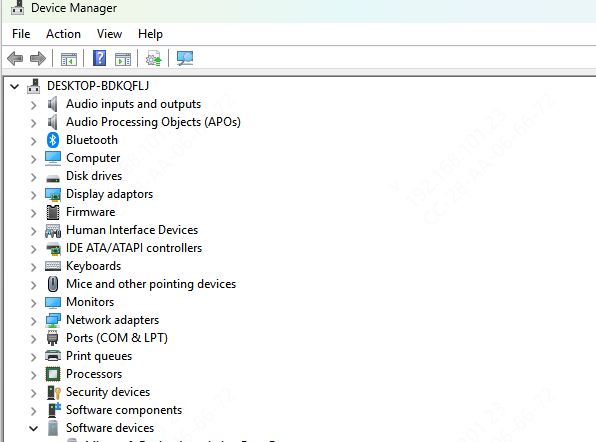
Press Windows key + X.
Select "Device Manager" from the menu.
Expand the "Network adapters" category.
Look for the wireless adapter. Its name will usually show the brand (like Intel, Realtek) and model number. Jot this down.
Step 2: Visit the Manufacturer's Website
Go to the official site of your adapter's manufacturer:
- Search for the "Support" or "Downloads" section.
- Enter the model number you noted earlier.
- Find the driver for your specific Windows version (e.g., Windows 10, Windows 11). Make sure it's the "802.11 n WLAN driver".
Step 3: Download and Install
Click the download button. The file is often in a ZIP format.
Locate the downloaded file on your PC.
Extract the files (if needed).
Run the setup file and follow the on-screen instructions.
Restart your computer.
This method takes time. You have to search carefully, and there's a risk of downloading the wrong driver. That's where PcGoGo Driver Sentry shines.
Method 2: Try Windows Update
Windows Update can also install the "802.11 n WLAN driver", though it might not have the very latest version.
Step 1: Open Windows Update
Press Windows key + I to open "Settings".
Click "Update & Security".
Select "Windows Update" on the left.
Step 2: Check for Updates
Click "Check for updates". Windows will look for available updates, including drivers.
If there's an "802.11 n WLAN driver" update, it'll show up under "Optional updates" or "Driver updates".
Click "View optional updates" (if available).
Tick the box next to the "802.11 n WLAN driver" update.
Step 3: Install the Update
Click "Download and install".
Wait for the installation to finish.
Restart your computer.
Remember, Windows Update doesn't always have the freshest drivers. Manufacturers often release new ones before Microsoft does. So, PcGoGo Driver Sentry is still your best bet for staying on top of driver updates.
Method 3: Use Driver Sentry
PcGoGo Driver Sentry is a lifesaver for anyone tired of messing with drivers. Here's why it's so great:
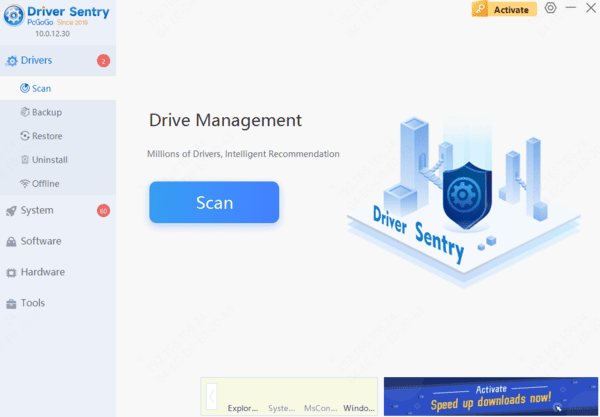
Download and install PcGoGo Driver Sentry.
Open the app and click "Scan".
It'll quickly check your whole system for any outdated, missing, or faulty drivers; including those crucial "802.11n drivers". No more guessing which drivers need an update!
Effortless Updates
After the scan, you'll see a list of drivers that need attention. Find the "802.11 n WLAN driver".
Click "Update" next to it. PcGoGo Driver Sentry will download the latest, most compatible version for your Windows. It even installs the driver for you! Just follow a few simple prompts.
Restart your PC, and you're good to go.
Troubleshooting Common Issues
Even after installing the "802.11 n WLAN driver", you might still face issues. Here's what to do:
Driver Installation Failed
If the install fails:
- Download the driver again, either from the manufacturer or using PcGoGo Driver Sentry. Double-check it's the right version for your Windows.
- Temporarily turn off your antivirus or firewall. Sometimes, they block the installation. Just remember to turn them back on afterward.
Wireless Still Not Working
If Wi-Fi is still acting up:
- Restart your PC again. Sometimes, a second restart helps the driver fully kick in.
- Check your Wi-Fi settings. Make sure it's on and you're connected to the right network. You may need to re-enter the password.
- Try connecting to a different Wi-Fi network. This can help you figure out if the problem is with your network or the driver.