
Encountering the A D3D11 compatible GPU is required to run the engine error can be frustrating when trying to launch a game or application. This issue is usually caused by an unsupported graphics card, missing or outdated GPU drivers, or DirectX-related problems. In many cases, it does not indicate permanent hardware failure. This guide explains the main causes of the error and provides effective solutions to restore compatibility and get your system running properly again, including using PcGoGo Driver Sentry for quick driver updates.
Understanding the D3D11 Compatible GPU Requirement
The Direct3D 11 (D3D11) is a graphics API that powers many modern games and software. For your system to run these applications, your GPU must support DirectX 11 or later. When your hardware or drivers do not meet these requirements, Windows displays the D3D11 compatible GPU error.
Common Causes of the Error
Outdated or missing GPU drivers
GPU hardware incompatibility with DirectX 11
Corrupted game or application files
Incorrect DirectX installation
Running the game on integrated graphics instead of a dedicated GPU
Check Your GPU Specifications
Before troubleshooting, ensure your graphics card supports DirectX 11 or higher.
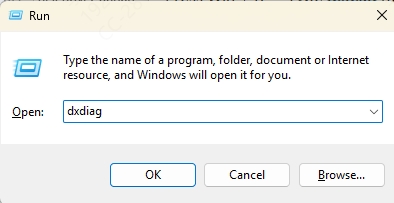
Press Windows + R, type dxdiag, and hit Enter.
In the Display tab, check the DirectX version.
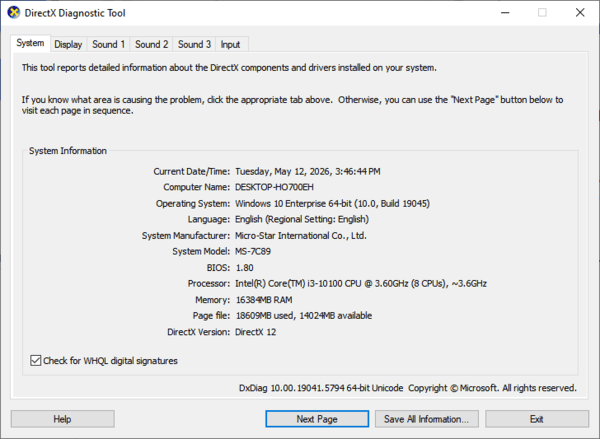
Compare your GPU model's specs on the manufacturer's website to confirm D3D11 compatibility.
If your GPU doesn't support DirectX 11, you may need a hardware upgrade.
Update Graphics Drivers
Outdated or corrupted GPU drivers are one of the most common causes of this error. PcGoGo Driver Sentry provides a fast, reliable way to automatically detect, download, and install the latest drivers for your system.
How to update your drivers using PcGoGo Driver Sentry:
Download and install PcGoGo Driver Sentry from the official website.
Launch the program and click Scan.

Review the list of outdated drivers.
Click Update All to install the latest compatible GPU drivers.
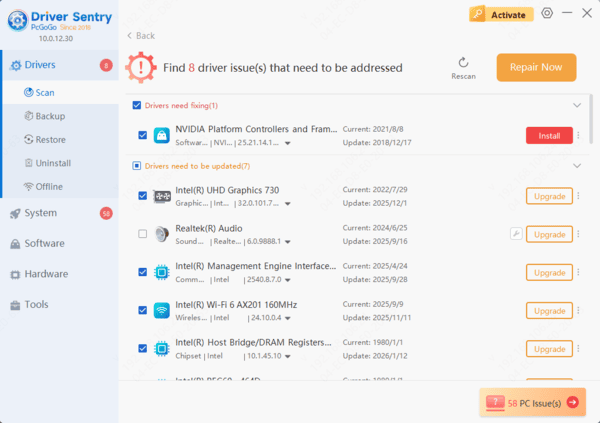
Restart your computer and test your game or application.
Using this method ensures that you have the most stable and optimized drivers, reducing the chances of encountering the error again.
Reinstall DirectX
A corrupted or missing DirectX installation can trigger the D3D11 compatible GPU error. To reinstall:
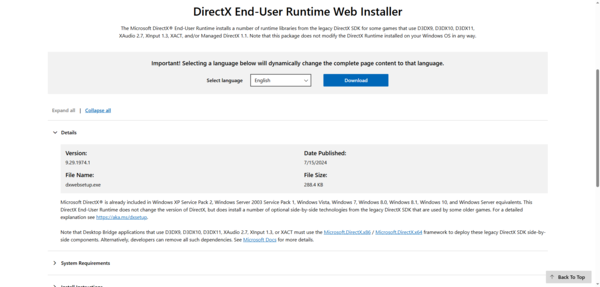
Visit the Microsoft DirectX End-User Runtime Web Installer.
Download and install the package.
Restart your PC.
Force the Game to Use the Dedicated GPU
Sometimes, games default to integrated graphics instead of your powerful dedicated GPU. To fix this:
For NVIDIA:
Open NVIDIA Control Panel → Manage 3D settings.
Under Preferred graphics processor, select your dedicated GPU.
Apply changes.
For AMD:
Open AMD Radeon Settings.
Go to Switchable Graphics and set the game to High Performance.
Upgrade Your GPU if Necessary
If your graphics card is too old to support D3D11, upgrading is the only permanent solution. Look for a GPU that supports DirectX 12 for future-proofing.
Frequently Asked Questions
Why does the error appear even though DirectX 12 is installed?
DirectX 12 installation does not guarantee that the GPU supports the required D3D feature level. Outdated drivers, the wrong graphics adapter, or unsupported hardware may still trigger the error.
Can updating the graphics driver fix the D3D11-compatible GPU error?
Yes. A missing, corrupted, or generic display driver may prevent Windows from accessing the GPU's supported features. Install the correct NVIDIA, AMD, or Intel graphics driver and restart the computer.
What if my graphics card does not support Feature Level 11_0?
Software changes cannot add hardware-level support. You will need to upgrade to a compatible graphics card or use another computer that meets the application's requirements.
Conclusion
The "A D3D11 compatible GPU is required to run the engine" error is often a driver or compatibility problem that can be fixed in minutes with the right approach. By using PcGoGo Driver Sentry for automatic driver updates, you can ensure your GPU is always running on the latest, most stable drivers—eliminating compatibility issues and boosting performance. Whether through manual updates, reinstalling DirectX, or switching to a dedicated GPU, these solutions will have you back in the game without delay.