






api-ms-win-core-libraryloader-l1-2-1.dll is a core Windows API Set component, not a normal DLL that can be downloaded and replaced manually. It handles functions related to loading libraries and redirecting API calls inside Windows. If the file cannot load, applications that depend on it will fail to start. Because it is part of the Windows system infrastructure, the correct fix is to repair Windows system components rather than downloading the DLL from third-party sites, which is both unreliable and a potential security risk.
Fix 1: Run SFC and DISM to Restore the File
Because this DLL is a Windows system component, the System File Checker and DISM tools are the most direct repair path. SFC scans Windows system files against a cached baseline and restores any that are missing or have been modified.
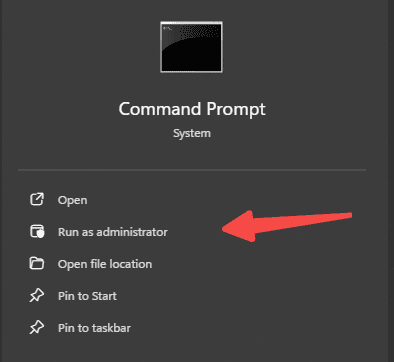
Open Command Prompt as Administrator by searching for cmd in the Start menu, right-clicking, and selecting Run as administrator. Run the following command:
sfc /scannow
Let it complete without interruption. If SFC reports that it found and repaired corrupted files, restart your PC and test the application. If SFC reports that it could not repair all files, proceed with DISM to repair the Windows image that SFC draws from.
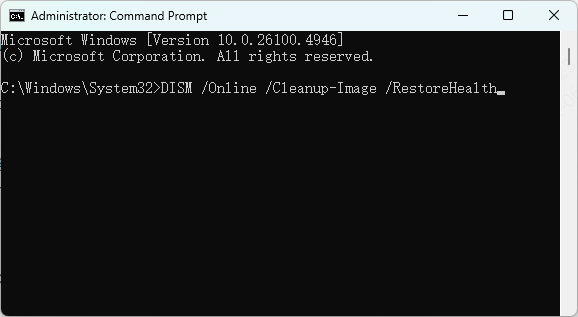
Run these commands in sequence:
DISM /Online /Cleanup-Image /ScanHealth
DISM /Online /Cleanup-Image /RestoreHealth
DISM requires an active internet connection to download clean replacement files from Windows Update. Restart after completion, then run sfc /scannow again to confirm the repairs held before testing the application.
Fix 2: Install Pending Windows Updates
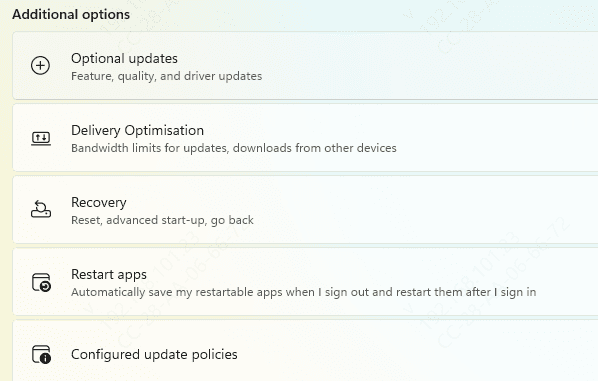
Go to Settings, then Windows Update, and check for updates. Install all available updates including any listed under Optional updates or Quality updates. Restart after installation
This is particularly relevant if the error appeared after a Windows feature update partially failed or was interrupted during installation
Fix 3: Install or Repair Visual C++ Redistributables and Universal CRT
Go to the official Microsoft download page and download the Visual C++ Redistributable for Visual Studio 2015 through 2022. Install both the x64 and x86 versions. If these packages are already installed, use the Repair option in Windows Settings under Apps rather than reinstalling from scratc
Also download and run the DirectX End-User Runtime Web Installer from Microsoft, which includes updates to related runtime components. Restart your PC after all installations complete

Fix 4: Use an Automated DLL Repair Tool
When the error persists after system file repair and Windows updates, the problem may involve a broader pattern of damaged system components or broken registry entries that are difficult to identify manually
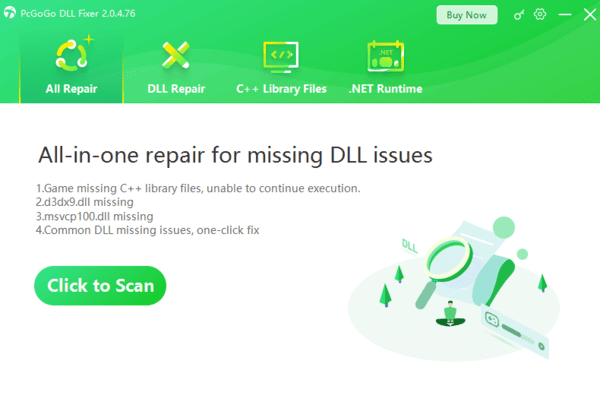
PcGoGo DLL Fixer scans the full system for corrupted DLL files, missing API components, and registry entries pointing to nonexistent or damaged system files. This is useful when the api-ms-win-core error appears alongside other missing DLL errors, which indicates that the system has accumulated multiple component failures rather than a single isolated issue
Fix 5: Check Antivirus Quarantine
Open your antivirus program and check the quarantine or threat history section. If any api-ms-win-core files appear there, restore them and mark them as trusted. Add the C:\Windows\System32 and C:\Windows\SysWOW64 directories to the exclusion list with caution, limiting the exclusion to read operations rather than disabling scanning entirely if your antivirus allows that level of granularity
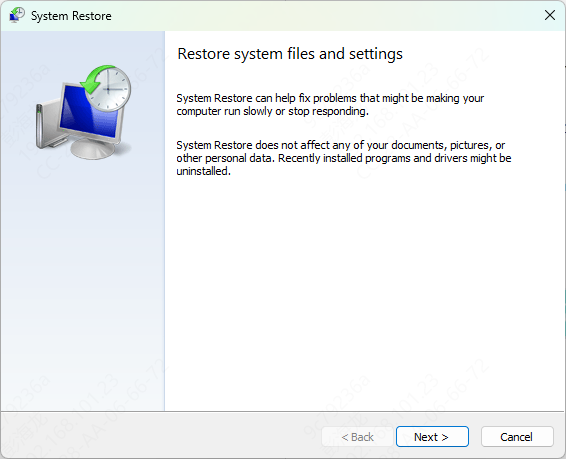
Fix 6: Perform a System Restore
Click System Restore, select a restore point dated before the error first appeared, and follow the prompts to complete the restoration. System Restore does not affect personal files but will uninstall applications and updates applied after the selected restore point
After the restore completes, check whether Windows Update offers the same updates again and install them carefully, monitoring whether the error returns
Fix 7: Repair or Reinstall the Affected Application
Check the application's installation folder for any api-ms-win-core files. If they exist there, delete them so the application uses the system copies instead
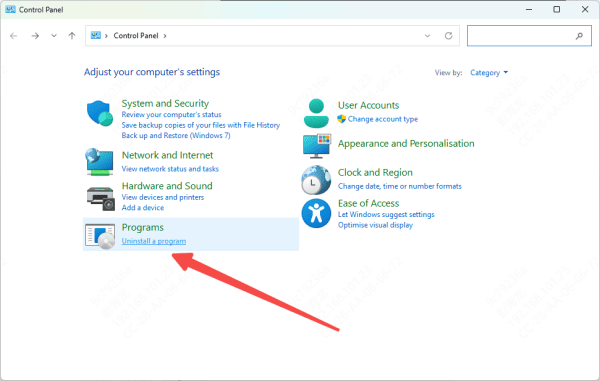
Then repair the application through Windows Settings, Apps, by finding the program and selecting Modify or Repair. If no repair option is available, uninstall the application completely, delete the remaining installation folder, and reinstall from the official source
Conclusion
The api-ms-win-core-libraryloader-l1-2-1.dll error is a Windows system component failure, not a missing application file. Do not download this file from third-party DLL sites. Start with SFC and DISM to restore the file through Windows' own repair tools, then install pending Windows updates to ensure the system components are current. Repair Visual C++ Redistributables for dependency chain issues, use PcGoGo DLL Fixer for broader system damage, and check antivirus quarantine if the file keeps disappearing after repair. Most cases resolve at the SFC and Windows Update stage before any advanced repair is needed.




