






An sx32w.dll error when opening Boris FX Continuum or a host app like Adobe After Effects, Premiere Pro, or VEGAS Pro usually means the plugin cannot load a required component. The host application may fail to start, or it might crash when scanning plugins or applying effects. Although the error points to a missing DLL, the real causes are often an incomplete Continuum installation, a version mismatch with the host app, missing Microsoft runtime components, antivirus interference, or Windows system issues. The safest fix is to repair the plugin environment rather than downloading the DLL from an unofficial site.
Check Whether Boris FX Continuum Was Installed Correctly
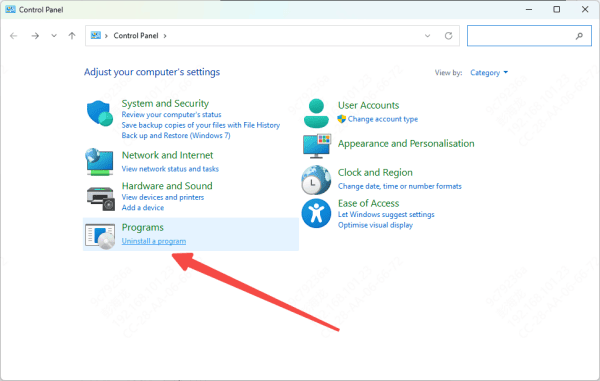
If you suspect installation damage, uninstall Boris FX Continuum completely, restart the computer, and then reinstall it from the official Boris FX installer. During installation, confirm that the plugin is being placed into the correct host application directories. A clean reinstall often restores missing files and corrects bad path references that cause DLL load failures.
Check Version Compatibility
Check whether your installed Boris FX Continuum version is officially supported by your current host application version. If not, update Continuum to a compatible release. If the error appeared immediately after updating the host app, this is one of the first things to investigate.
Reinstall the Host Application if Needed
If only one host application shows the sx32w.dll error while others work normally, the host app itself may be damaged. Plugin directories, cache data, or startup components inside the host app may no longer be reliable
In that case, reinstalling the host application can help. Uninstall it, restart the computer, and install the latest stable version again. After reinstalling, install Boris FX Continuum once more and test before adding any other third-party plugins
Check Windows Security and Antivirus
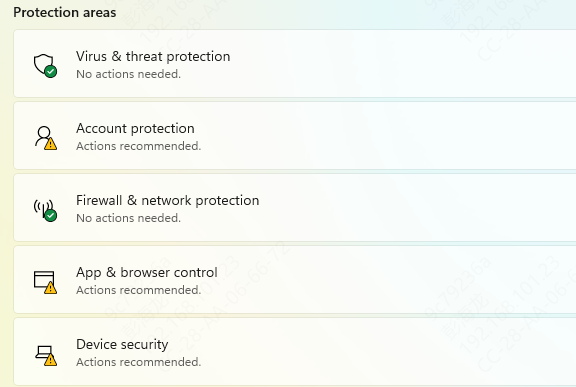
Antivirus tools sometimes quarantine plugin files by mistake, especially DLL files loaded by creative software. Windows Security or a third-party antivirus tool may block sx32w.dll or a related Continuum component during installation or the first plugin scan.
Open Windows Security and review Protection History. If you use another antivirus solution, check its quarantine list as well. If a Boris FX file was blocked and the installer came from a legitimate source, restore the file and try again. You may also need to add the official Boris FX plugin folder to an exclusion list if the same file keeps being flagged.
Install or Repair Microsoft Visual C++ Redistributables
Creative plugins often rely on Microsoft Visual C++ runtime packages. If those runtimes are missing, corrupted, or partially uninstalled, plugin DLLs may fail to load even though the main plugin files are present
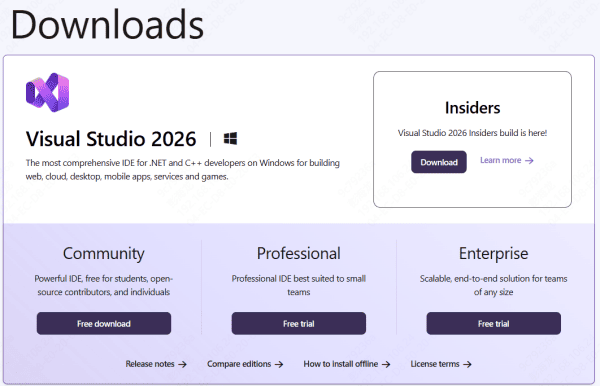
Install or repair the latest supported Microsoft Visual C++ Redistributables. In many cases, both x64 and x86 versions are worth installing, depending on the software environment and legacy support requirements. After installation, restart the computer and test the host app again
Run the Host Application as Administrator
Permissions issues can also prevent plugin modules from loading correctly. If the host app cannot access the Continuum plugin folder, temporary cache locations, or required system components, the result may be a DLL error during startup
Right-click the host application and choose Run as administrator. Then try loading the app and any Continuum effect again. If the plugin works in administrator mode, the issue may be tied to file access or security restrictions rather than a missing component
Clear Plugin Cache and Reset Preferences
Many host apps store plugin cache files and startup preferences. If those files become corrupted, the app may continue failing even after the plugin itself has been repaired. This is especially common after a plugin update, host app update, or forced shutdown
Try clearing the plugin cache or resetting the host app preferences if your software supports that option. Then relaunch the application so it can rebuild a clean plugin database. This can solve cases where sx32w.dll errors persist even after reinstalling the plugin
Repair Windows System Files
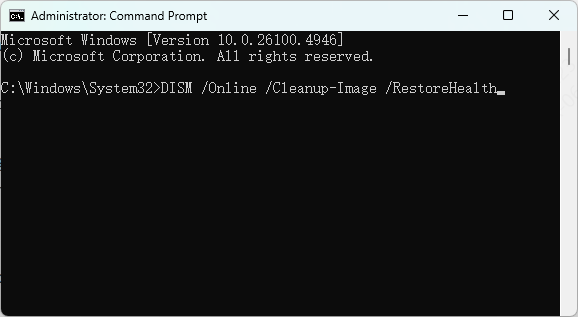
If you are seeing DLL errors in multiple programs, not just Boris FX Continuum, Windows system corruption may be involved. In that case, run the built-in repair tools.
Open Command Prompt as administrator and run:
sfc /scannow
After that, run:
DISM /Online /Cleanup-Image /RestoreHealth
Update Windows and Your Editing Software
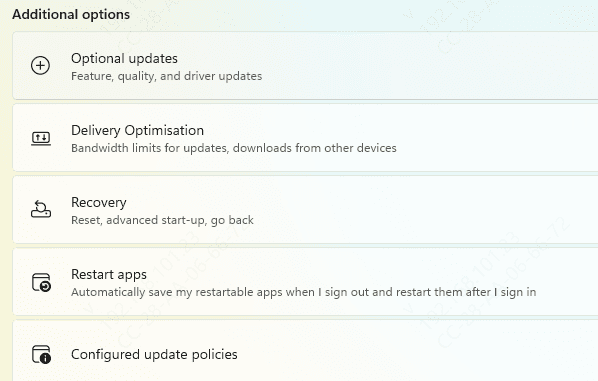
Outdated Windows components can cause plugin load failures, especially after major application updates. Install the latest stable Windows updates and make sure your host application is also updated to a supported version
Outdated software combinations often lead to plugin instability that appears as a DLL error
Use PcGoGo DLL Fixer
If your PC is showing repeated DLL errors across multiple apps, not just Boris FX Continuum, you may be dealing with deeper runtime or registry-related issues. In that situation, a repair tool such as PcGoGo DLL Fixer may help scan the system for missing or damaged DLL-related components and repair them automatically.
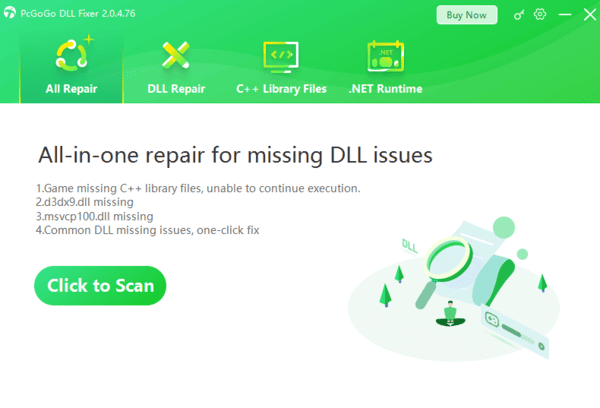
This step is more useful when the problem affects several applications, not when the issue is clearly limited to one incompatible plugin version.
Final Thoughts
If only one host app is affected, focus on that app's compatibility and plugin cache first. If several creative apps show similar DLL problems, Windows or shared runtime components are more likely to blame. In either case, avoid downloading random DLL files and fix the root cause instead. That is the safest and most reliable way to restore Boris FX Continuum to normal operation




