





Getting Steam Overlay DLL Error 126 with Shift+Tab not working or games crashing on launch? This guide covers 10 proven fixes — enabling the Steam overlay, running as administrator, checking antivirus quarantine, verifying game files, reinstalling Steam, repairing Visual C++ Redistributables, updating graphics drivers, and using PcGoGo DLL Fixer — to resolve the error fast.
Restart Steam and Your PC First
Before trying advanced fixes, fully close Steam and restart your computer
After rebooting, open Steam again and try launching the game that showed the overlay error. If the problem remains, continue with the next steps
Make Sure Steam Overlay Is Enabled
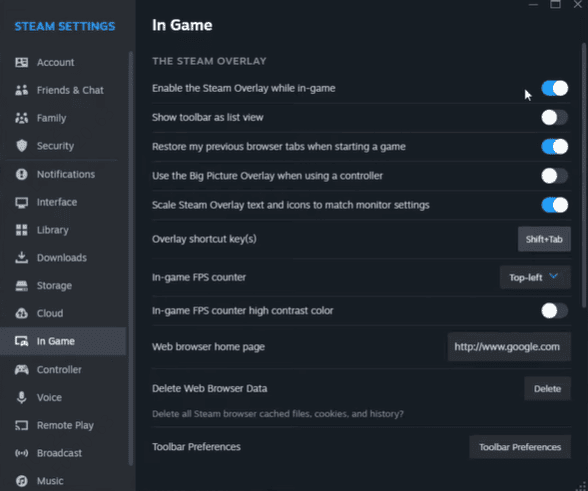
Open Steam, go to Settings, then In-Game, and confirm that the Steam Overlay option is turned on. After that, open the properties of the affected game and make sure the overlay is enabled for that title as well
If the setting was disabled, turn it back on and test the game again. If the overlay is already enabled but still not loading, move on to the next fix
Run Steam as Administrator
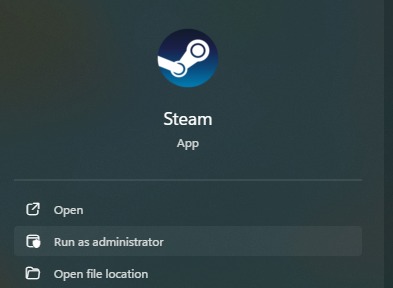
Windows permission issues can sometimes stop Steam from loading overlay modules correctly. Right-click the Steam shortcut and choose Run as administrator. Then start the game again and see whether the overlay works
This can help if Steam was installed in a protected location or if another security setting is blocking access to required files. If the overlay works when Steam is run as administrator, the issue is likely related to permissions rather than a missing DLL
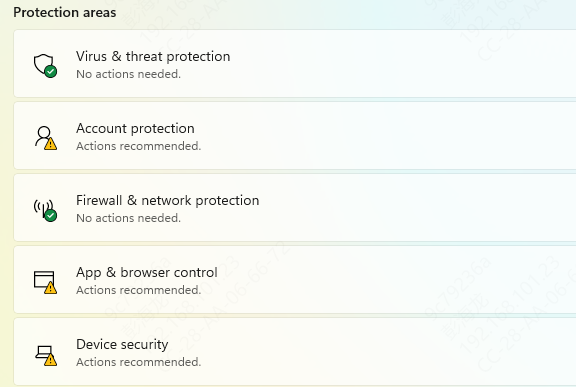
Check Windows Security and Antivirus
Open Windows Security and review Protection History. If you use another antivirus product, check its quarantine section as well. If a Steam-related file was blocked or removed, restore it only if your Steam installation is legitimate and trusted. Then restart Steam and test again
If the antivirus keeps blocking the same files, you may need to add the Steam folder to the exclusion list. This should be done carefully and only for trusted software
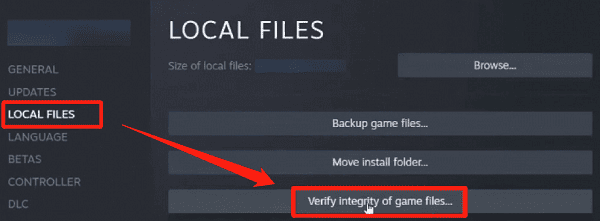
Verify the Integrity of Game Files
If the error only appears in one specific game, the game files themselves may be damaged. Open Steam, go to the game's properties, find the installed files section, and run Verify integrity of game files. Steam will scan the installation and redownload any missing or corrupted files automatically
This is often one of the fastest and safest ways to fix overlay-related issues that appear after a game crash, interrupted update, or file modification. If the game uses damaged files, the overlay may fail to attach properly and show Error 126
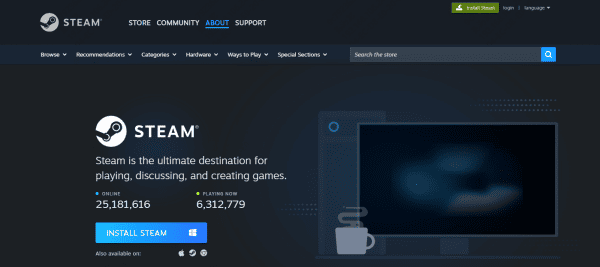
Repair or Reinstall Steam
If several games show the same overlay error, or if Steam itself appears unstable, the Steam client installation may be damaged. In that case, reinstalling Steam can help restore missing or corrupted overlay files
If possible, back up your Steamapps folder first so you do not need to download all your games again. Then reinstall Steam and log in again. After reinstalling, test whether the overlay works before making any other changes
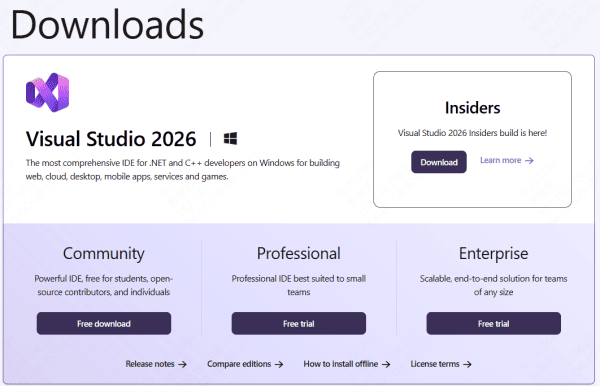
Install Microsoft Visual C++ Redistributables
Many games and Steam components depend on Microsoft Visual C++ runtime packages. If those runtimes are missing or corrupted, Steam may fail to load the overlay or one of its related modules. Installing the latest Visual C++ Redistributables can fix many DLL-related startup problems
It is usually a good idea to install both x86 and x64 versions, even on a 64-bit system, because some games still rely on 32-bit components. After installation, restart the computer and test Steam again
Repair DirectX Components
DirectX problems can also affect the Steam overlay, especially in games that rely heavily on in-game rendering hooks. If DirectX runtime files are damaged or incomplete, the overlay may not load correctly
Install or repair DirectX runtime components from Microsoft, or use the redistributables folder included with the game if it provides one. After installation, restart your PC and test the game again

Update Graphics Drivers
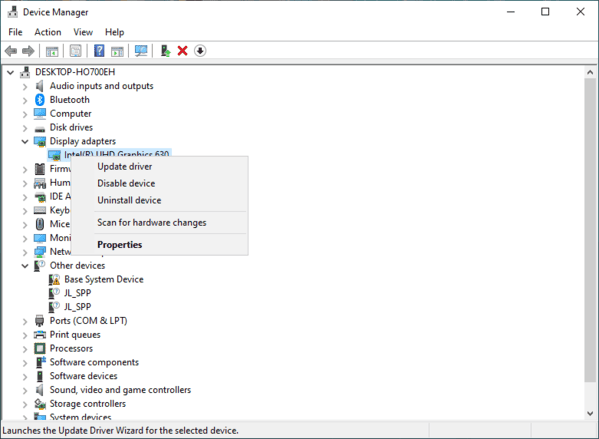
Outdated or unstable graphics drivers can prevent the overlay from loading properly. Install the latest stable graphics driver for your GPU and restart the system. If the issue started immediately after a driver update, consider doing a clean reinstall of the driver or rolling back to a previous stable version
Graphics drivers do not always cause a direct DLL message, but they can easily break overlay injection and trigger Error 126 in Steam games
Update Windows
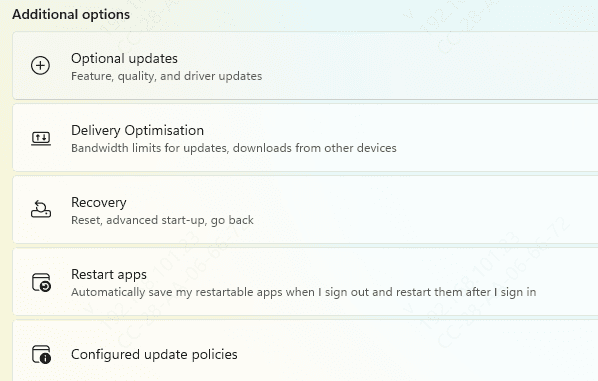
If your system is behind on updates, install the latest important Windows updates. Missing system patches can affect compatibility with Steam, games, runtime packages, and overlay components. After updating, restart the computer and test the overlay again.
Use PcGoGo DLL Fixer
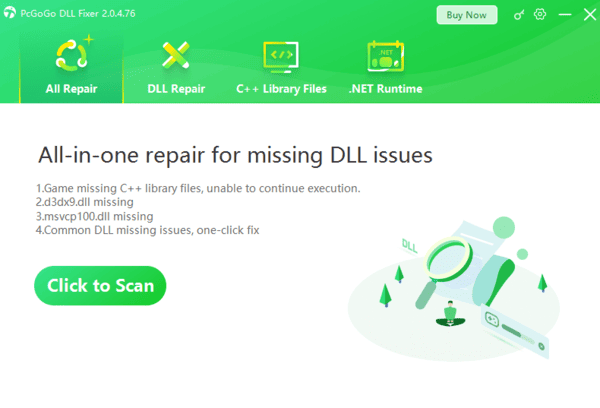
If your computer shows repeated DLL errors across multiple programs, not just Steam, the problem may be broader than one overlay file. In that case, a repair tool such as PcGoGo DLL Fixer may help scan for damaged or missing DLL-related components and repair them automatically.
Final Thoughts
Steam Overlay DLL Error 126 on Windows 10 is usually caused by corrupted Steam files, blocked overlay components, missing Visual C++ or DirectX dependencies, graphics driver issues, overlay conflicts, or Windows system corruption. The most effective fixes are to enable the overlay in settings, run Steam as administrator, check antivirus quarantine, verify game files, reinstall Steam if needed, update drivers, and repair Windows with SFC and DISM.
