
Steam DLL errors can prevent Steam or games from launching, often showing messages like "steam_api.dll is missing," "failed to load DLL," or similar startup errors. Although these errors seem to point to a single missing file, the underlying cause is often broader. Common reasons include corrupted game files, broken Steam components, missing Visual C++ runtime packages, damaged DirectX files, antivirus interference, outdated drivers, or Windows system issues. Instead of downloading DLL files from unofficial sources, the safer approach is to repair the game or restore the required components through Steam, Windows, or official Microsoft runtime packages.
Check Antivirus and Windows Security
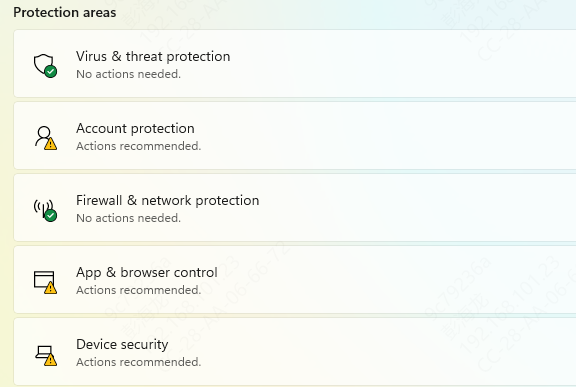
Open Windows Security and review Protection History, or check the quarantine section of your antivirus program. If a Steam-related or game-related file was blocked, review whether the source is trusted
If it came from a legitimate Steam install, restore the file and test again. You may also need to add the Steam folder or game folder to the antivirus exclusion list to prevent repeated blocking
Verify the Integrity of Game Files
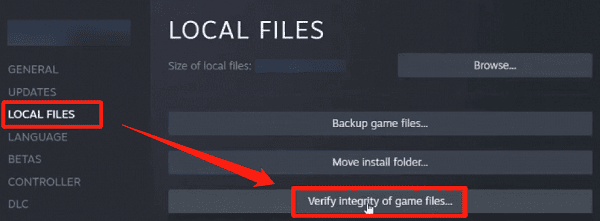
If the error only affects one game, the quickest fix is often Steam's built-in verification tool. Open the game's properties in Steam, go to the installed files section, and verify the integrity of the game files
Steam will compare the current files against the official version and redownload anything missing or damaged
Repair or Reinstall Steam
If Steam itself is showing DLL errors, or if several games are affected at once, the Steam client installation may be damaged. In that situation, reinstalling Steam can help restore broken files
If possible, back up your Steamapps folder first so you do not need to redownload your entire game library
Install Microsoft Visual C++ Redistributables
Many Steam games depend on Microsoft Visual C++ runtime packages. If those runtime files are missing or damaged, games may fail with DLL-related startup errors
Install the latest Microsoft Visual C++ Redistributables from Microsoft. It is often a good idea to install both the x86 and x64 versions, since some 64-bit systems still run 32-bit games that require the x86 package. After installation, restart your computer and try launching the game again

Update DirectX Runtime Components
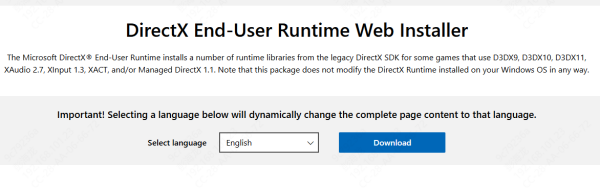
Steam games often rely on DirectX libraries in addition to Visual C++ runtimes. If DirectX runtime files are broken or missing, the game may not load properly and can trigger a DLL error at startup. Many games include a redistributables folder that contains DirectX setup files
If available, run the DirectX installer bundled with the game. You can also install the official DirectX runtime components from Microsoft
Run SFC and DISM to Repair Windows
If multiple games are showing DLL errors, or if Steam problems are happening alongside other Windows issues, system file corruption may be involved. In that case, use the built-in Windows repair tools.
Open Command Prompt as administrator and run:
sfc /scannow
After that completes, run:
DISM /Online /Cleanup-Image /RestoreHealth
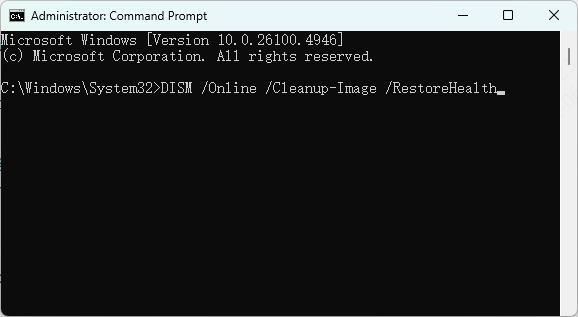
SFC scans protected system files and repairs damaged ones. DISM repairs the Windows component store that SFC depends on. After both scans finish, restart the computer and test Steam again.
Update Windows and Graphics Drivers
Outdated Windows builds and graphics drivers can also contribute to Steam DLL errors, especially with newer games. Install all important Windows updates and update your graphics driver to the latest stable version from your GPU vendor. Once the updates are complete, restart the computer.
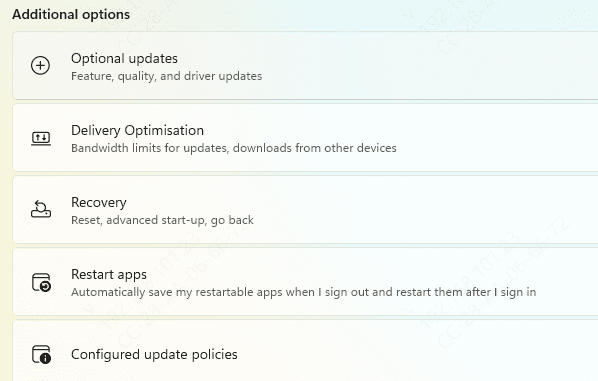
If the error began immediately after a graphics driver update, you may need to reinstall the driver cleanly or return to a previous stable version. Driver instability does not always cause a direct DLL error, but it can break game startup dependencies and trigger module load failures.
Use PcGoGo DLL Fixer

If your computer is showing DLL errors across many different apps, not just Steam games, the problem may involve wider DLL corruption or broken runtime registrations
In that case, a tool such as PcGoGo DLL Fixer may help detect and repair missing or damaged DLL-related issues automatically
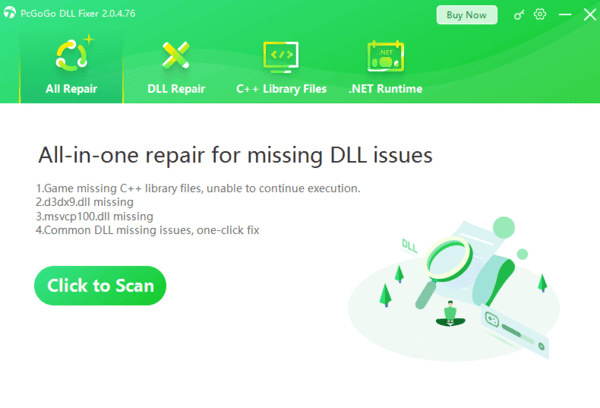
This step is more useful when the system has multiple startup errors or signs of broader instability. It should be treated as part of a full repair process rather than the first fix for one single game.
Final Thoughts
Steam DLL errors are usually caused by corrupted game files, broken Steam components, missing Visual C++ or DirectX runtimes, antivirus interference, outdated drivers, mod conflicts, or damaged Windows files. The most reliable fixes are to verify the game files, check antivirus quarantine, repair Steam if needed, reinstall runtime packages, and run SFC and DISM.
The key is to fix the root cause instead of downloading individual DLL files from random websites. When you restore the correct components through Steam, Microsoft packages, and Windows repair tools, the error is much more likely to be solved permanently.