
If your WiFi or Ethernet connection is unstable, missing, or completely unavailable, a corrupted or outdated network adapter driver may be the cause. Reinstalling the network adapter can refresh the driver, clear connection errors, and help Windows detect the hardware correctly again. This guide explains several practical ways to reinstall a network adapter on Windows, including using Driver Sentry for automatic driver repair, reinstalling the adapter through Device Manager, downloading drivers from the manufacturer, and resetting Windows network settings.
Method 1: Reinstall Network Adapter via Device Manager
If you prefer a manual approach, Windows Device Manager allows you to uninstall and reinstall network adapter drivers.
Press Windows + X and select Device Manager.
Expand the "Network adapters" section, right-click your WiFi or Ethernet adapter and choose "Uninstall device".
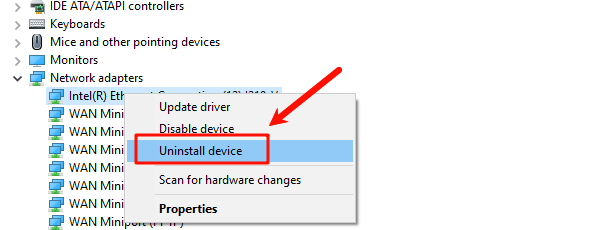
Check the option "Delete the driver software for this device" if available.
Click "Uninstall" and wait for the process to finish.
Restart your computer.
After rebooting, Windows will attempt to reinstall the default network adapter driver automatically.
Method 2: Install Network Adapter from Manufacturer Website
If Windows fails to reinstall the driver correctly, downloading it directly from the hardware manufacturer is another effective solution.
Identify your network adapter model: Use Device Manager or check your laptop or motherboard specifications.
Visit the official manufacturer website: Common manufacturers include Intel, Realtek, Broadcom, ASUS, Dell, HP, and Lenovo.
Download the correct driver for your Windows version: Ensure the driver matches your system architecture (64-bit or 32-bit).
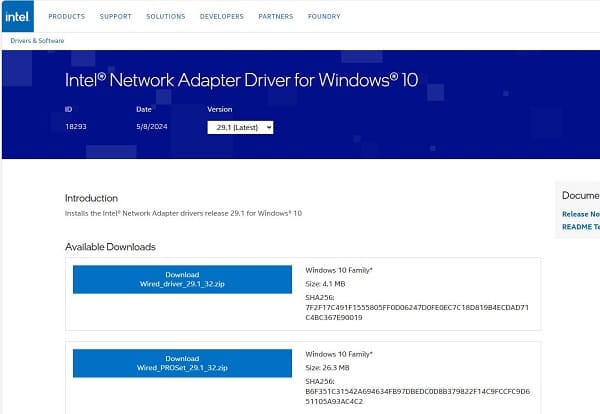
Run the installer and follow on-screen instructions.
Restart your PC after installation.
Method 3: Use Windows Network Reset
If driver reinstallation does not solve the issue, a network reset can clear corrupted configurations.
Open Settings and go to "Network & Internet".
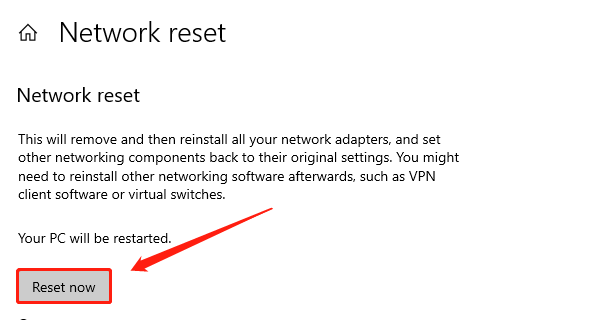
Scroll down and select "Network reset".
Click "Reset now" and confirm.
Restart your computer.
This process reinstalls network adapters and resets all network-related settings.
Update Network Adapter Drivers
Driver Sentry automatically detects faulty or outdated network drivers and installs the correct versions for your system, reducing the risk of compatibility issues.
Download and Install:
Use a temporary internet connection (Ethernet or a mobile phone USB tether) if your PC is completely offline.
Download and install the Driver Sentry application onto your Windows PC.
Run Scan:
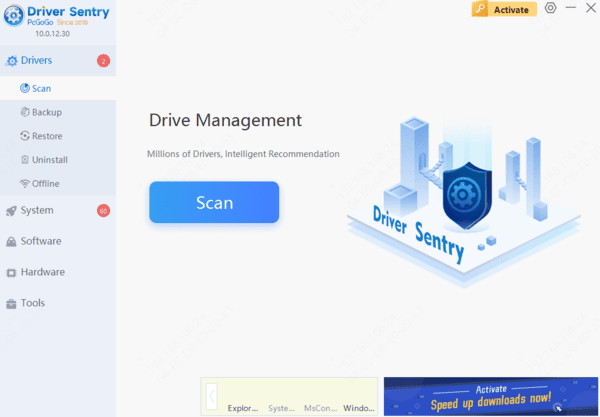
Launch Driver Sentry from the desktop or Start Menu, click the "Scan" button.
The software will perform a deep analysis of your system, focusing on network, Ethernet adapters and core system components.
Execute Update:
The results will show you a list of all drivers that need attention. Select the necessary drivers and click the "Upgrade" or "Repair Now" button.
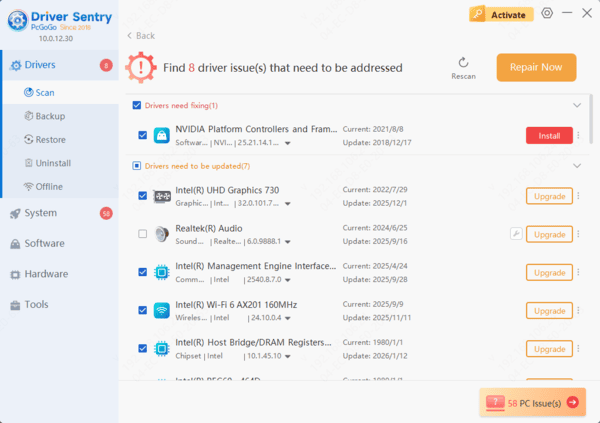
Driver Sentry will download the latest, certified versions specific to your WiFi adapter, crucial for reliable scanning and connection establishment.
Restart Your PC:
Do not interrupt the process. Once finished, restart your computer to apply the changes.
Using Driver Sentry ensures that the correct driver version is installed without manual searching, which is especially helpful if Windows cannot access the internet.
Frequently Asked Questions
Will Windows automatically reinstall my network adapter after I uninstall it?
Usually, yes. After restarting the computer, Windows should detect the adapter and install a compatible default driver. If it does not, download the correct driver from your PC or adapter manufacturer.
How can I reinstall a network driver when my computer has no internet?
Use another device to download the driver and transfer it via USB. Alternatively, temporarily connect through Ethernet or use your phone's USB tethering feature.
Does a network reset delete saved Wi-Fi passwords?
Yes. A network reset removes and reinstalls network adapters and restores their settings to default. You may need to reconnect to Wi-Fi networks, re-enter passwords, and reconfigure VPN software afterward.
Common Causes of Network Adapter Driver Issues
Outdated or incompatible drivers
Corrupted driver files after Windows updates
Incorrect driver installation
Malware or system file damage
Power interruptions during driver updates
Final Thoughts
Reinstalling a network adapter driver is a proven way to fix WiFi and Ethernet connection issues on Windows. Using Driver Sentry provides the fastest and most reliable solution by automatically detecting and reinstalling the correct drivers. If necessary, manual methods such as Device Manager, manufacturer downloads, and network resets offer additional ways to restore connectivity.\