





HP monitor showing "No Signal"? This guide covers 7 fixes — updating display and chipset drivers with Driver Sentry, verifying the monitor input source, inspecting cables and ports, forcing Windows to detect the display, testing with another monitor, resetting the graphics driver with a keyboard shortcut, and reseating the GPU in desktop PCs — to restore your HP monitor signal fast.
Check Monitor Input Source Settings
If your drivers are updated but the issue persists, the monitor may be set to the wrong input source.
Steps to Verify Input Source:
1. Turn on the monitor.
2. Press the Menu or Input button on the monitor.
3. Confirm the selected input matches the cable in use:
HDMI
DisplayPort
VGA
DVI
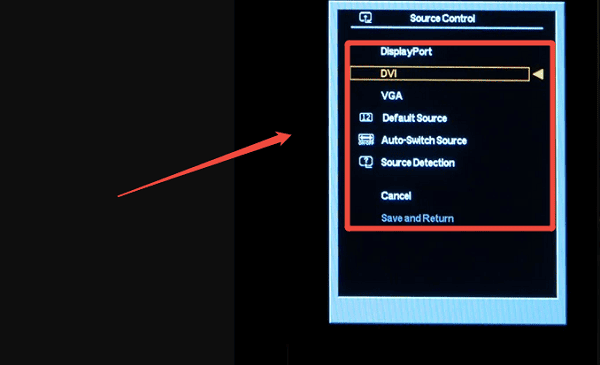
4. Switch manually to the correct input and save the settings.
Many HP monitors do not automatically detect the correct input, especially after system restarts or cable changes.
Inspect Display Cables and Ports
A loose or damaged cable can prevent the signal from reaching the monitor.
What to Check:
Disconnect and reconnect the video cable securely on both ends.
Try a different HDMI, DisplayPort, or VGA cable.
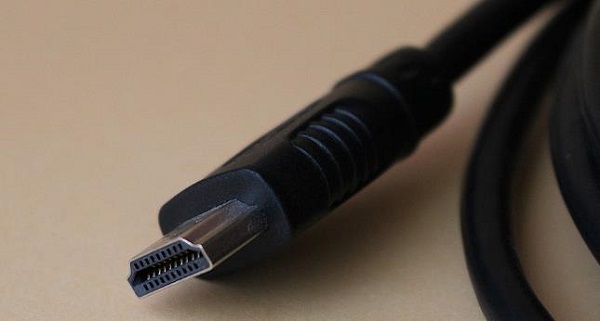
Plug the cable into a different port on the graphics card.
Avoid using adapters if possible, especially HDMI-to-VGA converters.
If you are using a docking station, connect the monitor directly to the PC to rule out dock-related issues.
Restart and Reset Display Detection in Windows
Sometimes Windows fails to detect the monitor correctly.
Manually Detect the Monitor:
Right-click on the desktop and select "Display settings".
Scroll down and click "Advanced display settings".

Select "Detect" to force Windows to search for connected displays.
If multiple displays are listed, set the correct one as the primary display.
Test with Another Monitor or Computer
To determine whether the problem is with the monitor or the PC:
Connect the HP monitor to another computer.
Connect a different monitor to your HP computer.

If the HP monitor works on another system, the issue is likely driver- or GPU-related. If it fails everywhere, the monitor may be defective.
Update Display and Chipset Drivers
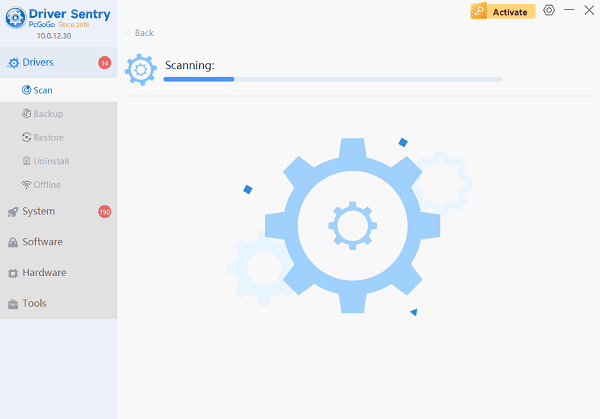
Outdated or corrupted graphics, chipset, or monitor drivers are one of the most common reasons an HP monitor displays "No Signal". Before trying hardware replacements or advanced troubleshooting, updating drivers should be your first step.
Reset Graphics Driver Output
In some cases, the graphics driver may be stuck in an incorrect output mode.
Quick Reset Shortcut:
Press Windows + Ctrl + Shift + B.
The screen may flicker briefly.
Check if the signal returns.
This shortcut restarts the graphics driver without rebooting the system.
Check BIOS and Graphics Card Seating (Desktop Only)
For HP desktop users:
Shut down the PC and unplug it.
Open the case and reseat the graphics card firmly into the PCIe slot.
Ensure the GPU power cables are connected properly.
Enter BIOS and confirm the correct primary display device is selected.
Final Thoughts
An HP computer monitor showing "No Signal" is usually caused by driver issues, incorrect input settings, or connection problems. Updating graphics, monitor, and chipset drivers using Driver Sentry should always be your first troubleshooting step, as it resolves the majority of cases quickly and safely. If the issue persists, methodically checking cables, display settings, and hardware will help identify the exact cause. By following these solutions in order, you can restore your HP monitor's display signal without unnecessary hardware replacements.




