






When one key stops working on your keyboard, or a few keys suddenly become unresponsive, even simple tasks can become frustrating. You may be unable to type a password, use shortcuts, enter numbers, or play games normally. In Windows, this problem is often caused by a driver issue, a USB communication fault, an incorrect keyboard setting, background software interference, or physical debris under the key. In most cases, the keyboard is not permanently damaged, and the problem can be fixed with a few targeted checks.
Why a Keyboard Key Stops Working
A non-working key does not always mean the keyboard itself is broken. On Windows PCs, the most common causes include outdated keyboard or USB drivers, accessibility settings such as Filter Keys, software conflicts from remapping tools or gaming software, unstable USB ports, and dust or debris stuck under the keycap
Laptop keyboards can also be affected by wear over time, while external keyboards may fail because of cable damage or inconsistent USB power.
Restart Windows and Test the Key Again
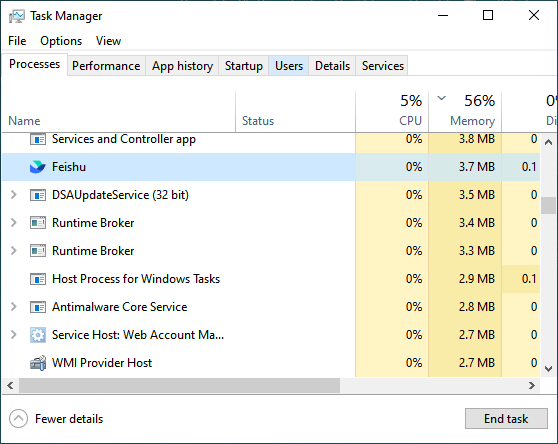
Sometimes the issue is temporary and tied to a system process rather than the keyboard itself. Restarting the PC is the quickest check, but if you want to try a faster reset first, open Task Manager with Ctrl + Shift + Esc, find Windows Explorer under Processes, and restart it. This can clear small interface and input glitches that make the keyboard appear unresponsive
After that, test the affected key in Notepad, the Windows search bar, and a browser to see whether the problem is system-wide or limited to one app
Turn Off Filter Keys and Other Keyboard Settings
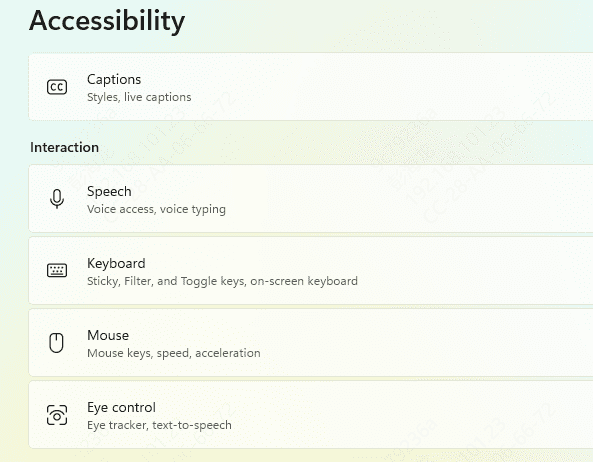
Windows accessibility settings can block or ignore short key presses. If only certain keys seem delayed, inconsistent, or completely ignored, open Settings and go to the keyboard accessibility section
Make sure Filter Keys is turned off. This setting is useful for some users, but it can also make normal typing feel broken if it was enabled accidentally. While you are there, review any other typing-related options that might affect repeated or short key presses
Check the USB Port or Test Another Device
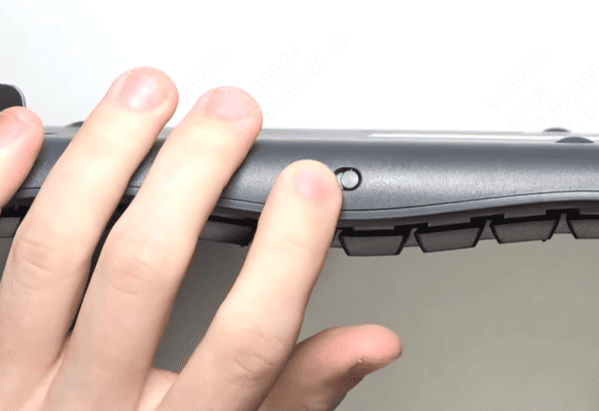
If you are using an external keyboard, switch it to another USB port and avoid using a hub or docking station during testing. Some keyboard issues are actually connection problems between the device and the USB controller
If possible, connect the keyboard to another computer. If the same key still does not work there, the issue is likely hardware-related. If the key works on another machine, the problem is more likely tied to Windows settings, drivers, or software on your original PC
Check the Keyboard Driver
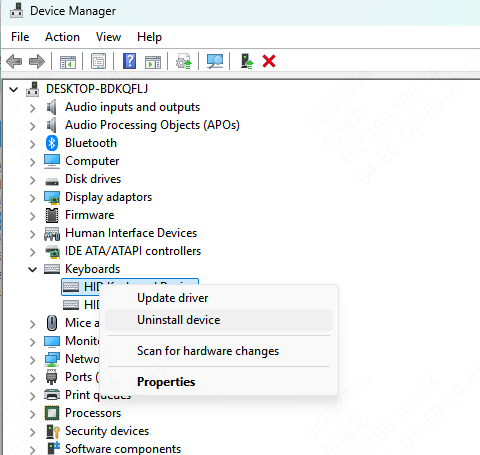
If updating drivers did not fully solve the issue, try a clean reinstall. Open Device Manager, expand the Keyboards section, right-click your keyboard device, and uninstall it. Then restart the computer
Windows should reinstall the keyboard driver automatically during startup. This can fix cases where the driver is present but no longer functioning correctly. After rebooting, test the key again in a simple text field before opening other apps
Update Keyboard and Input Drivers
A damaged or outdated keyboard driver, USB controller driver, or chipset driver can prevent Windows from detecting input correctly. This is especially common after a Windows update, after switching USB ports, or when using an older external keyboard on a newer PC.
Driver Sentry can help by scanning the system for outdated, missing, or corrupted drivers related to the keyboard, USB devices, and chipset. After installing it, run a scan, review the results, and repair the drivers it identifies
Once the update is complete, restart the computer and test the key again. If the issue was caused by a driver conflict, the key may begin working normally after reboot

Clean the Affected Key Carefully
If only one physical key is not working while the rest of the keyboard is fine, debris is a strong possibility. Dust, crumbs, or buildup around the switch can prevent the key from registering
Power off the PC or disconnect the keyboard first. Then use compressed air to blow around the affected key. A soft brush can also help remove dirt around the edges. Avoid using too much liquid, especially on laptop keyboards. After cleaning, reconnect the keyboard and test the key again
When the Problem Is Probably Hardware
If the same key still does not work after updating drivers, reinstalling the device, disabling conflicting settings, testing another USB port, and checking the keyboard on another computer, the problem may be physical
On mechanical and membrane keyboards, a failed switch or internal circuit can stop a key from responding completely. On laptops, the keyboard ribbon cable or internal key mechanism may be worn or damaged. At that point, repair or replacement is usually the most practical solution

Final Thoughts
A key not working in Windows is usually caused by a driver issue, a setting conflict, or a connection problem rather than immediate hardware failure. Starting with a driver check is the most efficient approach, which is why updating the keyboard, USB, and chipset drivers with Driver Sentry is a smart first step. If the issue remains, checking Filter Keys, reinstalling the keyboard driver, testing another port, and cleaning the key can help narrow down the cause quickly. Once you identify whether the issue is software or hardware, the fix becomes much easier and you can avoid replacing a keyboard unnecessarily.




