






The Logitech M510 is a widely used wireless mouse known for its comfortable design and stable daily performance. But like many wireless peripherals, it can still run into problems over time. You may notice the cursor freezing, lagging, jumping across the screen, moving erratically, or failing to respond at all. In some cases, the mouse disconnects randomly. In others, Windows detects the receiver but the M510 still does not work normally. If you troubleshoot the issue step by step, the mouse can often be restored quickly without replacement.
Check the Batteries First
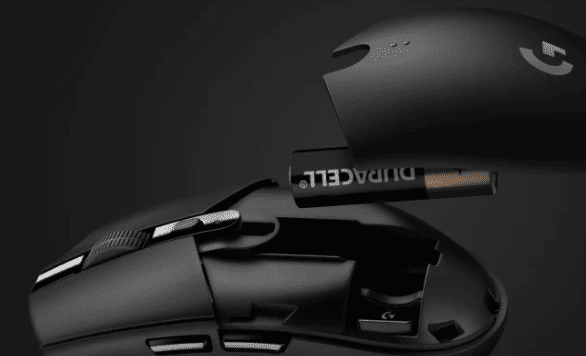
Low battery power is one of the most common reasons a Logitech M510 starts behaving strangely. A weak battery can cause delayed tracking, random disconnects, or complete failure to respond. Even if the mouse still turns on, the battery may no longer provide stable power
Replace the old AA batteries with a fresh set and then turn the mouse off and back on using the switch on the bottom. After that, test the cursor again. Many users spend time reinstalling software when the real problem is simply unstable battery power
Check the USB Receiver Connection
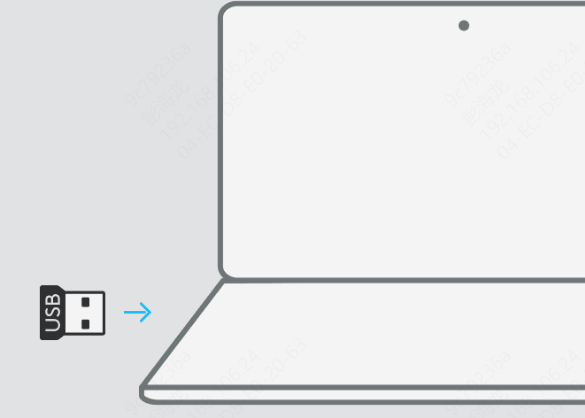
The Logitech M510 depends on its Unifying Receiver to maintain a stable wireless link with the PC. If the receiver connection becomes unstable, the mouse may stop responding or disconnect intermittently
Unplug the receiver and reconnect it to a different USB port. If possible, avoid using a crowded USB hub and plug it directly into the computer
Sometimes a front USB port or a different side port on a laptop works better than the original one. If the receiver is too far from the mouse, signal quality may also suffer, so moving it closer can improve responsiveness
Re-pair the Mouse with the Receiver
If changing the USB port does not help, the connection between the mouse and the Unifying Receiver may have been disrupted. In that case, installing Logitech Unifying Software and pairing the mouse again is often effective
Download the official Logitech Unifying Software from Logitech's website, open it, and follow the on-screen instructions to reconnect the M510 to the receiver. This step is especially useful if the mouse stopped working after a system reinstall, a USB issue, or a long period of disconnection

Reinstall the Mouse Driver
Driver issues are another common reason the Logitech M510 stops working correctly. Windows may load a generic HID driver that becomes corrupted, or the USB controller driver may fail to communicate properly with the receiver.
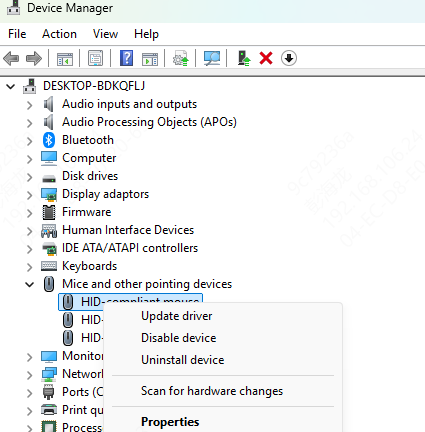
Open Device Manager and expand Mice and other pointing devices. Locate the Logitech mouse entry or the HID-compliant mouse entry, right-click it, and choose Uninstall device
Then in Device Manager, click Action and choose Scan for hardware changes. Windows will detect the mouse again and load a fresh driver configuration
Update USB and Related Drivers
Sometimes the issue is not the mouse driver itself, but the USB controller or chipset driver that handles the receiver connection. If those drivers are outdated or unstable, the M510 may disconnect randomly or behave unpredictably.
You can update these drivers manually through the PC manufacturer's support page, or use Driver Sentry to scan for outdated USB, chipset, and peripheral-related drivers automatically
This is often the faster option when you are not sure which component is creating the conflict. After the update, restart the computer and test the mouse again

Check Mouse Settings in Windows
Some Logitech M510 users find that the mouse is technically working, but the pointer feels inaccurate, too fast, too slow, or hard to control. In many cases, this is related to Windows pointer settings rather than a hardware problem.
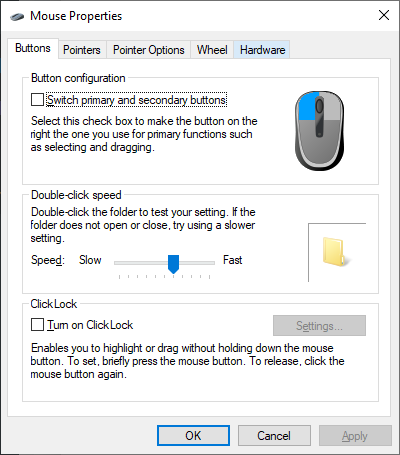
Press Windows + R, type main.cpl, and open Mouse Properties. Under Pointer Options, check the pointer speed and consider disabling Enhance pointer precision if movement feels inconsistent
This Windows setting changes how pointer acceleration behaves, and some users experience better control when it is turned off
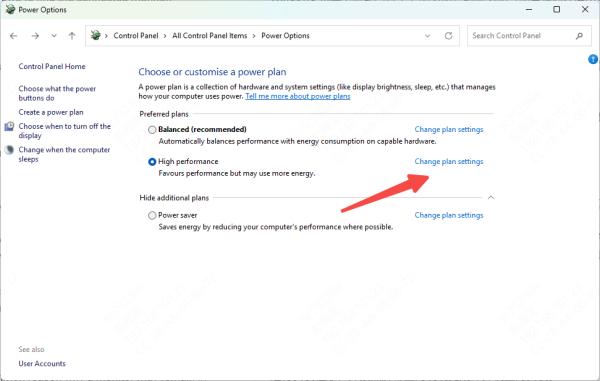
Wake-from-Sleep Problems
Open Device Manager, expand Universal Serial Bus controllers, and check the properties of the USB Root Hub entries
In the Power Management tab, uncheck the option that allows the computer to turn off this device to save power
This can help prevent the receiver from losing connection after sleep or idle periods
Conclusion
Most Logitech M510 mouse problems are caused by batteries, receiver connection issues, driver conflicts, Windows settings, or wireless interference rather than permanent hardware damage. The most effective fixes are replacing the batteries, reconnecting the Unifying Receiver, re-pairing the mouse, reinstalling the driver, and updating USB or chipset drivers. If you want a quicker way to check related drivers, Driver Sentry can help identify and repair the system components that may be affecting mouse stability. By working through these fixes in order, most M510 connection and cursor problems can be resolved without much effort.




