
If your Wi-Fi shows as connected but there is no internet access, the problem may be caused by incorrect network settings, DNS errors, outdated Wi-Fi drivers, router issues, VPN or firewall conflicts, or temporary ISP problems. Windows may remain connected to the wireless network while websites and online applications fail to load. This guide covers practical ways to fix WiFi connected but no internet issues, including restarting network devices, resetting TCP/IP settings, changing DNS servers, checking proxy settings, resetting the network, and updating Wi-Fi drivers with Driver Sentry.
Common Causes of "WiFi Connected but No Internet"
Outdated or incompatible WiFi drivers
Incorrect IP or DNS configuration
Router or modem firmware issues
ISP service interruptions
VPN or firewall conflicts
Corrupted Windows network components
Fix 1: Restart Router, Modem, and PC
Turn off your PC.
Unplug the router and modem from power.
Wait at least 60 seconds.
Plug the modem back in first and wait until all lights stabilize.
Plug in the router and wait again.
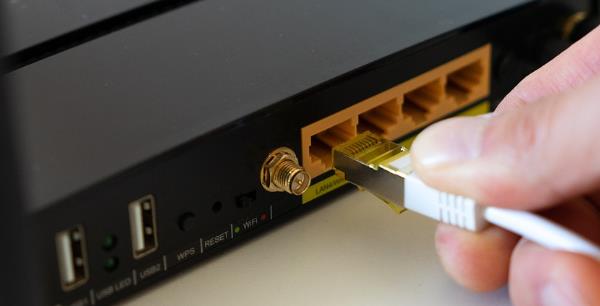
Turn on your PC and reconnect to WiFi.
If other devices also have no internet, the issue is likely with the router or ISP.
Fix 2: Run Windows Network Troubleshooter
Press Windows + I to open Settings.
Go to "Network & Internet", select "Status".
Find "Network Adapter" and run the troubleshooter.
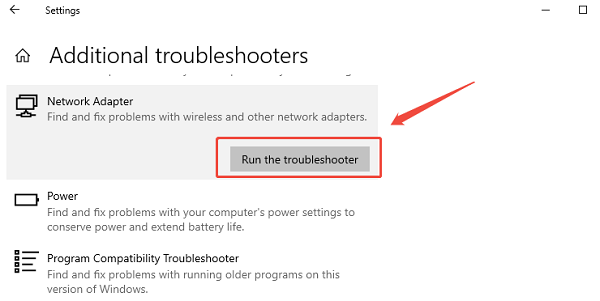
Follow the on-screen instructions.
Fix 3: Reset TCP/IP and Network Configuration
1. Type "cmd" in Windows Search.
2. Right-click Command Prompt and choose "Run as administrator".
3. Enter the following commands one by one, pressing Enter after each:
netsh winsock reset

netsh int ip reset
ipconfig /release
ipconfig /renew
ipconfig /flushdns
4. Restart your computer.
Fix 4: Change DNS Server Settings
1. Press Windows + R, type "ncpa.cpl", and press Enter.
2. Right-click your active WiFi adapter and select "Properties".
3. Double-click "Internet Protocol Version 4 (IPv4)".
4. Select Use the following DNS server addresses. Enter:
Preferred DNS server: 8.8.8.8
Alternate DNS server: 8.8.4.4
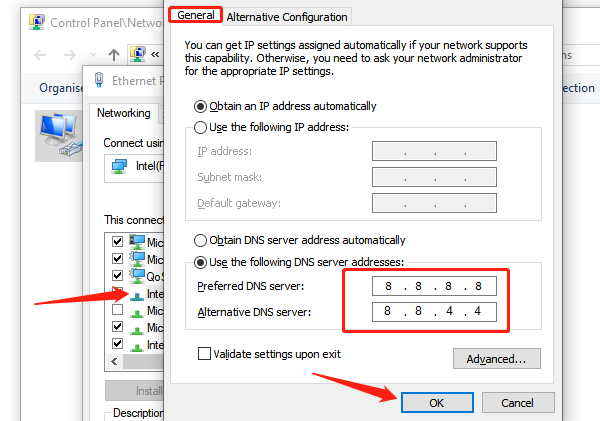
5. Click OK and reconnect to WiFi.
Fix 5: Disable Firewall or Security Software Temporarily
Disconnect any active VPN.
Temporarily disable third-party firewall or security software.
Test your internet connection.
Fix 6: Check Proxy Settings
Open Settings.
Go to Network & Internet > Proxy.
Turn off "Use a proxy server" unless required by your network.
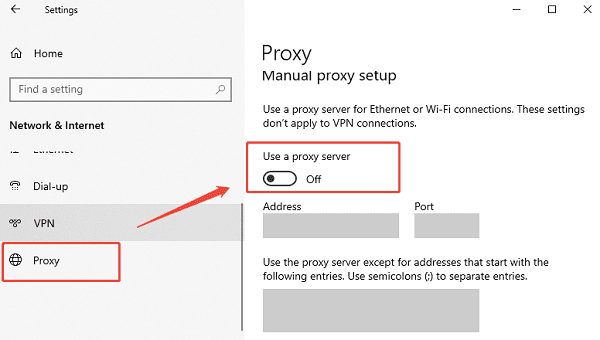
Restart your browser and test the connection.
Fix 7: Reset Network Settings in Windows
Open Settings.
Go to Network & Internet > Advanced network settings.
Select "Network reset".
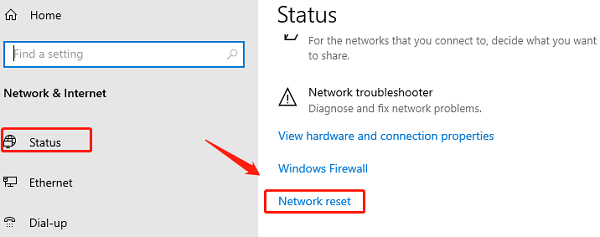
Click "Reset now".
Restart your PC and reconnect to WiFi.
Fix 8: Update Network Drivers
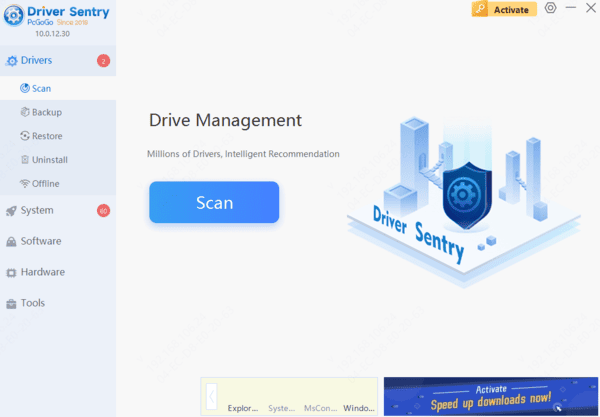
Outdated, missing, or incompatible WiFi drivers are the primary reason Windows connects to a network but cannot access the internet. Updating drivers early saves time and avoids unnecessary system changes. Driver Sentry can update all drivers at a same time with only one click.
Conclusion
"WiFi connected but no internet" on Windows is usually caused by driver problems or misconfigured network settings. Updating your network drivers with Driver Sentry should always be the first step, as it resolves most cases quickly and safely. If needed, follow the additional fixes in this guide to fully restore internet access. Keeping drivers up to date and network settings clean is the key to stable and reliable WiFi connectivity on Windows.