
A common PC issue is when a known WiFi network suddenly stops appearing in the list of available networks. This problem effectively locks you out of the internet, making it a critical obstacle for productivity and connectivity. The causes of this "missing network" problem can range from simple physical switches and incorrect router configurations to deep driver conflicts within the operating system.
Common Causes of a Missing WiFi Network
Understanding the root cause is the first step toward fixing the issue:
Outdated or Corrupt Network Drivers: The most frequent software cause. If the driver for your WiFi adapter (Intel, Realtek, Broadcom) is old or damaged, the adapter fails to properly scan and communicate with the router.
Physical Switch/Keyboard Shortcut: Many laptops have a physical switch or keyboard function key (Fn + F-key) that accidentally disables the adapter entirely.
Incorrect Router Channel/Frequency: Your WiFi adapter may not support the 5GHz band, or the router may be broadcasting on a channel that is illegal or unavailable in your PC's region.
Windows Network Service Failure: Core Windows network services may have crashed or been incorrectly configured, preventing the operating system from listing available SSIDs.
Power Management Interference: Windows power-saving settings may aggressively shut down the WiFi adapter to conserve battery, especially on laptops, making it appear as if the networks have vanished.
Part I: Driver Integrity and System Synchronization
Since the adapter is the hardware responsible for scanning networks, ensuring its driver is stable and functional is the most direct solution.
Automated Driver Update with Driver Sentry
Manually troubleshooting and updating the specific network adapter driver (often hidden when connections fail) and the core chipset drivers can be challenging. A specialized utility automates this entire procedure, guaranteeing stability for the network adapter.
Preparation:
Use a temporary internet connection (Ethernet or a mobile phone USB tether) if your PC is completely offline.
Download and install the Driver Sentry application onto your Windows PC.
Run Scan:
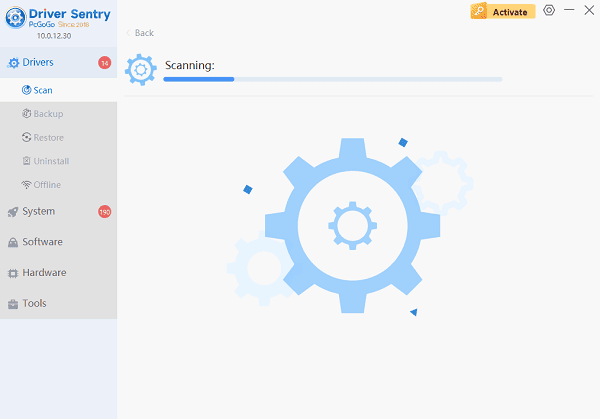
Launch the application and click the "Scan" button.
The software will perform a deep analysis of your system, focusing on network and core system components.
Execute Update:
The results will show you a list of all drivers that need attention. Select the necessary drivers and click the "Upgrade" or "Repair Now" button.

Driver Sentry will download the latest, certified versions specific to your WiFi adapter, crucial for reliable scanning and connection establishment.
Finalize:
After the installation is complete, restart your computer and check the available network list.
Part II: Windows Service and Configuration Fixes
These solutions address system settings and services that may be blocking the network list from populating.
Method 1: Check Physical Switch and Keyboard Shortcut
Before deep troubleshooting, verify the adapter hasn't been accidentally disabled.
Check Physical Switch: Look for a physical switch or slider on the side or front of your laptop that toggles the wireless radio. Ensure it is set to the "On" position.
Check Function Key: Press the Fn key simultaneously with the key displaying a WiFi or antenna icon (often F2, F5, or F12). Watch the screen for an on-screen notification that the WiFi has been enabled.
Method 2: Reset Network Configuration and Adapter
A full network reset can often resolve corrupted settings and fix a crashed network adapter.
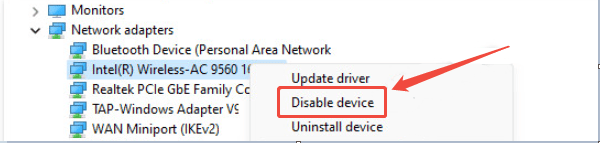
Press Windows Key + X and select "Device Manager".
Expand the "Network adapters" category.
Right-click on your WiFi adapter (e.g., "Intel Wireless-AC 9560") and select "Disable device", then wait 10 seconds and select "Enable device".
If that fails, go to "Settings" > "Network & internet" > "Advanced network settings" > "Network reset". Click "Reset now" (Note: You will lose saved WiFi passwords).
Method 3: Verify WLAN AutoConfig Service
The Wireless Local Area Network (WLAN) AutoConfig service is essential for Windows to manage and list available WiFi networks.
Press Windows Key + R and type "services.msc".
Locate the service named "WLAN AutoConfig".
Double-click the service. Ensure the "Startup type" is set to "Automatic" and the "Service status" is "Running". If it is not running, click "Start".

Part III: Router and Power Management Checks
These solutions require external checks or specific power setting adjustments.
Method 1: Check Router Channel and Frequency Band
If only your specific network is missing, it might be due to a router issue related to channel assignment.
Access your router's configuration page (usually by typing 192.168.1.1 in a browser).
Navigate to the "Wireless Settings" or "Radio Settings" section.
If running on the 5GHz band, check the "Channel". Channels 149, 153, 157, or 161 are usually safe. If your router is set to a very high or very low channel, change it to a standard channel and save the settings.
Ensure the SSID Broadcast option is Enabled (not hidden).
Method 2: Disable Power Saving for the WiFi Adapter
Windows power-saving features can aggressively shut down the WiFi card, making it unavailable.
Press Windows Key + X and select "Device Manager".
Expand the "Network adapters" category.
Right-click on your WiFi adapter and select "Properties".
Go to the "Power Management" tab.
Uncheck the box that says "Allow the computer to turn off this device to save power".
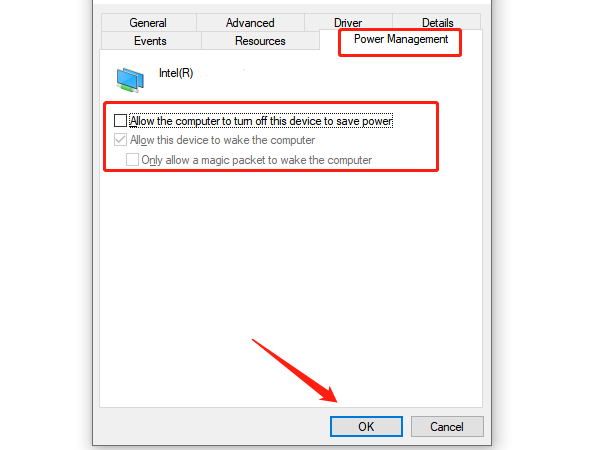
Click OK.
Conclusion
A missing WiFi network is typically a symptom of either driver failure or configuration conflict. The most effective resolution is to first ensure driver stability and synchronization with Driver Sentry. By combining this foundational fix with verifying the physical switch, ensuring the WLAN AutoConfig service is running, and disabling power management interference, you can systematically eliminate the common causes and restore your internet connection.