
Windows updates are essential for security and stability, but they can sometimes disrupt HP hardware. After an update, your printer may stop printing, the touchpad may fail, sound can disappear, or Wi-Fi may vanish. Usually, the hardware is fine—the issue comes from Windows replacing the original HP driver with a generic or incompatible version, or creating conflicts between drivers. This can make previously working devices behave unpredictably or stop working entirely.
How Windows Updates Affect HP Drivers
Windows updates can change more than just system files. They may also update drivers automatically in the background. Sometimes this works well. Other times, the update installs a generic driver that does not fully support the HP device, or it replaces one driver while leaving related chipset, audio, or controller drivers out of sync.
Common Signs of the Problem
An HP printer may go offline or stop responding. An HP laptop may lose sound, microphone input, or touchpad gestures. Wi Fi may disappear from Windows settings, Bluetooth may stop pairing, or the webcam may no longer be detected
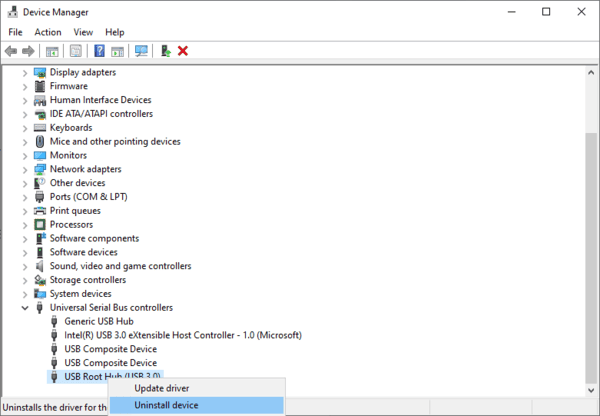
Sometimes Device Manager shows a warning icon next to the affected hardware. In other cases, the device appears normal but still does not work correctly
Start With Basic Checks
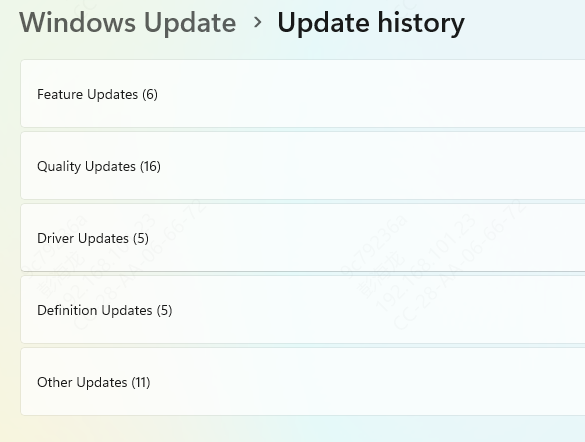
Check the update history and look for recently installed cumulative updates, feature updates, or driver updates. If the device worked before the update and failed right after it, that strongly suggests a driver conflict
Restart the PC once before doing anything else. Some update-related problems are temporary and clear after a full reboot
Roll Back the Problem Driver
If Windows recently replaced the driver and the device stopped working immediately afterward, rolling back the driver is often the fastest fix. In Device Manager, open the affected device properties and check whether the Roll Back Driver option is available
This step is useful because it restores the previous driver version that worked before the update. After rolling back, restart the computer and test the device again. If the problem disappears, the update almost certainly introduced a bad driver version
Uninstall the Recent Windows Update
Sometimes the driver itself is not the only problem. A larger Windows update may have introduced compatibility issues that affect the HP device. In that case, uninstalling the recent update may help restore normal behavior.
Use Driver Sentry to Repair Multiple Drivers
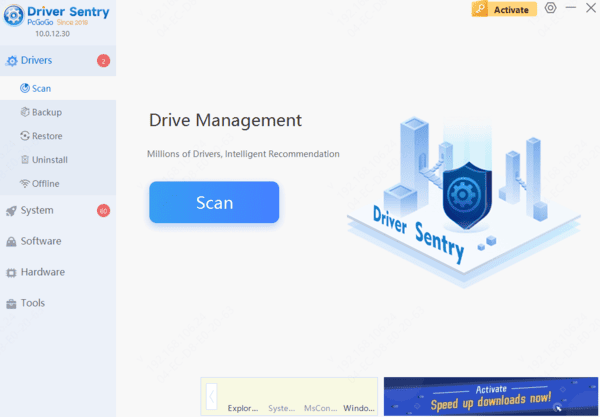
If the Windows update affected more than one driver, Driver Sentry can save time. Download and install Driver Sentry from the official Driver Sentry website. Open the software, go to the Drivers tab, and click Diagnose to scan the system.
When the scan is complete, review the results for HP device drivers along with chipset drivers, audio drivers, graphics drivers, network drivers, and USB drivers. Click Full Repair to repair or update the affected drivers
After the repair is finished, restart the PC and test the HP device again. This approach is especially helpful when the update created multiple driver conflicts at once and you do not want to troubleshoot every component manually
Use System Restore if Needed
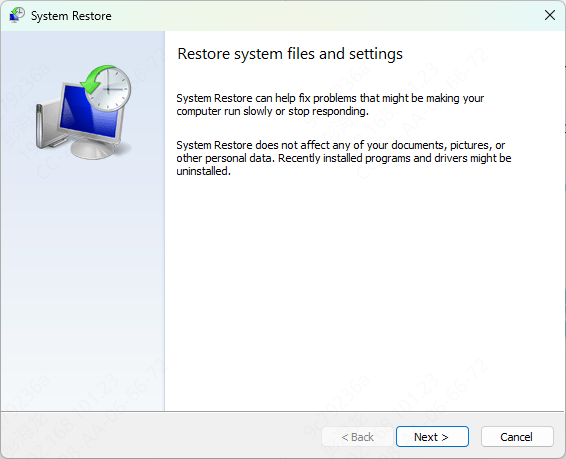
If several HP devices stopped working at the same time and manual troubleshooting is taking too long, System Restore may be a practical option. It can return the PC to a point before the update and undo many driver and system changes at once
This is often faster than repairing multiple drivers one by one. If a suitable restore point exists from before the update, it may be one of the simplest ways to recover the system
When the Problem May Be Deeper
If the correct HP driver has been reinstalled, related chipset drivers have been repaired, and the device still does not work, the issue may go beyond a simple driver conflict. The update may have exposed a firmware compatibility problem or an underlying hardware fault
This becomes more likely if BIOS does not recognize the hardware correctly, if several internal devices are missing, or if the same problem continues after system restore and clean driver installation. At that point, deeper hardware testing or official repair may be required
Conclusion
HP driver problems caused by Windows updates are usually the result of driver replacement, version conflicts, or update-related corruption rather than true hardware failure. The best troubleshooting order is simple: confirm the timing, identify the affected device, roll back the bad driver if possible, reinstall the correct HP driver, check related chipset and system drivers, and review recent updates.
If multiple drivers were affected at once, Driver Sentry can help simplify the process by scanning the system and repairing HP-related drivers, chipset drivers, audio drivers, graphics drivers, network drivers, and USB drivers more quickly. If the problem remains after these steps, the issue may involve firmware compatibility or hardware failure rather than Windows alone.