






In daily computer use, you might occasionally encounter a situation where the mouse's indicator light is on, but it doesn't function properly. Below are some simple and effective solutions to help you quickly restore the normal function of your mouse.
1. Check the Connection
First, ensure that the mouse is correctly connected to the computer. Just because the indicator light is on doesn't always mean it's connected properly. Follow these steps to troubleshoot:
Switch USB Ports:
Try plugging the mouse into a different USB port. If you're using a desktop, it's best to use a port on the back of the tower for more stable power. For wireless mice, try plugging the receiver into another port.
Check the Wireless Mouse Battery:
If you're using a wireless mouse, low battery power could be the issue. Replace the batteries or charge the mouse on its charging dock. Also, ensure the power switch is turned on.
Restart the Device:
Sometimes, a simple restart can fix the problem. After restarting your computer, check if the mouse works properly.
2. Driver Issues
Drivers are essential for the proper functioning of the mouse. If the drivers are outdated or corrupted, the mouse may not work, even if the hardware is fine. Here are the steps to check and update the drivers:
Install and open the "Driver Sentry" software, then click "Scan".
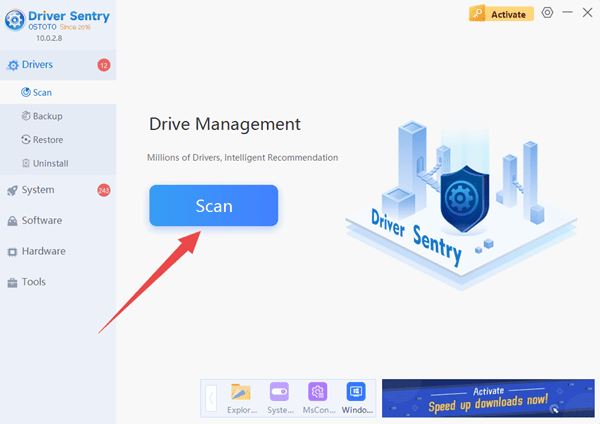
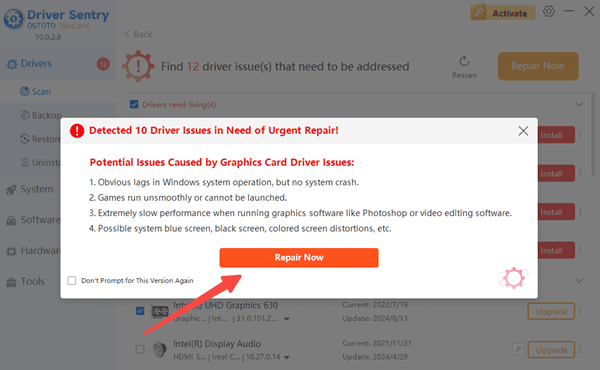
The software will automatically detect outdated or damaged drivers. Click "Repair Now" to update them with one click.
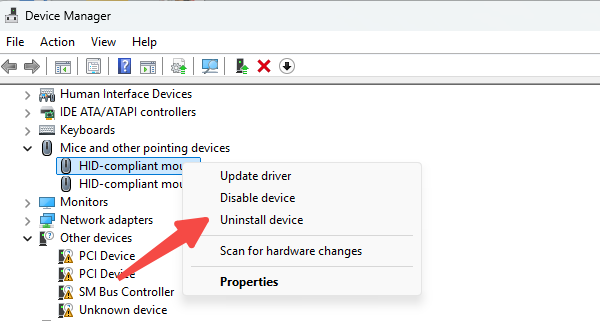
If you can not solve the problem, you can open the "Win + X" menu "Device Manager", find the "Mice and other pointing devices" item, right-click on the mouse and select "Uninstall Device "and then reinstall the mouse driver can be.
3. Check System Settings and Updates
Sometimes, the issue is due to system settings or incomplete system updates. You can try the following:
System Updates:
Make sure your operating system is up to date. This is especially important for Windows users, as updates often include patches for hardware compatibility issues. Go to "Settings" > "Update & Security" to check for updates.
Adjust USB Power Settings:
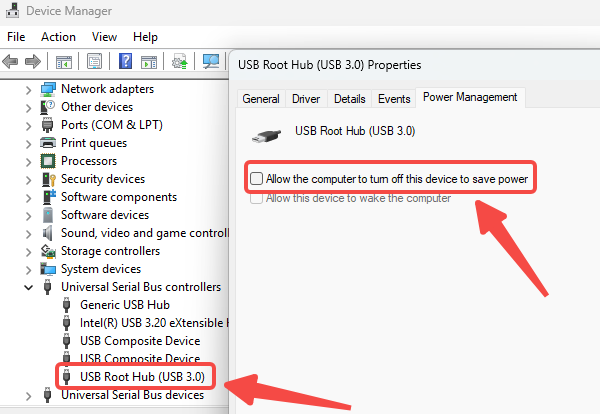
Go to the Device Manager, find the "Universal Serial Bus controllers", right-click on the USB Root Hub, and select "Properties." Under the "Power Management" tab, uncheck "Allow the computer to turn off this device to save power".
4. Try Another Mouse
Sometimes, the issue might be with the mouse itself. Try using a different mouse to see if the problem persists. If the new mouse works fine, your old one may have a hardware issue and might need repair or replacement.
By following these steps, you should be able to fix the problem of the mouse light being on but not functioning. If you encounter driver-related issues, Driver Sentry can help you detect and fix them easily.
See also:
How to Fix the Issue of a Spinning Mouse
Guide to Adjusting Logitech Mouse Sensitivity
2 Methods to Adjust Mouse Sensitivity in Windows 10
Top 7 Easy Ways to Fix a Mouse Cursor Moving on Its Own




