






Screen flickering on an Acer laptop can be extremely disruptive, especially when the brightness fluctuates, the display flashes, or the screen randomly goes black for a second. This issue is often related to outdated graphics drivers, incorrect display settings, hardware faults, or system conflicts.
Before assuming your display is failing, you should first update all relevant drivers and perform several targeted fixes. Below are proven methods to resolve screen flickering on Acer laptops.
Update Graphics Drivers Using Driver Sentry
Outdated or corrupted graphics drivers are one of the most common causes of screen flickering. Using Driver Sentry allows you to automatically detect, download, and install the correct GPU and display drivers for your Acer laptop.
Download and Install:
Click the "Download" button to download the software package.
Run the installer and follow the on-screen prompts.
Start a full system scan:
Open Driver Sentry from the Start menu or desktop shortcut.
Click the "Scan" button to detect outdated, missing, or corrupted drivers, including graphics, chipset, display, and monitor drivers.
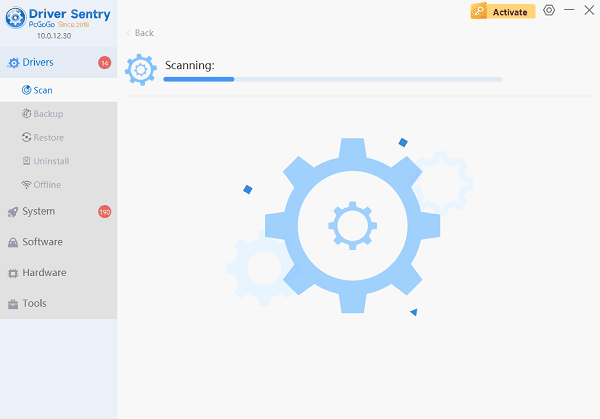
Update Your Drivers:
The tool will list all drivers requiring updates, cick "Repair Now" button.
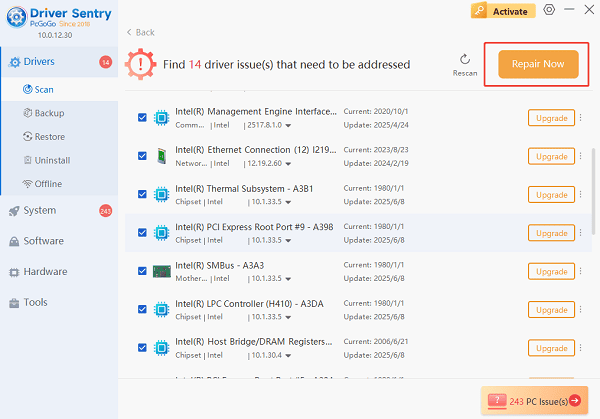
Driver Sentry will automatically download and install the correct drivers for your Acer hardware.
Restart your laptop:
A reboot ensures that all new drivers are applied correctly.
Updating drivers resolves flickering in many cases, especially after Windows Updates or corrupted GPU configurations.
Disable Windows Variable Refresh Rate (VRR)
Variable Refresh Rate may cause the screen to flicker in apps that are not optimized for it.
How to disable VRR:
Open Settings.
Go to "System" > "Display" >"Graphics settings".
Turn off "Variable refresh rate".
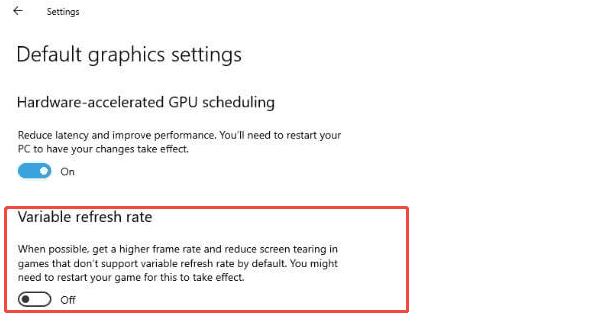
Restart your laptop and check whether the flickering stops.
Turn Off Adaptive Brightness
Adaptive brightness uses a sensor to automatically adjust brightness, which can cause visible flickering in certain lighting conditions.
Steps to disable it:
Open Control Panel.
Go to "Hardware and Sound" > "Power Options".
Click "Change plan settings" beside your active plan.
Select "Change advanced power settings".
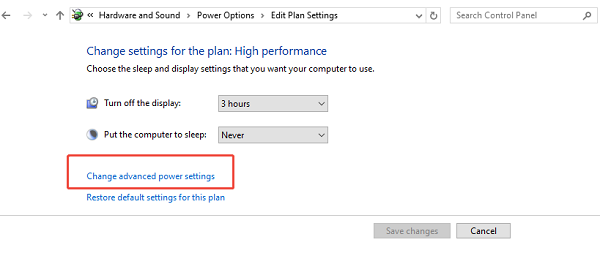
Expand "Display" > "Enable adaptive brightness".
Set it to "Off" for both On battery and Plugged in.
Apply the changes and test your display.
Adjust the Screen Refresh Rate
Running the display at an unsupported or very low refresh rate may trigger flickering.
To adjust the refresh rate:
Open Settings.
Navigate to "System" > "Display". Click "Advanced display settings".
Under Choose a refresh rate, select a stable value such as 60 Hz or 120 Hz (depending on your Acer model).
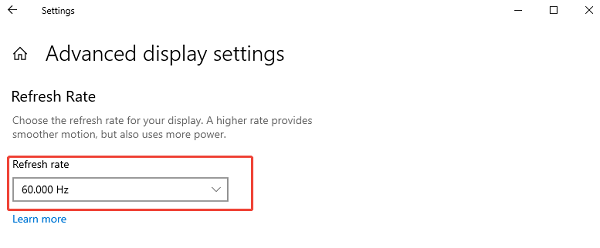
Applying a correct refresh rate helps stabilize screen performance.
Check for Loose Display Cables (For Advanced Users)
If you notice flickering when adjusting the laptop lid, the display cable may be loose or worn.
Warning: This step is for experienced users only.
Power off the laptop completely.
Remove the back cover using a precision screwdriver.
Locate the display ribbon cable.
Ensure it is firmly seated in both ports.
Reassemble the device.
If unsure, allow a technician to handle the inspection.
Disable Hardware Acceleration in Applications
Applications like browsers or office software may flicker due to hardware acceleration conflicts.
Example: Disable Chrome hardware acceleration
Open Chrome.
Navigate to "Settings".
Open "System". Turn off "Use graphics acceleration when available".
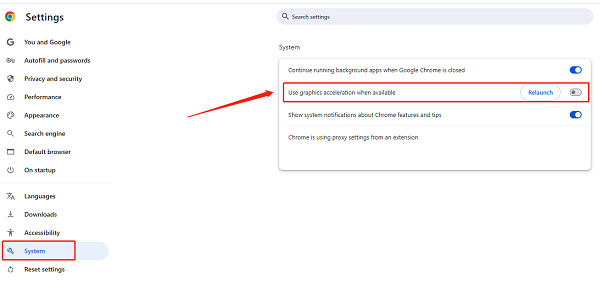
Restart Chrome.
Repeat similar steps for Firefox, Edge, or Microsoft Office if needed.
Install the Latest BIOS and Firmware Updates
Acer releases BIOS and firmware updates to address compatibility and display-related issues.
How to update BIOS safely:
Visit the official Acer Support website.
Enter your device model number.

Download the latest BIOS update file.
Run the BIOS update utility.
Follow on-screen instructions carefully.
Restart your laptop.
A correct BIOS version ensures stability between your hardware and Windows graphics subsystem.
Check for Windows System Conflicts
Corrupted system files may cause display instability.
Run built-in system repair tools:
Open Command Prompt (Admin).
Enter the following commands one at a time:
sfc /scannow
DISM /Online /Cleanup-Image /RestoreHealth
Allow the scans to finish and restart the system.
These commands repair faulty system files that may cause screen flicker.
When to Consider Hardware Repair
If none of the software solutions fix the issue, the problem may be hardware-related:
Failing LCD panel
Damaged display cable
Faulty GPU
Mainboard issues
In these cases, contact Acer support or visit a certified repair center.
Final Thoughts
The Acer screen flickering problem is usually caused by outdated drivers, incorrect display settings, or system conflicts. By updating all graphics-related drivers using Driver Sentry and applying the additional solutions listed above, most users can resolve flickering without replacing hardware. Always start with driver updates before moving on to advanced system or hardware troubleshooting.




