






Having AMD Radeon RX 580 driver issues like black screen, flickering, or crashes? This guide covers downloading the official driver, using Driver Sentry to scan and fix related drivers, clean reinstall, and rollback to a stable version.
Common Signs of RX 580 Driver Problems
The screen may flicker during video playback or go black when switching between apps. Some users notice lower frame rates than usual, random stuttering, or unusually high GPU usage during simple tasks
In other cases, Windows shows the card incorrectly, or AMD software fails to detect it properly. These symptoms usually point to a software conflict, not dead hardware
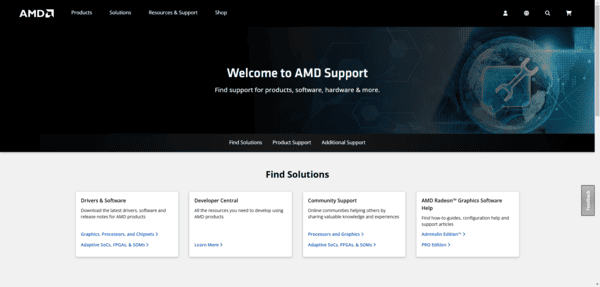
Download the AMD RX 580 Driver
Choose the correct operating system, download the current recommended package, run the installer, and restart the PC after setup finishes
This is especially important if your current driver was installed automatically by Windows and started causing issues afterward
Use Driver Sentry for a Faster Fix
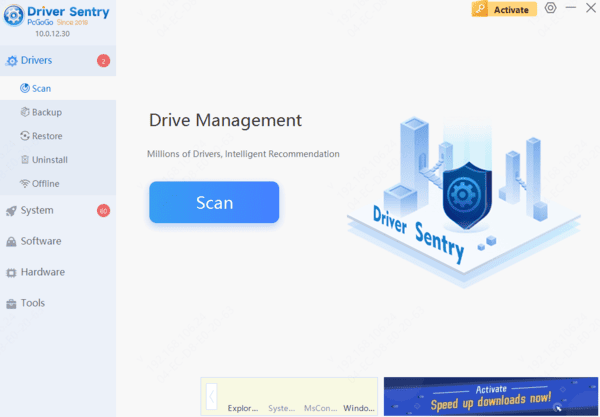
If you do not want to troubleshoot each related component manually, Driver Sentry can speed up the process. It can scan for outdated, missing, or damaged drivers tied to the RX 580, including graphics, chipset, and other system components that affect GPU stability
After the scan, install the recommended updates and restart the computer. This approach is useful when the problem is not just the display driver itself, but a wider driver mismatch causing crashes or poor performance
When You Should Reinstall the Driver
If updating the driver does not solve the issue, a clean reinstall is usually the next step. Driver files can become unstable over time, especially after multiple updates or failed installations
In that case, removing the old AMD package completely before reinstalling a fresh version often works better than a normal upgrade
Rollback Can Help After a Bad Update
Not every new driver is the best driver for every system. If problems started immediately after installing a newer AMD release, rolling back to an earlier stable version may be the better choice
This is especially true for older GPUs like the RX 580, where some users find that one driver version runs more smoothly than another depending on the game, Windows build, and monitor setup
How to Confirm the Driver Is Working Properly
After updating or reinstalling, open Device Manager and check the Radeon RX 580 driver version and date. Then test the card in normal use. Launch a game, play a video, or run a benchmark to see whether crashes, flickering, or lag are gone
A successful driver fix should improve stability first, then performance. If the system still shows black screens or artifacting after a clean reinstall, the issue may involve overheating, power delivery, or the card itself
Final Thoughts
AMD Radeon RX 580 driver issues are common, but they are usually fixable without replacing the GPU. The best approach is to start with the official AMD driver, then use Driver Sentry if you want a faster way to detect and repair related driver problems across the system. If the trouble continues, perform a clean reinstall or roll back to a stable version. In most cases, once the correct driver is installed cleanly, the RX 580 returns to stable gaming and everyday performance.




