






If your ASUS laptop camera is not working, shows a black screen, disappears from Device Manager, or fails in apps such as Zoom or Skype, the issue may be caused by blocked privacy permissions, outdated or incompatible drivers, BIOS settings, conflicting applications, Windows updates, or hardware problems. This guide explains several practical ways to restore webcam functionality.
Why Is My ASUS Laptop Camera Not Working?
✔ Outdated or corrupted drivers
✔ Privacy settings blocking camera access
✔ Conflicting apps using the camera
✔ Hardware issues (faulty camera or connection)
✔ Windows updates causing compatibility issues
1. Quick Fixes
A. Restart the Camera App (Properly)
Many users force-close apps via Task Manager, but a true restart involves:
Open Task Manager (Ctrl + Shift + Esc).
End Camera, Windows Explorer, and any video-related processes (Zoom, Skype).
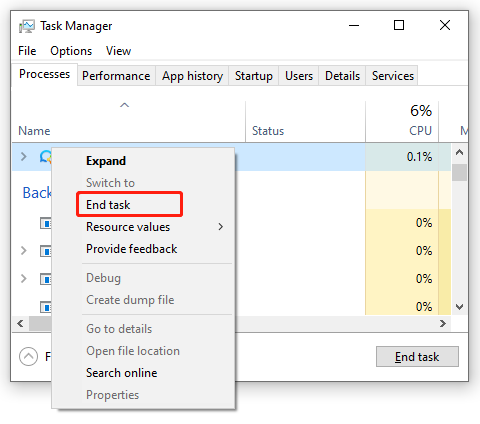
Restart your laptop and test the camera again.
B. Check BIOS Settings (For Disabled Cameras)
Some ASUS laptops allow disabling the camera in BIOS:
Restart your laptop and press F2/Del to enter BIOS.
Navigate to Advanced Settings > USB Configuration.
Ensure Onboard Camera is Enabled.
2. Advanced Driver Fixes (Beyond Basic Updates)
A. Roll Back to a Stable Driver (If New Updates Broke It)
Sometimes, the latest driver isn't the best. Here's how to revert:
Press Win + X > Device Manager.
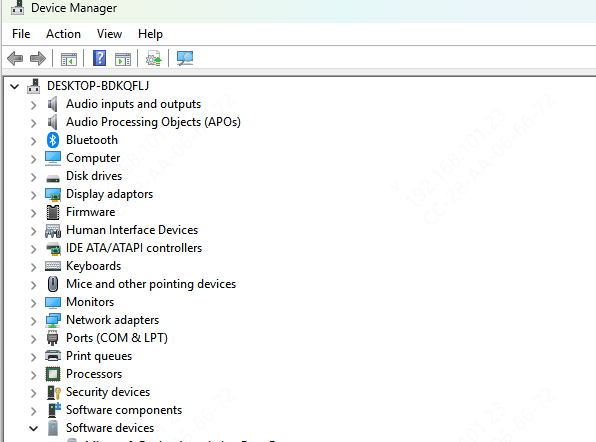
Expand Cameras > Right-click your ASUS camera > Properties.
Go to the Driver tab > Roll Back Driver (if available).
B. Use PcGoGo Driver Sentry
Manually updating drivers can be tedious. PcGoGo Driver Sentry simplifies the process with:
One-Click Driver Updates – Scans and updates all outdated drivers automatically.
Backup & Restore – Safely backs up current drivers before updating.
Scheduled Scans – Regularly checks for new driver updates.
Compatibility Assurance – Installs only stable, manufacturer-approved drivers.
How to Use PcGoGo Driver Sentry to Fix Your ASUS Camera:
Download & Install – Get PcGoGo Driver Sentry (free trial available).
Run a Scan – Click Scan to detect outdated or missing drivers.
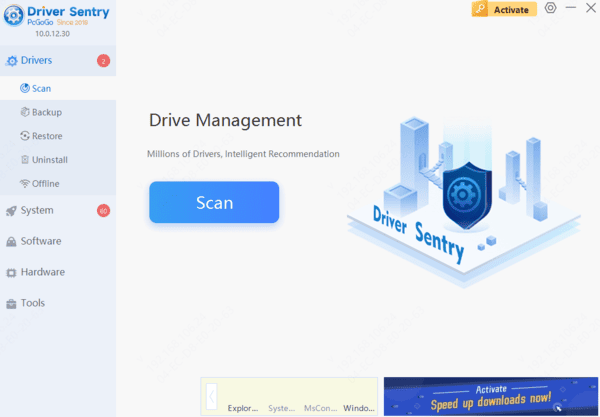
Update Drivers – Select your camera driver and click Update.
Restart Your Laptop – Apply changes and test your camera.
This tool saves time and ensures you get the correct drivers without manual searching.
3. Privacy & Permission Tweaks (Often Overlooked)
Windows privacy settings can silently block your camera:
Go to Settings > Privacy > Camera.
Toggle Allow apps to access your camera ON.
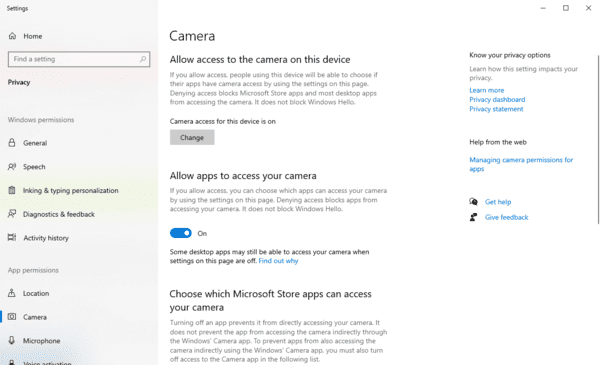
Scroll down and enable camera access for individual apps (Zoom, Chrome, etc.).
Pro Tip: Some ASUS laptops have a physical camera shutter (e.g., ZenBook models). Slide it open!
4. Hardware Checks
If software fixes fail, test for hardware failure:
Try an external USB webcam – If it works, your built-in camera may be faulty.
Inspect for physical damage – Look for cracks or loose connections.
Check Device Manager for errors – A yellow exclamation mark means hardware issues.
For ASUS Warranty Users:
If your laptop is under warranty, contact ASUS support for a free repair or replacement.
Final Fix: Reset Windows (Last Resort)
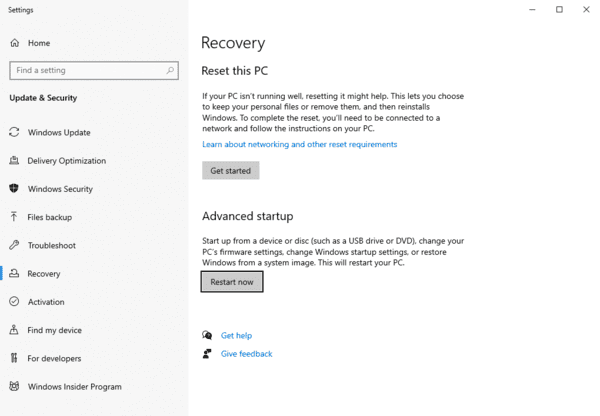
If nothing works, a Windows reset (keeping files) often resolves deep-seated driver conflicts:
Go to Settings > System > Recovery.
Select Reset this PC > Keep my files.
Conclusion
ASUS laptop camera problems are often caused by blocked permissions, conflicting applications, disabled BIOS settings, or unstable drivers. Begin by restarting camera-related apps, checking the physical privacy shutter, and allowing camera access in Windows. If the problem continues, roll back, reinstall, or update the camera and related system drivers manually or with PcGoGo Driver Sentry. When the camera remains missing after software troubleshooting, test an external webcam and contact ASUS support, using a Windows reset only as a final option after backing up important data.




