






Bluetooth devices are convenient, but connection problems can quickly ruin the experience. You may see your headphones or speakers connected successfully, yet no audio comes through your device. This issue can be caused by incorrect sound settings, pairing errors, outdated Bluetooth drivers, hardware problems, or system configuration conflicts. Fortunately, most Bluetooth audio issues can be fixed without replacing your device. This guide covers several practical solutions to restore sound, including adjusting output settings, reconnecting Bluetooth devices, updating drivers, checking hardware, and using builtin troubleshooting tools.
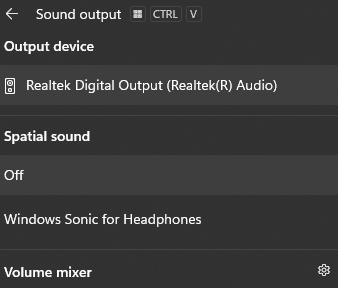
1. Check Audio Output Settings
Click on the volume icon in the taskbar, usually located at the bottomright corner of your screen. A list of available audio devices will pop up. Make sure your Bluetooth headphones or speaker is selected as the output device. If it isn't selected, click on it to make the selection.
If you don't see your Bluetooth device in the list, rightclick on the volume icon and select "Sounds." In the "Sounds" window, go to the "Playback" tab. Here, you'll see all the available audio output devices. Rightclick on your Bluetooth device and select "Set as Default Device." Then click "Apply" and "OK."
2. Disconnect and Reconnect Bluetooth Device
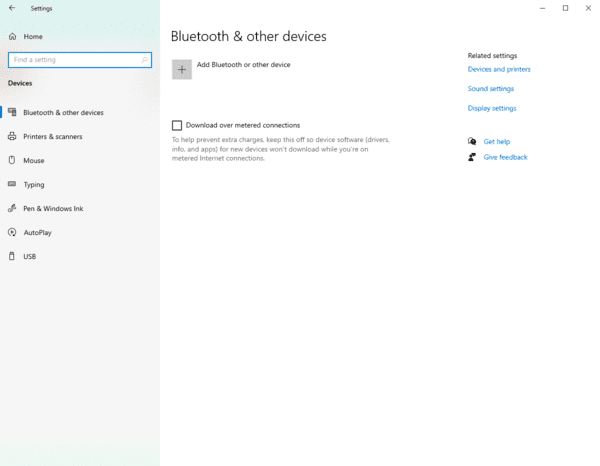
Open the "Settings" app by clicking the Start button and then the gearshaped icon.
Select "Devices" and then click on "Bluetooth & other devices" on the lefthand side.
Find your Bluetooth device in the list of connected devices. Click on it and select "Remove device." Confirm the removal.
Now, put your Bluetooth device in pairing mode. Then, click "Add Bluetooth or other device" in the "Bluetooth & other devices" settings. Follow the onscreen instructions to pair your device again.
3. Update Bluetooth Drivers
Manual Update
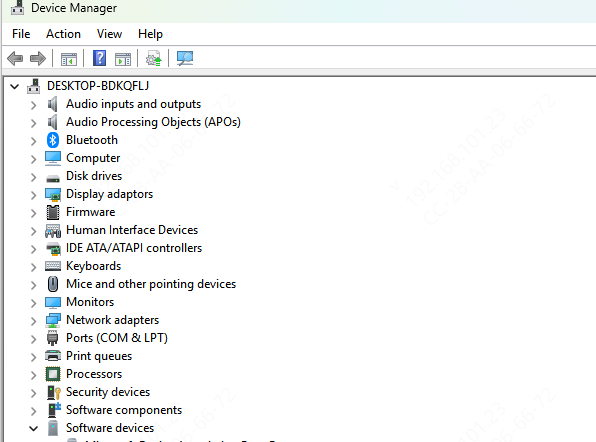
On Windows, rightclick on the Start button and select "Device Manager."
In the Device Manager window, expand the "Bluetooth" category. Rightclick on your Bluetooth adapter and select "Update driver."
Choose the option "Search automatically for updated driver software." Windows will then search for and install the latest driver if available.
Automatic Update
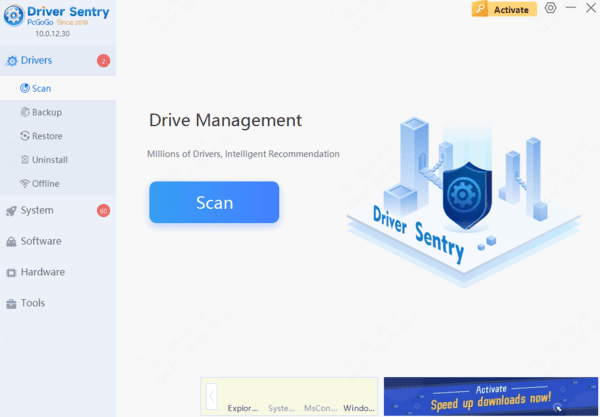
If you want an easier way to update your Bluetooth drivers, PcGoGo Driver Sentry is a great choice. Here's how to use it:
First, download and install PcGoGo Driver Sentry.
Open the program and click the "Scan" button. PcGoGo Driver Sentry will quickly scan your system to identify any outdated or problematic drivers, including your Bluetooth driver.
Once the scan is complete, click the "Update" button next to the Bluetooth driver. The software will then download and install the latest and most compatible version for you.
Restart your computer after the update. This often resolves many driverrelated issues, including the "Bluetooth connected but no sound" problem.
4. Run the Troubleshooter
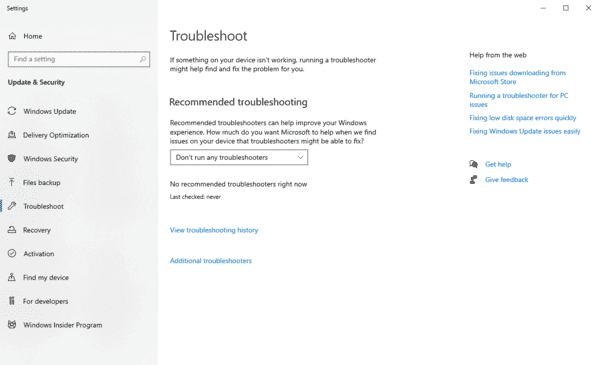
Hit the Windows key, then enter "Troubleshoot." Open the "Troubleshoot settings."
Scroll down and click on "Bluetooth." Then, click "Run the troubleshooter." Windows will scan your system for problems and attempt to fix them automatically. Follow the onscreen instructions if prompted.
Dealing with the problem of "Bluetooth connected but no sound" can be a real headache, but with these five fixes, you should be able to get your audio working again.




