






If a Bluetooth device will not pair with your Windows 10 PC, keeps disconnecting, or appears as paired but not connected, the problem may be caused by outdated drivers, corrupted Bluetooth settings, stopped services, wireless interference, or hardware compatibility issues. This guide explains several practical ways to restore Bluetooth connectivity, including restarting Bluetooth, running the Windows troubleshooter, removing and re-pairing devices, updating Bluetooth drivers with PcGoGo Driver Sentry, resetting Bluetooth services, and checking the adapter or device for possible hardware problems.
Common Reasons Why Bluetooth Devices Fail to Pair or Connect
Before diving into solutions, let's understand why Bluetooth issues occur:
Outdated or corrupt Bluetooth drivers
Interference from other wireless devices
Windows Bluetooth service not running
Incorrect device settings
Hardware issues (faulty Bluetooth adapter or device)
Now, let's explore the most effective fixes—ranked by success rate based on user reports
Fix 1: Restart Bluetooth & Your Device
A simple restart often resolves temporary glitches.
Steps:
Turn off Bluetooth on your Windows PC.
Disable Bluetooth on the device you're trying to pair.
Wait 10 seconds, then turn both back on.
Try pairing again.
Pro Tip: If this doesn't work, restart your PC—some background services may need a refresh.
Fix 2: Run the Windows Bluetooth Troubleshooter
Windows has a built-in tool to diagnose Bluetooth issues.
Steps:
Press Win + I → Update & Security → Troubleshoot.
Select Bluetooth → Run the troubleshooter
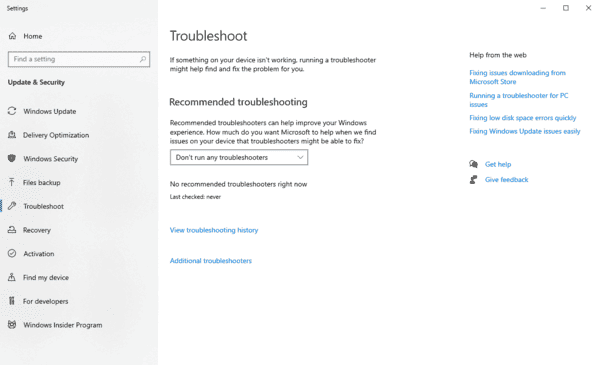
Follow on-screen instructions.
Note: This works in ~50% of cases, but if it fails, move to the next fix.
Fix 3: Remove & Re-Pair the Bluetooth Device
If your Bluetooth device is paired but not connecting, removing and re-adding it can help.
Steps:
Go to Settings → Devices → Bluetooth & other devices.
Click on the problematic device → Remove device.
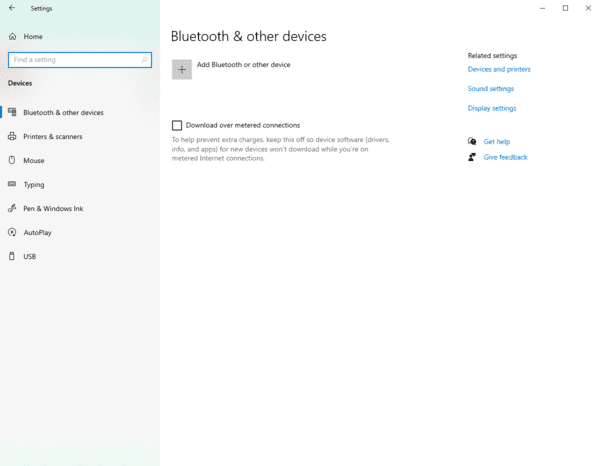
Re-pair the device from scratch.
Important: Some devices (like headphones) require a hard reset before re-pairing—check the manual.
Fix 4: Update Bluetooth Drivers
Outdated or corrupt drivers are a leading cause of Bluetooth failures. You can update them manually or use PcGoGo Driver Sentry for a hassle-free solution.
Manual Update Steps:
Press Win + X → Device Manager.
Expand Bluetooth, right-click your adapter → Update driver.
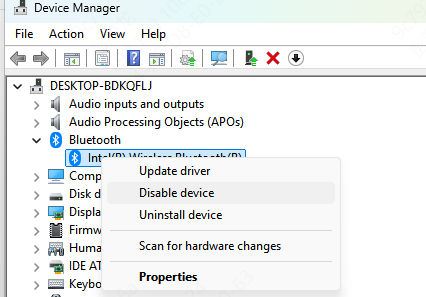
Choose Search automatically for drivers.
Problem: Windows doesn't always find the latest drivers.
Easier & More Reliable Solution: PcGoGo Driver Sentry
Instead of manually searching for drivers, PcGoGo Driver Sentry automates the process with these benefits:
✅ One-click driver updates (no technical skill needed)
✅ Backup & restore functionality (prevents system instability)
✅ Scheduled scans to keep drivers up-to-date
✅ Fixes compatibility issues with Windows 10/11
How to Use PcGoGo Driver Sentry:
Download & install PcGoGo Driver Sentry.
Launch the app → Click Scan.
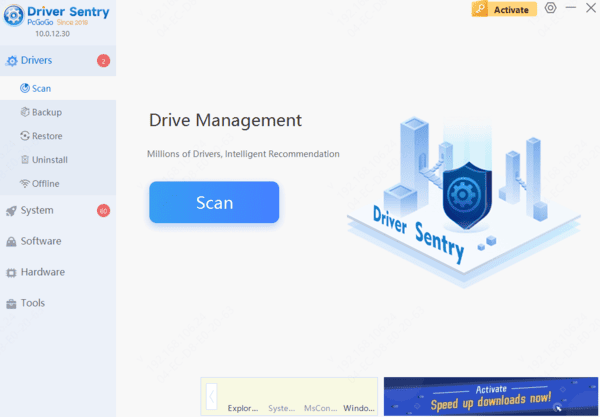
Review outdated drivers → Click Update All.
Restart your PC for changes to take effect.
Why This Works Better: Unlike Windows Update, Driver Sentry ensures you get the latest manufacturer-approved drivers, drastically improving Bluetooth stability.
Fix 6: Reset Windows Bluetooth Stack
Resetting the Bluetooth stack clears corrupted settings.
Steps (Admin Command Prompt):
Type cmd in Windows search → Run as administrator.
Run these commands one by one:
net stop bthserv
net start bthserv
Restart your PC.
Most Bluetooth pairing issues on Windows 10/11 can be fixed with driver updates, service checks, or re-pairing. For the most reliable driver updates, use PcGoGo Driver Sentry to avoid manual errors and ensure optimal performance.




