
If you are a video editor using Boris FX Continuum plugins in software like Adobe After Effects or Premiere Pro, encountering the sx32w.dll error can be extremely frustrating. This DLL file is essential for the plugin to function correctly, and when it is missing, corrupted, or improperly registered, it can prevent the plugin from loading, cause crashes, or interrupt your editing workflow. Fortunately, you don't need to reinstall Windows to fix this issue. In this guide, we'll walk you through the most effective methods to restore sx32w.dll and get Boris FX Continuum working properly again.
Why sx32w.dll Error Occurs
Understanding why this error happens will help you avoid it in the future. Common causes include:
Missing or accidentally deleted DLL file: Sometimes antivirus programs or accidental user actions remove the file
Corrupted Boris FX Continuum installation: Incomplete or interrupted installations can corrupt DLLs
Conflicts with antivirus or security software: Security tools may block the plugin from accessing its DLL
Outdated or incompatible graphics drivers: Since Boris FX relies on GPU acceleration, outdated drivers can cause DLL issues
Corrupted system files or outdated Windows components: Missing system files can prevent DLLs from loading properly
Verify and Repair Boris FX Continuum Installation
Before diving into system-level fixes, ensure the plugin installation is intact:
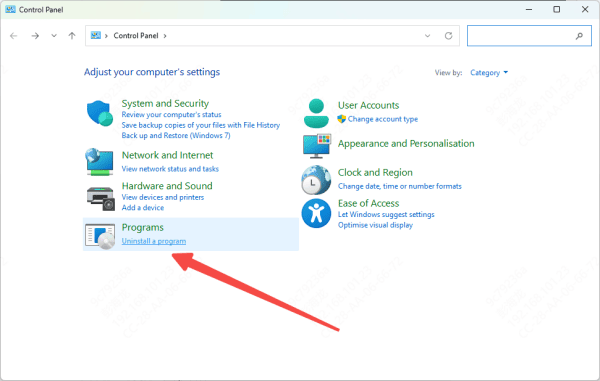
Uninstall Boris FX Continuum completely from your system
Delete any leftover folders from previous installations to avoid conflicts
Download the latest official version from the Boris FX website
Reinstall the plugin and make sure to run the installer as Administrator
Launch your host software and check if the plugin loads successfully

Restore or Replace sx32w.dll
If the DLL file is missing or corrupted:
Check the Recycle Bin to see if the file was accidentally deleted
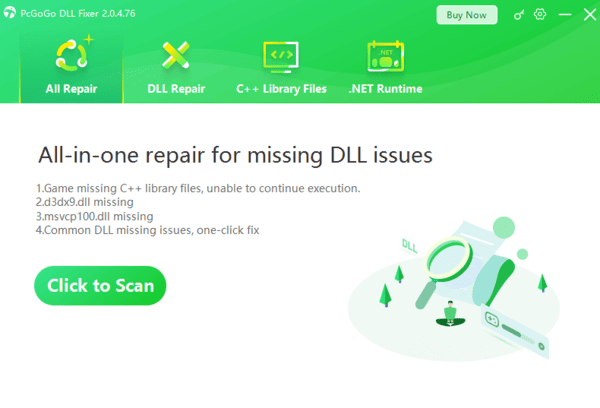
If unavailable, you can restore it using a trusted DLL repair tool, such as PcGoGo DLL Fixer
Ensure the DLL is placed in the correct Boris FX installation folder, typically under:
C:\Program Files\Boris FX\Continuum\Plug-ins
After restoring, restart your host software to verify the plugin works
Important: Avoid downloading DLLs from random websites, as these files may be unsafe or outdated
Update Your System and Drivers
Outdated components can prevent DLLs from functioning:
Update your graphics drivers:
NVIDIA: Use GeForce Experience
AMD: Use Radeon Software
Intel: Use Intel Driver & Support Assistant
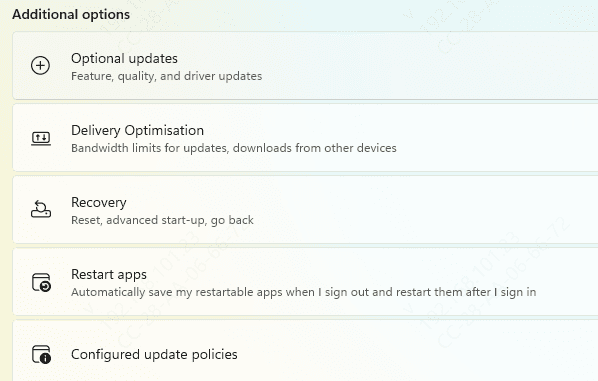
Install all pending Windows updates via Settings → Update & Security → Windows Update
Restart your PC and relaunch your editing software
Scan and Repair System Files
Sometimes the error is caused by corrupted system files:
Open Command Prompt as Administrator
Run the System File Checker:
sfc /scannow
Wait for the scan to complete and follow any prompts
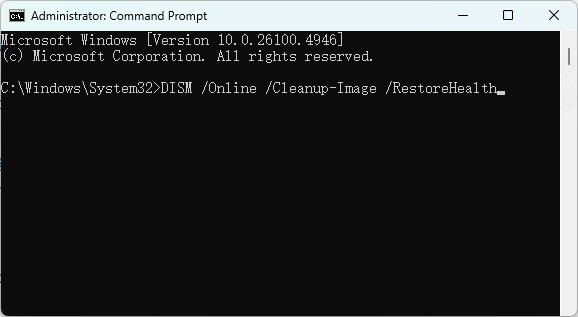
If SFC cannot repair all files, use DISM commands:
DISM /Online /Cleanup-Image /CheckHealth
DISM /Online /Cleanup-Image /ScanHealth
DISM /Online /Cleanup-Image /RestoreHealth
Restart your PC and check if the error persists
Manage Antivirus and Security Software
Security software may sometimes block DLL files:
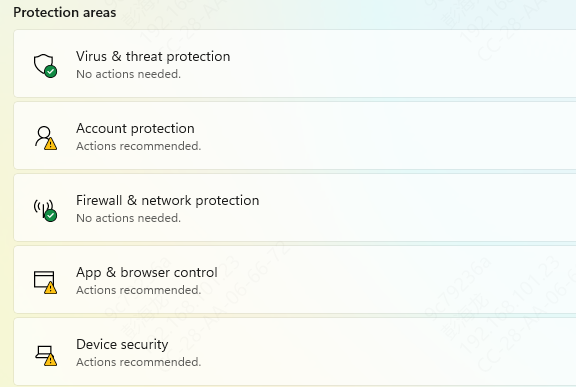
Temporarily disable your antivirus or firewall while installing or launching Boris FX Continuum
Run both the plugin installer and the host software as Administrator
Re-enable your antivirus after confirming the plugin works correctly
Advanced Solutions
If the error persists despite the above steps:
Reinstall your host software (Adobe After Effects, Premiere Pro, etc.)
Check for conflicts with other plugins installed in the same host software
Run Windows Memory Diagnostic to ensure RAM is functioning correctly
Check your drives using:
chkdsk /f /r
to fix disk errors that might corrupt files
Prevent Future sx32w.dll Errors
To avoid encountering the error again
Always download plugins and installers from official sources
Keep Windows, GPU drivers, and host software updated
Avoid interrupting plugin installations
Regularly back up plugin folders and create system restore points before major software updates or installations
Conclusion
The sx32w.dll error is a common issue with Boris FX Continuum plugins but is usually straightforward to fix. By reinstalling the plugin, restoring or repairing the DLL, updating drivers and system files, and managing security software, you can restore full functionality to your plugins without reinstalling Windows. Following these steps ensures that Boris FX Continuum runs smoothly, minimizing workflow interruptions and preventing similar DLL errors in the future.