






If you've ever tried to open Wilcom embroidery software and received the error "Cannot load file wilcomemul.dll, Error 59," you know how frustrating it can be. This DLL file is essential for Wilcom to function properly, handling key program components. When wilcomemul.dll is missing, corrupted, or improperly registered, the software may fail to launch, crash on startup, or display unexpected errors. The good news is that this issue is usually fixable without reinstalling Windows. In this guide, we will walk you through multiple solutions to restore wilcomemul.dll and resolve error 59 efficiently.
Verify the DLL File
Before applying more complex fixes, check the status of the file:
Navigate to the Wilcom installation directory and confirm that wilcomemul.dll exists
If the file is missing, restore it from a backup or the original installation media
Ensure your antivirus or security software isn't blocking the DLL. Temporarily disable security programs if necessary
Re-register Wilcomemul.dll
Sometimes the DLL exists but isn't registered properly in Windows. Re-registering can solve the problem:
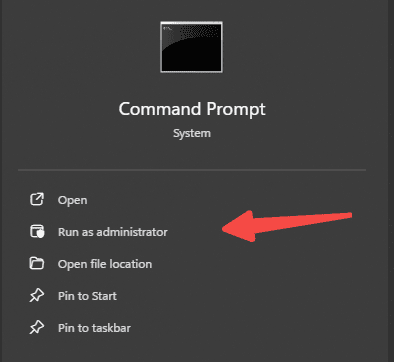
Press Win + S, type cmd, right-click Command Prompt, and select Run as Administrator
Enter the following command:
regsvr32 wilcomemul.dll
Press Enter. A confirmation message should appear indicating the DLL was registered successfully
Restart your PC and try opening Wilcom again
Repair or Reinstall Wilcom Software
If re-registering doesn't fix the issue:
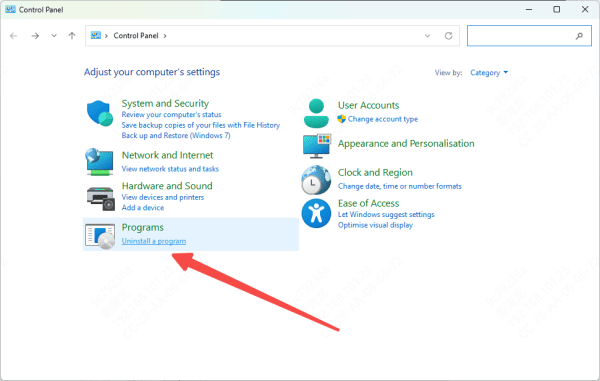
Go to Control Panel → Programs → Programs and Features, locate Wilcom, and select Repair (if available). Follow on-screen instructions
If repairing fails, uninstall Wilcom completely. Delete leftover files in the installation folder to avoid conflicts
Reinstall Wilcom using Administrator privileges to ensure all DLL files are correctly registered
Update Windows and System Components
Outdated system files can prevent DLLs from functioning:
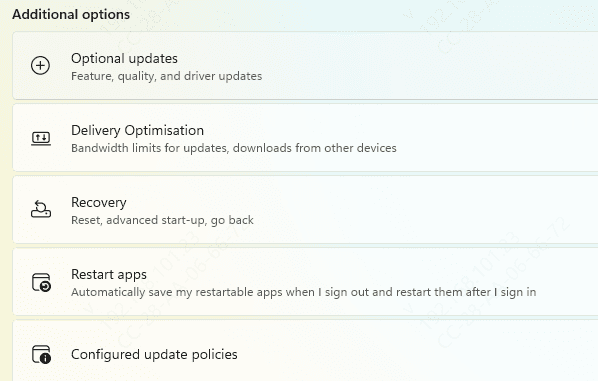
Install all pending Windows updates via Settings → Update & Security → Windows Update
Ensure Microsoft Visual C++ Redistributables and .NET Framework are up-to-date, as these components are often required for DLLs
Restart your computer after updates are installed
Disable Conflicting Programs
Sometimes antivirus or other background applications prevent Wilcom from accessing DLLs:
Temporarily disable antivirus software and firewall while launching Wilcom
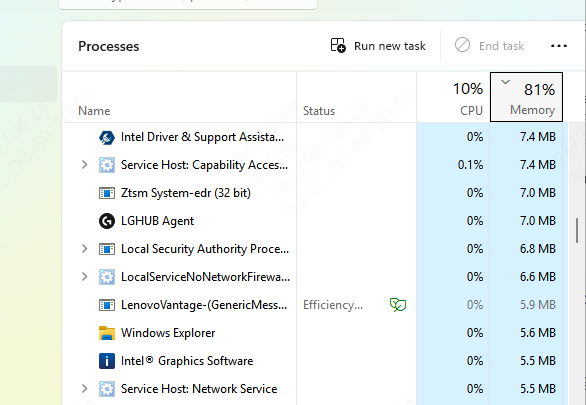
Close unnecessary background programs to free up system resources
Try running Wilcom as Administrator
Scan and Repair System Files
Corrupted Windows system files can trigger DLL errors
Open Command Prompt as Administrator
Run the System File Checker (SFC) tool:
sfc /scannow
Wait for the scan to complete and follow any on-screen prompts
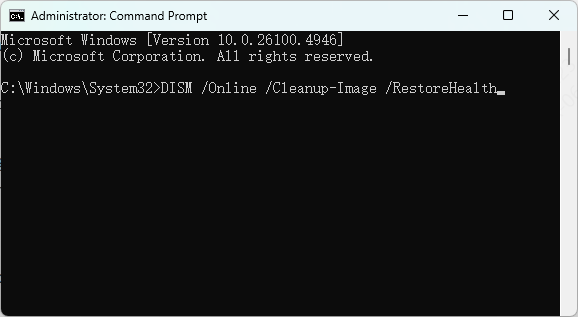
If SFC cannot fix everything, use DISM to repair the Windows image:
DISM /Online /Cleanup-Image /RestoreHealth
Use a DLL Repair Tool
If manual methods seem complicated, automated tools can help:
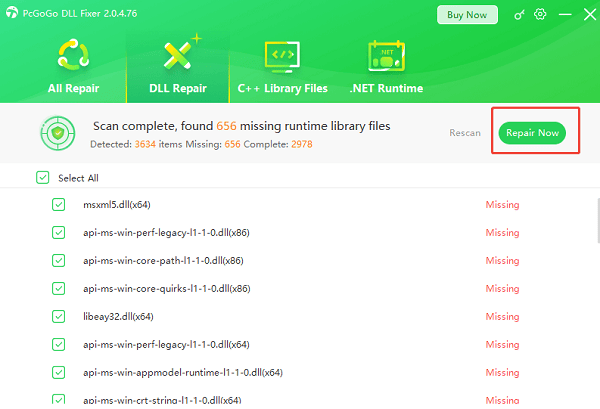
Download and install PcGoGo DLL Fixer or a similar trusted tool
Open the program and click Scan to detect missing or corrupted DLL files
Click Repair Now to restore wilcomemul.dll and other affected DLLs
Restart your PC and check if Wilcom works properly
Advanced Options (Optional)
Check the Windows registry for invalid entries related to Wilcomemul.dll
Be cautious and back up the registry before making changes
Verify that your user account has sufficient permissions to access Wilcom installation folders
Prevent Future Wilcomemul.dll Errors
Keep Wilcom software updated with the latest patches
Avoid interrupting installations or updates
Maintain Windows updates and perform regular malware scans
Backup critical DLL files and create system restore points before major software changes

Conclusion
Wilcomemul.dll error 59 is a common issue that can prevent Wilcom software from launching or functioning properly. By verifying the DLL file, re-registering it, repairing or reinstalling Wilcom, updating Windows and system components, scanning for malware, and optionally using automated DLL repair tools, you can usually resolve this issue without reinstalling your operating system. Following these steps ensures your Wilcom software runs smoothly and reduces the risk of encountering similar DLL errors in the future.




