





The unarc.dll file plays an important role in unpacking and processing compressed installation data. Errors can be caused by corrupted files, insufficient system resources, malware, or software conflicts. This guide walks you through effective solutions to troubleshoot and fix unarc.dll error code 1 and complete the installation successfully.
Common Causes of unarc.dll error code 1 FitGirl
Corrupted or missing unarc.dll file
Damaged or incomplete installation files
Insufficient system resources (RAM or disk space) during installation
Malware or virus infections affecting system DLLs
Conflicts with other software or overly aggressive antivirus programs
Check System Requirements
Before troubleshooting, ensure your system can handle the software:
Verify that your PC meets the minimum RAM, CPU, and storage requirements of the game/software
Ensure enough free disk space for installation and temporary extraction
Close unnecessary programs before starting the installation
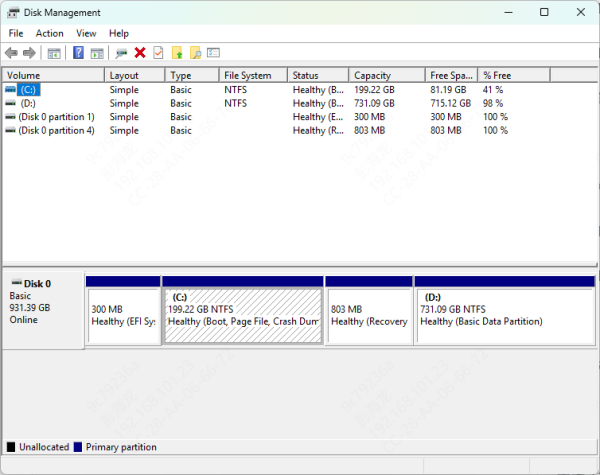
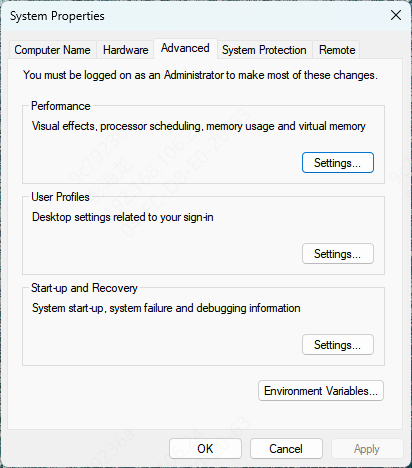
Increase Virtual Memory / Pagefile
Press Win + I → System → About → Advanced system settings
In the System Properties window, go to Performance → Settings → Advanced → Virtual memory → Change
Uncheck Automatically manage paging file size
Select your system drive (usually C:) and choose Custom size:
Initial size = 1.5 × your RAM
Maximum size = 3 × your RAM (or higher if you have low RAM)
Click Set → OK, then restart your computer
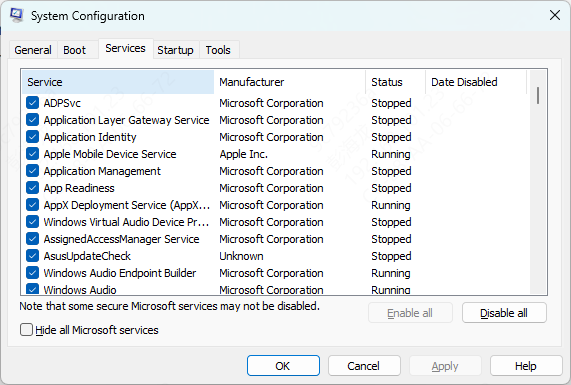
Limit Number of Processors
High-core CPUs sometimes cause extraction errors with FitGirl repacks:
Press Win + R, type msconfig, and press Enter
Go to the Boot tab → Advanced options
Check Number of processors → set to 8–12 cores (or lower if your CPU has more than 16 cores)
Click Apply → OK and restart your PC
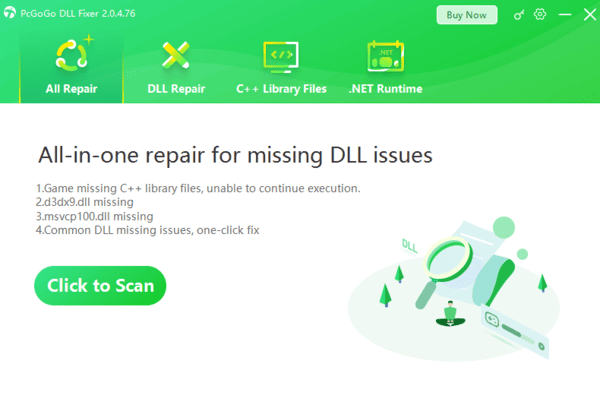
Use PcGoGo DLL Fixer
If manual fixes seem complex, automated tools can help:
Download and install PcGoGo DLL Fixer
Launch the program and click Scan to detect missing or corrupted DLL files
Click Repair Now to restore unarc.dll and other affected DLLs
Restart your PC
Scan and Repair System Files
Corrupted Windows system files can also trigger DLL errors:
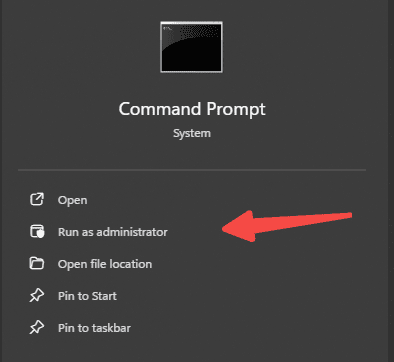
Open Command Prompt as Administrator
Run the System File Checker:
sfc /scannow
Wait for the scan to finish and follow any on-screen prompts
Restart your PC
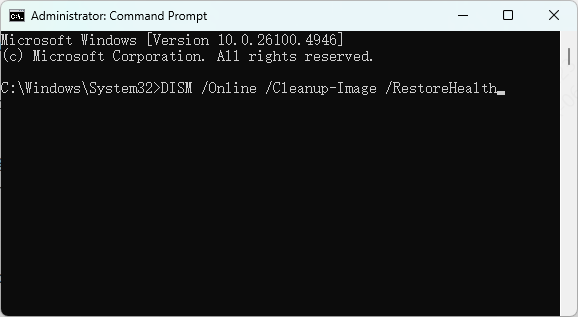
If SFC cannot repair everything, use DISM:
DISM /Online /Cleanup-Image /CheckHealth
DISM /Online /Cleanup-Image /ScanHealth
DISM /Online /Cleanup-Image /RestoreHealth
Free Up System Resources
Low RAM or active processes can interfere with installation:
Close all unnecessary background apps before installing
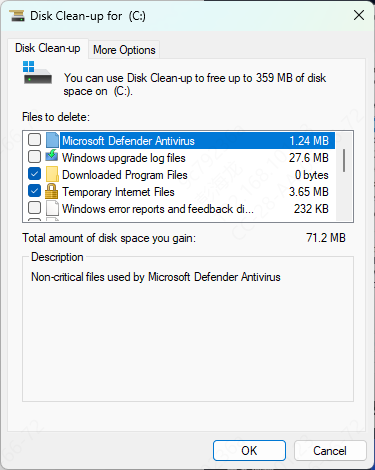
Use Disk Clean up to free disk space
Clear temporary files by pressing Win + R → %temp% → Delete all temporary files
Restart your PC to ensure enough free RAM and disk resources
Check Installation Files
Verify the integrity of the FitGirl repack installer
Make sure the downloaded file is complete and not corrupted
Re-download the installer from a trusted source if necessary
Update Windows and Drivers
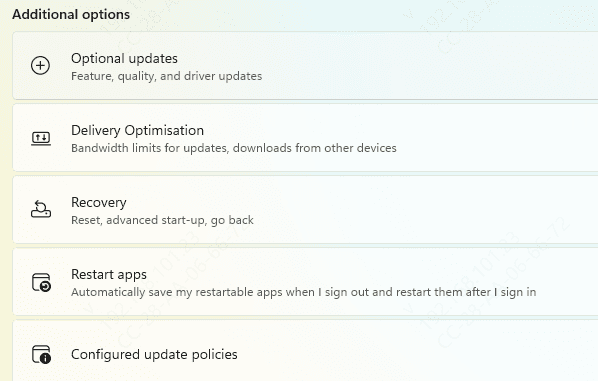
Install all pending Windows updates via Settings → Update & Security → Windows Update
Update key drivers: graphics, chipset, and storage devices
Restart your PC after updates
Scan for Malware
Malware can corrupt DLLs like unarc.dll:
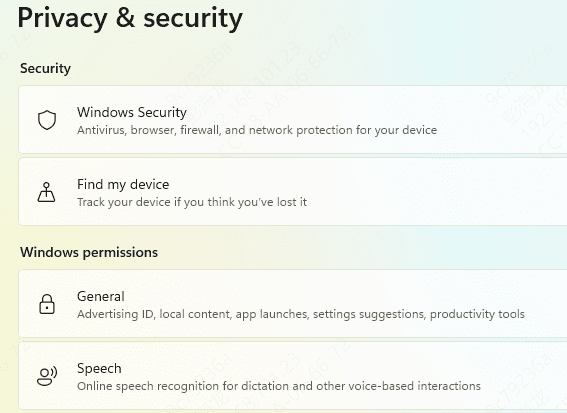
Use Windows Defender or a trusted antivirus like Malwarebytes
Run a full system scan and remove threats
Restart your PC to ensure the system is clean
Reinstall the Software/Game
If the error persists:
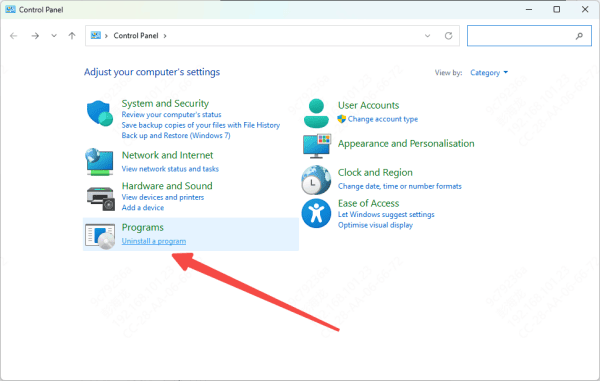
Uninstall the problematic FitGirl repack completely
Delete leftover installation folders
Download the latest official installer from a trusted source
Install the software as Administrator
Launch the program to verify the issue is resolved
Conclusion
unarc.dll error code 1 FitGirl is a common issue during game or software installations, especially with large repacks. However, it can usually be fixed with a combination of system tweaks and proper installation practices. By increasing virtual memory, limiting CPU cores, scanning for system and malware issues, ensuring software integrity, and using automated DLL repair tools, you can troubleshoot this error efficiently without reinstalling Windows. Following these steps ensures smoother installations and reduces the chance of encountering similar DLL errors in the future.




