






Seeing a kernel32.dll error on your Windows PC can be alarming. kernel32.dll is a core system file responsible for managing memory, processes, and essential system operations. When it is missing, corrupted, or improperly registered, you may experience application crashes, failed program launches, or overall system instability. This guide provides simple and effective solutions to help you fix the issue and restore your PC to normal operation.
Quick Checks Before Fixing
Before diving into complex solutions, start with a few basic checks:
Restart your computer: Temporary glitches can sometimes cause DLL errors
Identify when the error occurs: Note whether it happens in a specific program or system-wide
Review recent changes: New software installations or hardware changes may trigger the dll errors
Free Up System Resources
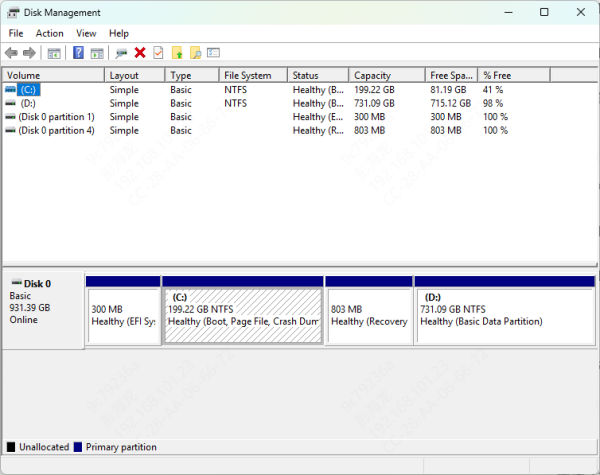
Insufficient system memory or disk space can interfere with DLL functions:
Close unnecessary background applications to free RAM
Ensure the installation drive or system drive has enough free space
Restart your PC to clear temporary memory and files
Scan and Repair System Files
Corrupted system files often cause kernel32.dll errors. Windows provides built-in tools to repair these:
System File Checker (SFC):
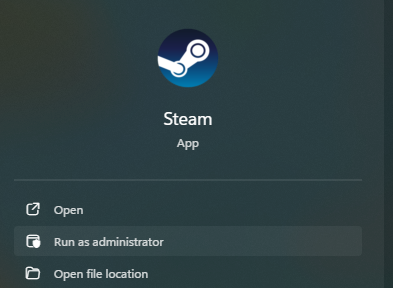
Open Command Prompt as Administrator
Type the command:
sfc /scannow
Press Enter and wait for the scan to complete
Restart your computer
Deployment Image Servicing and Management (DISM)
Open Command Prompt as Administrator
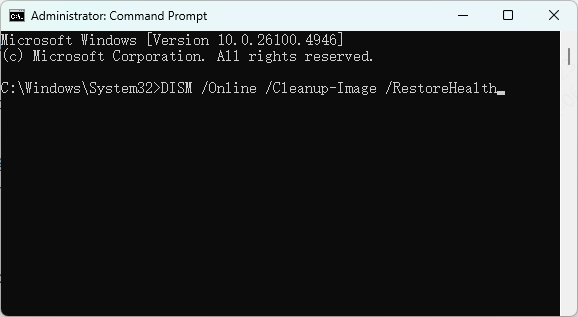
Run the following commands one by one:
DISM /Online /Cleanup-Image /CheckHealth
DISM /Online /Cleanup-Image /ScanHealth
DISM /Online /Cleanup-Image /RestoreHealth
Restart your PC after the process is complete
Check for Malware and Viruses
Malware or viruses can damage kernel32.dll and other system files:
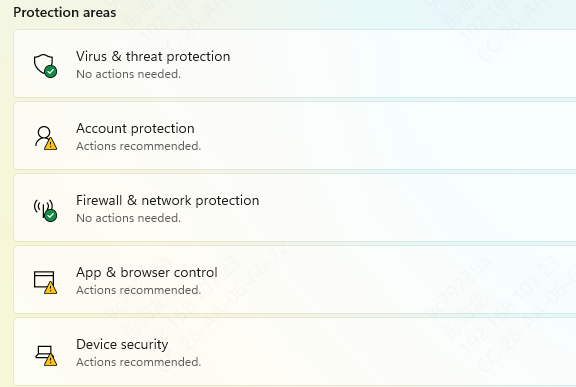
Run a full system scan using Windows Defender or trusted antivirus software
Quarantine or remove detected threats
Restart your computer
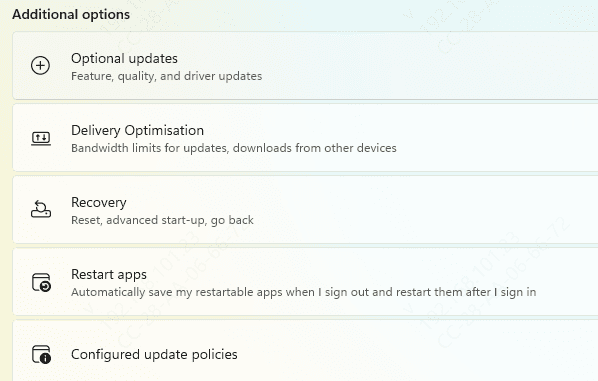
Update Windows and Drivers
Keeping Windows and your drivers up-to-date ensures missing or outdated system files are replaced:
Go to Settings → Update & Security → Windows Update
Check for updates and install all pending updates
Restart your PC after updates
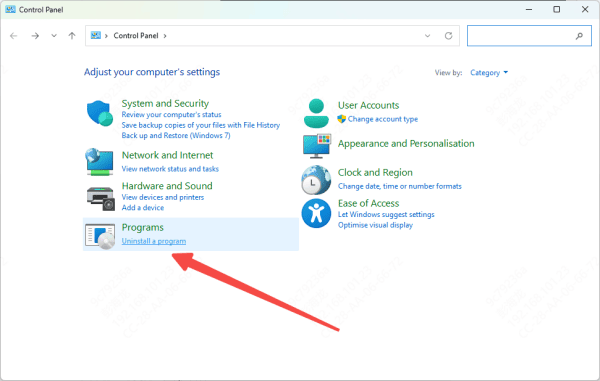
Repair or Reinstall Problematic Software
If the error appears only when running a specific program:
Uninstall the program completely
Delete leftover files from the installation folder
Reinstall the program as Administrator
This ensures that the software installs correctly and that DLL files are registered properly
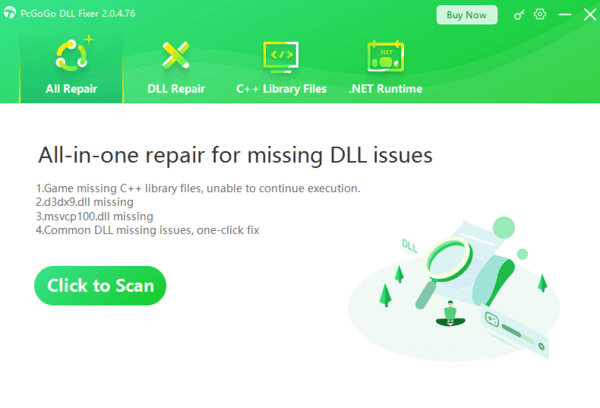
Use PcGoGo DLL Fixer
Automated tools like PcGoGo DLL Fixer can detect and repair missing or corrupted DLL files:
Download and install PcGoGo DLL Fixer
Launch the software and click Scan to detect DLL issues
Click Repair Now to automatically fix detected problems
Restart your computer
Check Hardware for Issues
Faulty hardware can cause kernel32.dll errors:
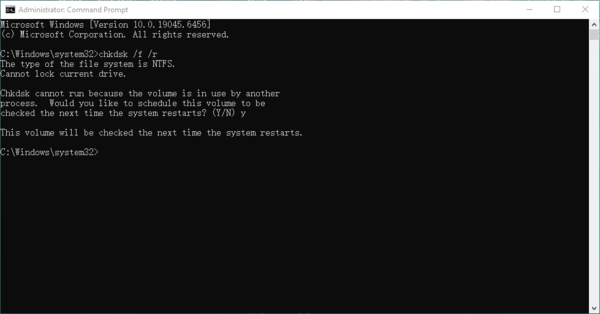
Use chkdsk to scan and repair hard drive issues:
Open Command Prompt as Administrator
Run:
chkdsk /f /r
Restart your PC after the scan completes
Test RAM using Windows Memory Diagnostic or MemTest86 to ensure memory modules are working properly
Restore Windows to a Previous Point
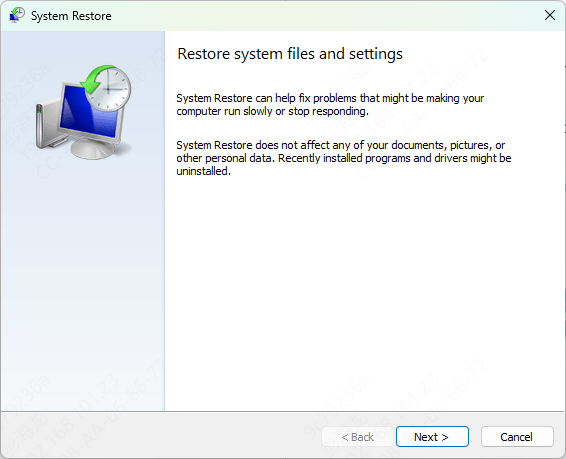
If all else fails, you can revert Windows to a stable state using System Restore:
Press Win + R, type rstrui, and hit Enter
Choose a restore point from before the kernel32.dll error appeared
Follow the on-screen instructions to complete the restoration
Restart your PC
Tips to Prevent kernel32.dll Errors
Keep Windows and all drivers updated regularly
Download software from trusted sources only
Run regular malware and virus scans
Avoid force-closing programs to prevent file corruption
Create system restore points and backup essential system files
Conclusion
Kernel32.dll errors can disrupt programs and even system stability, but they are often easy to fix. By freeing system resources, repairing corrupted files, updating Windows and drivers, checking hardware, and using automated repair tools, you can resolve the issue without reinstalling Windows. Following these steps not only fixes the current error but also helps prevent future system problems.




