What Causes the rune64.dll Error
The error is almost always one of four things: an incomplete or corrupted installation where the file was not written correctly during setup, an incompatible mod framework intercepting the launch sequence, antivirus software quarantining the file as a false positive, or damaged Visual C++ dependencies preventing the DLL from loading its own requirements
The Enhanced Edition introduced new DLL files that older mod tools were not designed to coexist with, which makes mod interference a more common cause here than it is in older games
Fix 1: Verify Game File Integrity Through Your Launcher
This should always be the first step because it directly addresses missing or corrupted game files without requiring manual intervention. The process differs slightly depending on which launcher you use.
On Steam, open your Library, right-click GTA 5 Enhanced Edition, select Properties, go to the Installed Files tab, and click Verify integrity of game files. Steam will hash every file against its server manifest and redownload anything that does not match
On Epic Games Launcher, go to your Library, click the three dots next to GTA 5, select Manage, and click Verify
On Rockstar Games Launcher, open Settings, select GTA 5 under My Installed Games, and click Verify Integrity
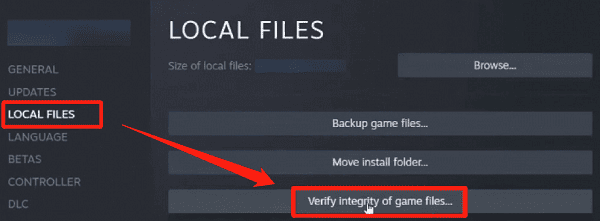
Let the verification complete fully before launching the game. If rune64.dll was damaged or missing, it will be restored automatically.
Fix 2: Remove or Disable Mods Before Launching
Navigate to your GTA 5 installation folder and look for files like dinput8.dll, ScriptHookV.dll, asiloader.dll, or any .asi files. Rename or remove these files temporarily
Also check for a mods folder and rename it to something like mods_disabled so the game cannot read it. Launch the game without any mods present
If the error is gone, the mod framework was the cause. Wait for mod authors to release Enhanced Edition-compatible versions before restoring them
Fix 3: Check Antivirus Quarantine and Add an Exclusion
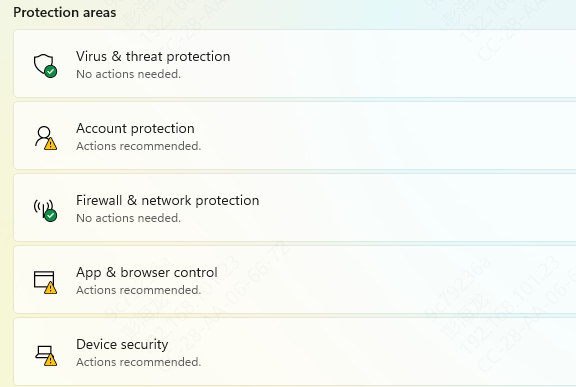
Open your antivirus program and check the quarantine or threat history section. If rune64.dll appears there, restore it and mark it as a trusted file. Then add the entire GTA 5 installation folder to your exclusion list so the antivirus does not scan or block files within it
On Windows Security, go to Virus and threat protection, click Manage settings, scroll to Exclusions, and add the GTA 5 folder path. After adding the exclusion, run a file verification again through your launcher to ensure the restored file is intact
Fix 4: Reinstall or Repair Visual C++ Redistributables
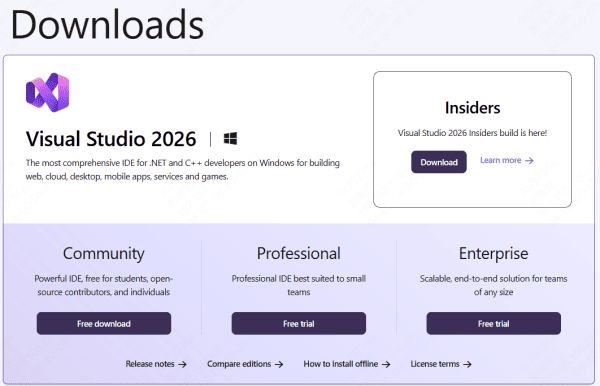
Go to the official Microsoft download page for Visual C++ Redistributables and download the 2015 through 2022 package. Install both the x64 and x86 versions
If you already have them installed, use the Repair option in Windows Add or Remove Programs rather than reinstalling from scratch. Restart your PC after the repair and attempt to launch the game
Fix 5: Use PcGoGo DLL Fixer
When the error persists after file verification and mod removal, the problem may involve a broader set of damaged system dependencies that are difficult to trace manually.
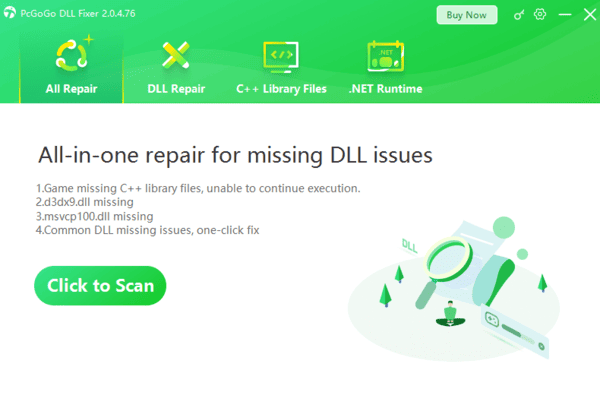
PcGoGo DLL Fixer scans the full system for corrupted DLL files, missing runtime components, and broken registry entries, then repairs them automatically. Download and install it from pcgogo.com, click Scan, and let it complete the analysis
Click Repair Now once the scan identifies damaged components, then restart your PC and launch GTA 5 again. This is particularly useful when the rune64.dll error is accompanied by other DLL errors or when manual fixes have not produced a consistent result
Fix 6: Run SFC and DISM to Repair System Files
Corrupted Windows system files can prevent DLL files from loading correctly even when the DLL itself is intact.
Open Command Prompt as Administrator and run:
sfc /scannow
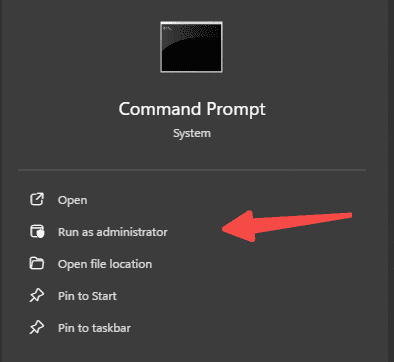
If SFC reports that it cannot repair all files, follow up with DISM.
Run each of the following commands in sequence and wait for each to complete before running the next:
DISM /Online /Cleanup-Image /ScanHealth
DISM /Online /Cleanup-Image /RestoreHealth
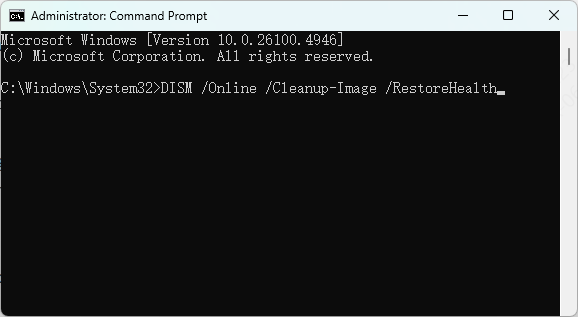
DISM requires an active internet connection to pull replacement files from Windows Update. Restart after completion, run sfc /scannow once more to confirm the repairs, then test the game.
Fix 7: Perform a Clean Reinstall of the Game
If all other fixes have failed, the installation itself may be damaged in a way that file verification cannot fully repair. Uninstall GTA 5 Enhanced Edition through your launcher, then manually delete the remaining game folder to ensure no corrupted files persist
Reinstall the game fresh. This replaces every game file including rune64.dll with a verified clean copy from Rockstar's servers
Conclusion
The rune64.dll error in GTA 5 Enhanced Edition is typically caused by missing, corrupted, or blocked DLL files. Fortunately, resolving the issue is straightforward using the methods outlined in this guide. From verifying game files to updating system components, or even using automated DLL repair tools, you can fix this problem quickly. By following these steps, you can enjoy GTA 5 without further interruption.