The "Failed to Load xgameruntime.dll" Error Code 126 usually appears when Windows cannot load Microsoft Gaming Runtime or one of its required dependencies. Because xgameruntime.dll supports Xbox, Microsoft Store, and some Steam games that use Gaming Services, the error may prevent affected games from launching or connecting to Xbox features. Common causes include damaged Gaming Services files, incomplete Visual C++ runtimes, corrupted Windows components, or antivirus interference. Learn how to reinstall Gaming Services, repair Visual C++ dependencies, run SFC and DISM, check antivirus quarantine, update Windows, and re-register Store components.
What Causes the xgameruntime.dll Error Code 126
The Gaming Services component is missing, damaged, or was removed by a Windows update or cleanup tool that treated it as an unnecessary package. Visual C++ runtime dependencies that xgameruntime.dll relies on are corrupted or incomplete
Antivirus software has quarantined the file or blocked it from loading. Windows system files supporting the Gaming Runtime infrastructure are corrupted. Less commonly, the file itself was deleted by a third-party PC cleaner or optimization tool that incorrectly identified it as junk
Fix 1: Repair or Reinstall Gaming Services
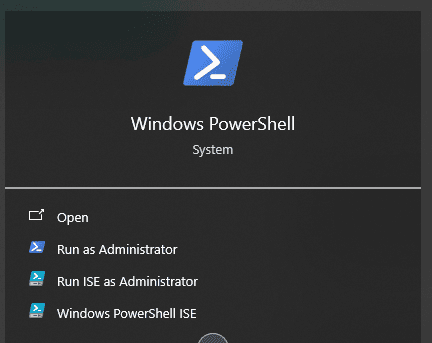
Since xgameruntime.dll belongs to Microsoft Gaming Runtime rather than any individual game, repairing this Windows component directly is the most targeted fix. Open PowerShell as Administrator and run the following command:
Get-AppxPackage Microsoft.GamingServices | Remove-AppxPackage -allusers
After it completes, open the Microsoft Store, search for Gaming Services, and reinstall it. Alternatively, open the Xbox app, which will prompt you to install Gaming Services if it detects it is missing or damaged. Restart your PC after installation and test the game
Fix 2: Reinstall Visual C++ Redistributables
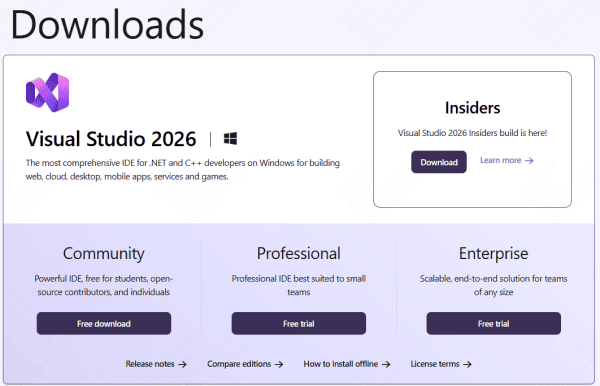
Go to the official Microsoft download page for Visual C++ Redistributables and download the 2015 through 2022 package. Install both the x64 and x86 versions. Also install older versions including 2013 and 2010 if you have not already, as different games pull in different runtime dependencies
Use the Repair option in Windows Add or Remove Programs if the packages are already installed but may be damaged. Restart your PC after completing all installations
Fix 3: Use PcGoGo DLL Fixer
When the error involves multiple missing or damaged dependencies across the system rather than a single identifiable component, manual repairs become difficult to complete reliably.
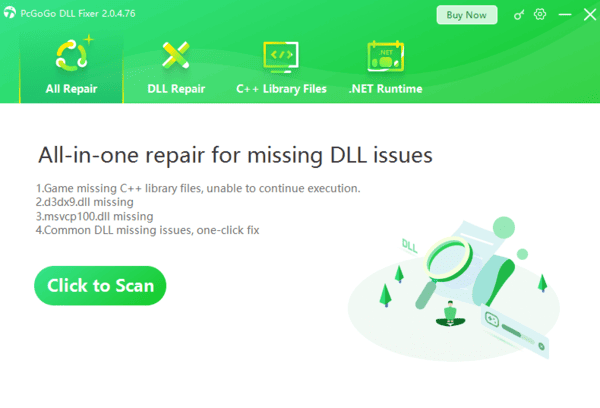
PcGoGo DLL Fixer scans the full system for corrupted DLL files, missing runtime dependencies, and broken registry entries, then repairs them automatically. Download and install it from pcgogo.com, click Scan, and let it complete the analysis
Click Repair Now once the scan identifies the damaged components, then restart your PC and attempt to launch the game
This is particularly useful when error code 126 appears alongside other DLL errors, which suggests the problem extends beyond xgameruntime.dll to its broader dependency chain
Fix 4: Run SFC and DISM to Repair Windows System Files
Corrupted Windows system files can prevent Gaming Runtime components from registering or loading correctly.
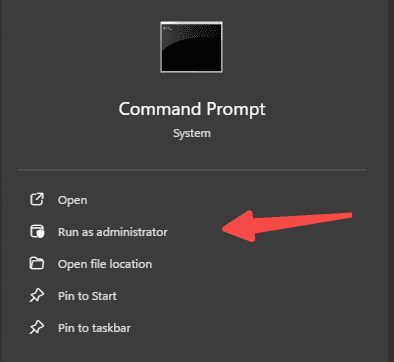
Open Command Prompt as Administrator and run:
sfc /scannow
Let it complete without interruption. If SFC reports that it could not repair all files, follow up with DISM
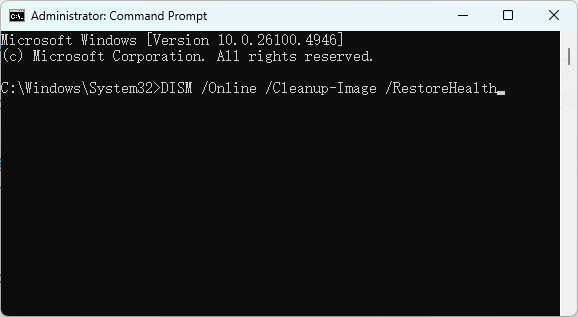
Run these commands in sequence, waiting for each to finish before proceeding:
DISM /Online /Cleanup-Image /ScanHealth
DISM /Online /Cleanup-Image /RestoreHealth
DISM requires an active internet connection to pull clean replacement files from Windows Update. Restart after completion, then run sfc /scannow again to confirm the repairs were applied successfully before testing the game
Fix 5: Check Antivirus Quarantine and Add Exclusions
Antivirus software sometimes flags Gaming Services components as suspicious because they interact with system-level processes in ways that resemble certain malware behaviors. If xgameruntime.dll or related Gaming Runtime files have been quarantined, the error will persist even after reinstalling Gaming Services because the antivirus will quarantine the files again on the next launch.
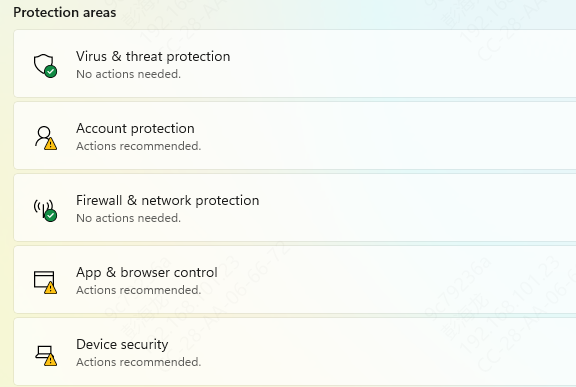
On Windows Security, go to Virus and threat protection, click Manage settings, scroll to Exclusions, and add the relevant folders
After adding exclusions, reinstall Gaming Services through the Microsoft Store to replace any previously quarantined files with clean copies
Fix 6: Update Windows and GPU Drivers
xgameruntime.dll and the Gaming Runtime service are updated through Windows Update. If your system is behind on updates, you may be running an outdated or buggy version of the component that was fixed in a later release.
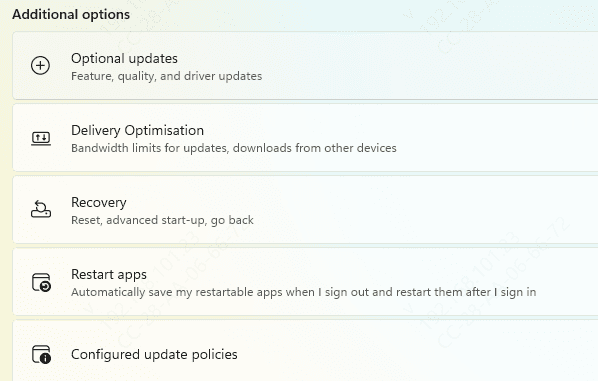
Go to Settings, Windows Update, and install all pending updates including optional updates
After updating Windows, check for GPU driver updates from NVIDIA, AMD, or Intel, as outdated graphics drivers can also prevent game launch components from initializing correctly. Restart after all updates are applied
Fix 7: Re-register Windows Store Components
If Gaming Services reinstallation does not resolve the issue, the underlying Windows Store registration infrastructure may need to be refreshed.
Open PowerShell as Administrator and run:
Get-AppXPackage | Foreach {Add-AppxPackage -DisableDevelopmentMode -Register "$($_.InstallLocation)\AppXManifest.xml"}
This re-registers all installed Store apps and their associated components. Some entries will generate errors during the process, which is normal. Let it complete, restart your PC, then test whether xgameruntime.dll loads correctly
Conclusion
The xgameruntime.dll error code 126 is a Windows Gaming Runtime problem, not a game-specific file problem. Start by reinstalling Gaming Services through the Microsoft Store or Xbox app, then repair Visual C++ Redistributables. If the error persists, use an automated tool like PcGoGo DLL Fixer to catch dependency chain issues, and follow up with SFC, DISM, and antivirus exclusion checks. Working through these steps in order resolves the issue for most users without requiring a Windows reset.