






If you've ever tried to open QuickBooks and received an error message mentioning msxml6.dll, you know how frustrating it can be. The msxml6.dll file is a core Microsoft XML Core Services DLL that QuickBooks uses to process XML data for reports, transactions, and other program functions. When this file is missing, corrupted, or improperly registered, QuickBooks may crash, fail to launch, or display unexpected errors. In this guide, we'll walk you through multiple solutions to restore msxml6.dll and get QuickBooks running smoothly again.
Common Causes of msxml6.dll Error in QuickBooks
Missing or corrupted msxml6.dll file – Often caused by accidental deletion or malware
Incomplete or incorrect QuickBooks installation – Interrupted or failed installations can prevent the DLL from being registered
Malware or virus infections – Malicious software can delete or corrupt DLL files
Outdated or corrupted Windows system files – System updates or crashes may affect DLL integrity
Conflicts with recently installed software – Certain applications may overwrite or block msxml6.dll
Re-register msxml6.dll
If the DLL exists on your system but isn't registered correctly, re-registering it can fix the issue:
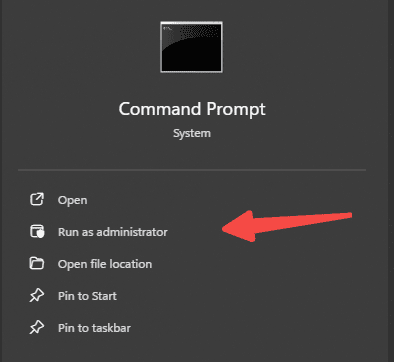
Press Win + S, type cmd, right-click Command Prompt, and select Run as Administrator
In the Command Prompt window, type:
regsvr32 msxml6.dll
Press Enter
You should see a confirmation that the DLL was registered successfully
Restart your PC and try opening QuickBooks again
Tip: If you receive an error while re-registering, ensure that msxml6.dll exists in your C:\Windows\System32 folder
Repair or Reinstall QuickBooks
If re-registering the DLL does not resolve the issue, repairing or reinstalling QuickBooks may help:
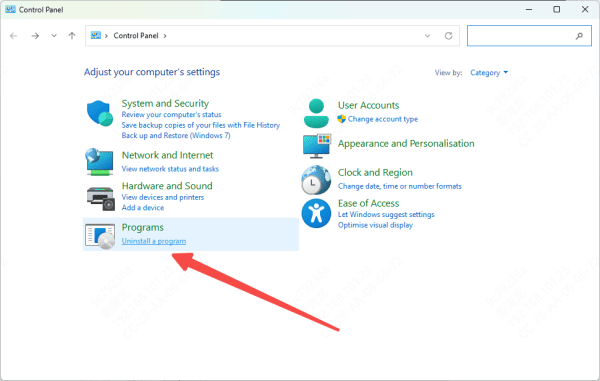
Open Control Panel → Programs → Programs and Features
Locate QuickBooks, then select Repair. Follow the on-screen instructions
If repair fails, uninstall QuickBooks completely, remove any leftover folders in the installation directory, and reinstall the software from the official Intuit website
Always install QuickBooks as Administrator to ensure all DLLs are properly registered
Use PcGoGo DLL Fixer
Automated tools can simplify the process if manual fixes are difficult:
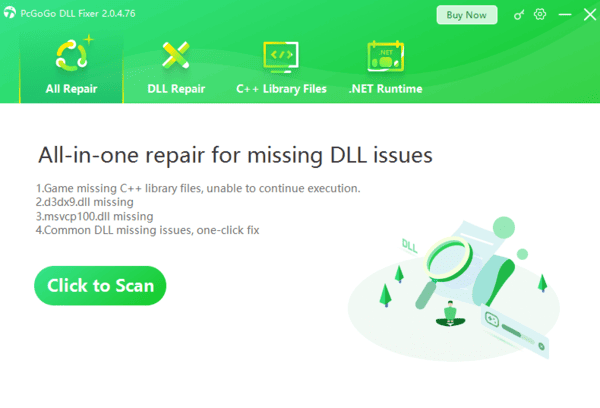
Download and install PcGoGo DLL Fixer or a similar trusted tool
Launch the program and click Scan to detect missing or corrupted DLL files
Click Repair Now to restore msxml6.dll and other affected files
Restart your computer to apply the repairs
Benefit: This method is especially useful if multiple DLLs are causing issues or QuickBooks still fails after manual fixes
Update Windows and System Components
Keeping Windows and core system components updated is critical for DLL stability:
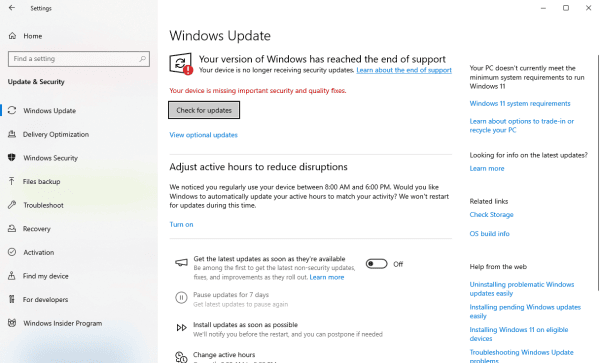
Go to Settings → Update & Security → Windows Update → Check for updates. Install all pending updates
Ensure that Microsoft XML Core Services (MSXML 6.0) is installed and up-to-date
Update key drivers, particularly for graphics, chipset, and storage devices
Restart your computer after updates to apply changes
Scan for Malware
Malware can corrupt or delete DLL files like msxml6.dll:
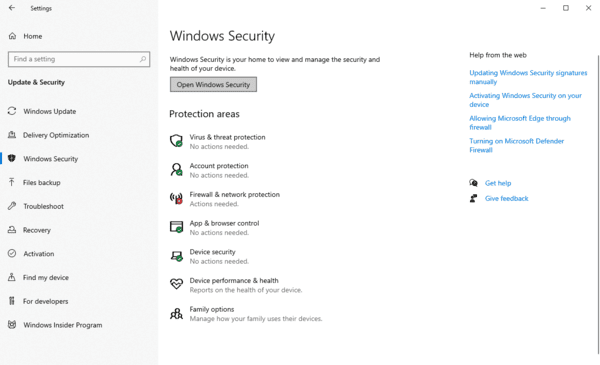
Use Windows Defender or a trusted antivirus program such as Malwarebytes
Run a full system scan and quarantine or remove any threats detected
Restart your PC to ensure the system is clean
Advanced Fixes (Optional)
For stubborn cases, consider these advanced options:
Run System File Checker (SFC) to repair Windows files:
sfc /scannow
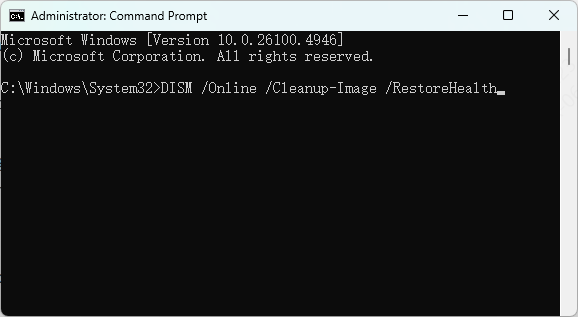
Use DISM if SFC fails:
DISM /Online /Cleanup-Image /RestoreHealth
Check disk integrity using:
chkdsk /f /r
These steps ensure that the system files and storage are not causing the QuickBooks error
Prevent Future msxml6.dll Errors
Keep QuickBooks and Windows up-to-date
Only install software from trusted sources
Perform regular malware scans
Backup QuickBooks data and create system restore points before major installations or updates
Conclusion
msxml6.dll QuickBooks errors are common but can usually be resolved without reinstalling Windows. By re-registering the DLL, repairing or reinstalling QuickBooks, updating Windows and drivers, scanning for malware, and optionally using DLL repair tools, you can restore QuickBooks functionality efficiently. Following these steps not only fixes the current error but also helps prevent similar DLL-related issues in the future, ensuring smooth and reliable QuickBooks performance.




