






Keeping your Brother printer drivers updated is essential for stable printing, scanning, and wireless connectivity on Windows 11 and Windows 10. Missing, outdated, or incorrect drivers can cause problems such as printer detection failures, offline errors, and unavailable features. This guide explains how to download, install, and update Brother printer drivers using official methods, Windows tools, and automatic driver update solutions.
Before Download
Identify Your Brother Printer Model
Check Your Windows System Version
Brother printer drivers are different depending on your operating system.
Check Your Printer Connection Method
Method 1: Download Drivers from Official Support
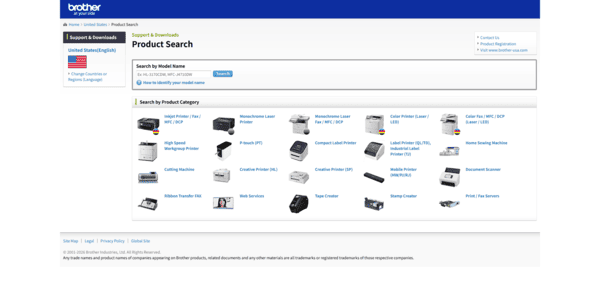
Step 1: Search Your Brother Printer Model
Open the Brother support page and enter your printer model.
Make sure the selected model exactly matches your printer.
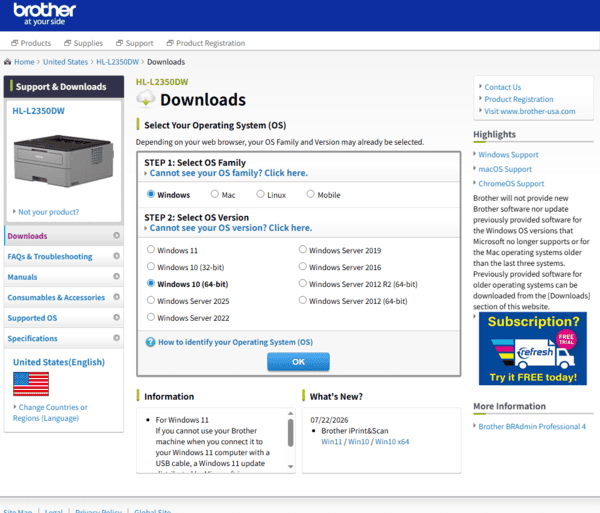
Step 2: Select Windows 11/10 Driver Version
Choose your operating system.
Selecting the correct version ensures the driver works properly with your system.
Step 3: Download the Brother Driver Package
Recommended downloads include:
Full Driver & Software Package
Printer Driver
Scanner Driver
Network utilities
Save the downloaded installer to an easy-to-find location.
Step 4: Install Brother Printer Drivers
Open the downloaded installer.
Accept the license agreement.
Complete the installation.
Restart your computer.
Method 2: Install Drivers Using Windows Update
Use Windows Update
Follow these steps:
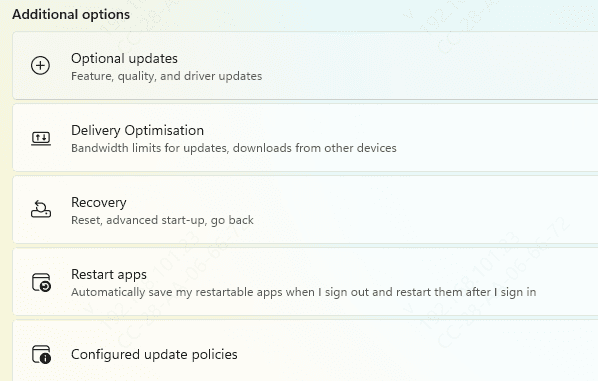
Open Settings.
Select Windows Update.
Click Check for updates.
Install available updates.
Restart your computer.
Add Brother Printer Through Windows Settings
After updating Windows:
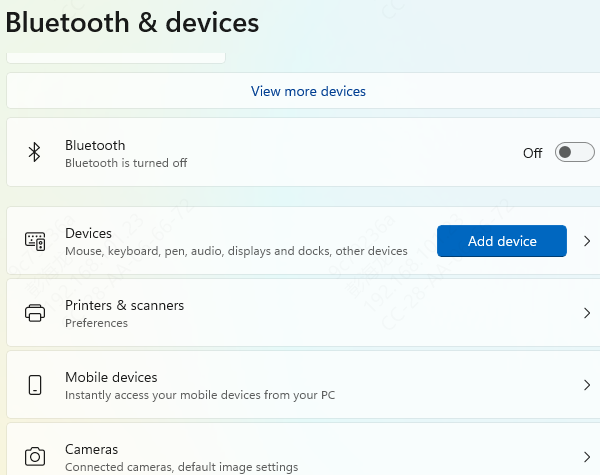
Open Settings.
Select Bluetooth & Devices.
Click Printers & Scanners.
Select Add Device.
Choose your Brother printer.
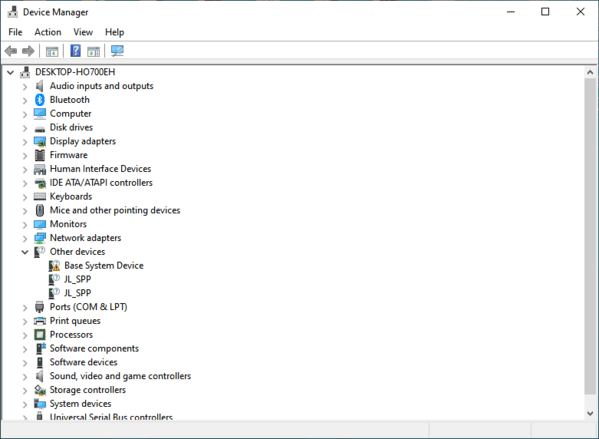
Method 3: Install Drivers Through Device Manager
Press Windows + X.
Open Device Manager.
Expand the printer category.
Right-click your Brother printer.
Method 4: Update Brother Printer Drivers with Driver Sentry
Finding the correct printer driver manually can be difficult, especially after reinstalling Windows or connecting multiple devices.
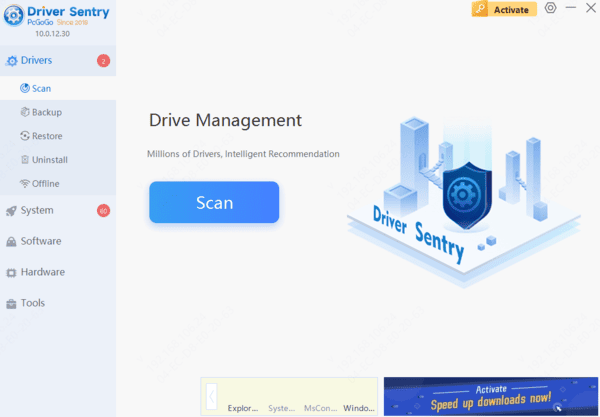
Driver Sentry provides an easier way to detect and update drivers automatically.
Keeping your Brother printer drivers updated ensures better compatibility, smoother performance, and a more reliable printing experience on Windows computers.




