






When using a computer, the appearance of a continuously spinning cursor next to the mouse pointer usually indicates that the system is processing tasks. However, if this persists, it may suggest a problem with system performance caused by a lagging program. Below, we'll explore common causes and solutions for this issue.
Common Causes
1. High System Resource Usage
If the CPU or memory is heavily used, the system may respond slowly, and the cursor might remain in a loading state. This often occurs when running large programs or multitasking.
2. Software Conflicts or Unresponsive Applications
Conflicts or freezing in certain applications can slow down the entire system, causing the cursor to spin continuously.
3. Driver Issues
Corrupted or outdated drivers for hardware like the mouse can result in device responsiveness issues.
4. System Updates or Background Processes
Windows updates, installations, or other processes running in the background might keep the cursor in a loading state for an extended period.
5. Virus or Malware Infections
Viruses or malicious software may consume significant system resources, leading to abnormal cursor behavior.
Solutions
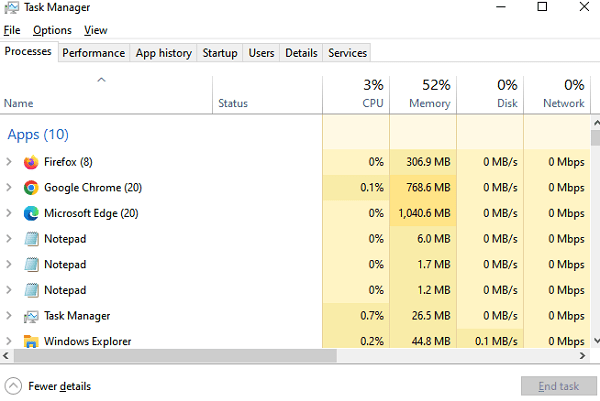
Method 1: Check Task Manager
1. Press Ctrl + Shift + Esc to open Task Manager.
2. Go to the Processes tab and look for programs consuming high CPU, memory, or disk resources.
3. If you find an unresponsive application, right-click on it and select End Task.
Method 2: Update or Reinstall Drivers
1. Update Drivers
To identify and fix driver issues conveniently, you can install the Driver Sentry software. This tool scans your device for driver problems and fixes them automatically.
After installation, open Driver Sentry and click Scan.
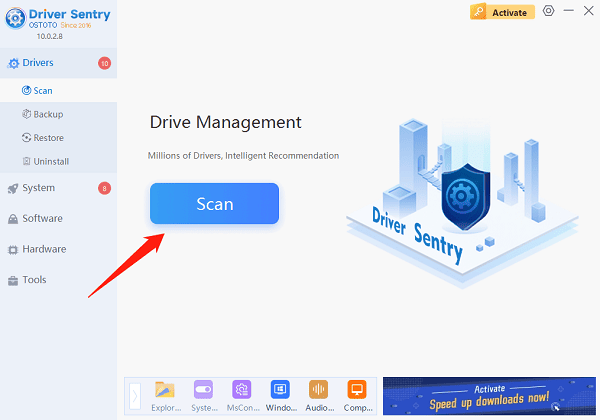
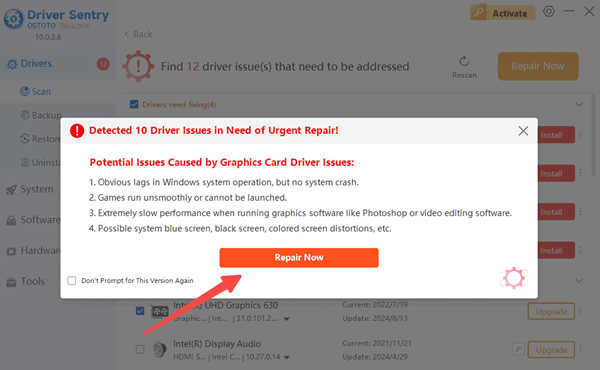
The software will identify any missing or outdated drivers in your system.
Click Repair Now, and it will upgrade or repair your drivers to the correct versions.
2. Reinstall Drivers
If updating doesn't solve the issue, try reinstalling the drivers:
1. Press Win + X and select Device Manager.
2. Locate Mice and Other Pointing Devices, right-click on your mouse, and choose Uninstall Device.
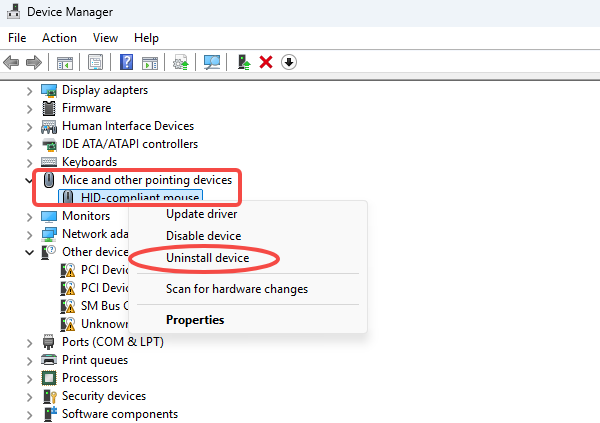
3. Open Driver Sentry, perform a scan, and reinstall the mouse driver.
Method 3: Clean System Junk
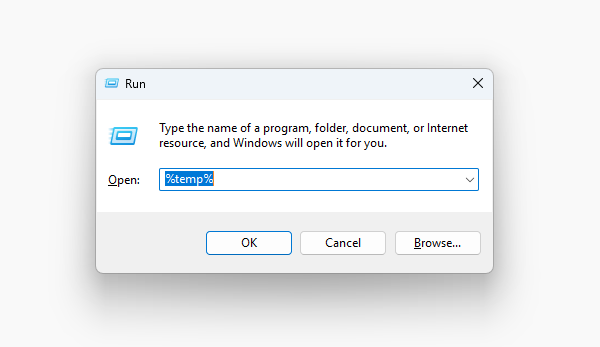
1. Press Win + R, type temp or %temp%, and delete all temporary files.
2. Press Win + R, type cleanmgr, and hit Enter to open Disk Cleanup. Select the disk you want to clean, check items like cached files and temporary files, and click OK.

3. Regularly cleaning your system can improve performance and reduce cursor lag.
Method 4: Run a Virus Scan
1. Use antivirus software to perform a deep scan of your entire system.
2. If any threats are detected, follow the software's instructions to delete or quarantine them.
3. Keep your antivirus software updated to protect against new threats.
We hope this guide helps you resolve the issue of a constantly spinning cursor. If you encounter driver-related problems, Driver Sentry can assist in scanning and fixing them effortlessly. Stay proactive with system maintenance to ensure smooth performance!
See also:
How Do I Get My Mouse Pointer Back
Fixing Mouse Issues After System Reinstallation
How to Fix Logitech Wireless Mouse Not Working
Top 7 Easy Ways to Fix a Mouse Cursor Moving on Its Own




