






PS5 does not natively support direct connections with most Bluetooth headsets, users need to rely on compatible accessories or alternative connection methods to use wireless audio devices. Connecting a Bluetooth headset to PS5 can be confusing without the right steps, but the process is straightforward once you understand the available options. In this guide, we'll explain how to connect a Bluetooth headset to PS5 and provide step-by-step instructions to help you enjoy wireless audio while gaming.
1. Preparation
Make sure the PS5 console is properly connected and working.
Prepare the Bluetooth headset you wish to connect to the PS5 and make sure the headset is fully charged.
Since the PS5 does not directly support Bluetooth headset connections, you will need a USB Bluetooth adapter for this function. You can purchase a compatible Bluetooth adapter online or at an electronics store.
2. Update The Driver
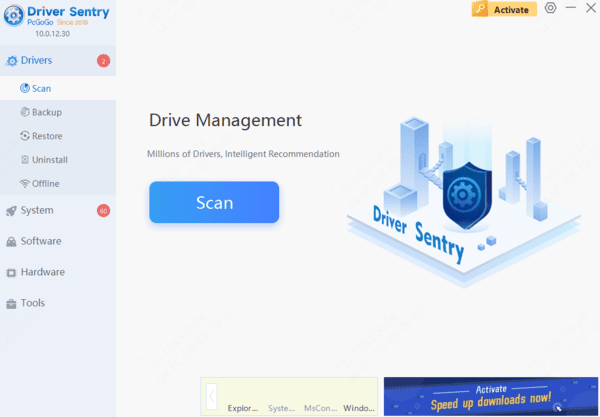
Sometimes, driver issues may affect the connection between the Bluetooth adapter and the headset. Make sure your adapter driver is up-to-date. It is recommended to use Driver Sentry to automatically detect and update drivers, saving you time and preventing the risk of downloading or installing incorrect drivers.
3. Connect The Bluetooth Adapter
Locate the USB port on the PS5 main unit and plug the Bluetooth adapter into it.The USB port on the PS5 is usually located on the front or back of the main unit.
Ensure that the PS5 main unit is powered up and that the Bluetooth adapter's indicator light is on, indicating that it is ready to make a connection.
4. Pair Your Bluetooth Headset With The Adapter
Set your Bluetooth headset to pairing mode. Typically, this involves pressing and holding a specific button on the headset for a few seconds until the indicator light starts blinking. Pairing may vary between brands and models of headphones, so it is recommended to refer to the user manual of your headset.
The Bluetooth adapter automatically searches for Bluetooth devices around it and tries to pair with the Bluetooth headset. When the adapter successfully connects to the headset, its indicator light usually stops blinking and stays permanently lit, or changes to another color (depending on the adapter model).
5. Configuring Audio Settings on PS5
In the PS5 main interface, select the "Settings" icon (usually located in the upper right corner) to enter the Settings menu.
In the Settings menu, find and select the "Sound" tab.
Under the "Sound" tab, select "Audio Output" and then "Output Devices". In the output device list, select the name of the device that matches your Bluetooth adapter.
You can adjust the audio settings according to your personal preferences, such as volume, 3D sound, etc. for the best listening experience.
6. Test The Audio Connection
After completing the above steps, it is recommended that you test the audio connection to make sure everything is working properly:
Open a game or play an audio file and check if the headset receives and plays sound properly.
Adjust the volume to a suitable level using the volume control buttons on your PS5 controller or headset.




