






If your Dell laptop won't turn on, it can be caused by power issues, hardware failures, BIOS problems, or outdated drivers. This guide explains several practical solutions to troubleshoot Dell laptop startup problems, including checking power connections, performing a hard reset, updating drivers, and restoring system settings to help get your laptop working again.
1. Check the power connection
Make sure that the power adapter is well connected to the outlet and the power cord is not broken.
Try unplugging the power adapter, removing the battery, and reinserting the power adapter and battery to see if it will start.
If the battery fails to charge, try using another battery (if there is a spare) to troubleshoot the battery itself.
2. Perform a hard reboot
Power off the computer.
Unplug the power adapter and remove the battery (if it can be removed).
Press and hold the power button for about 30 seconds to release all current residue.
Reinsert the battery and connect the power adapter and try to power on the computer.
3. Check the display
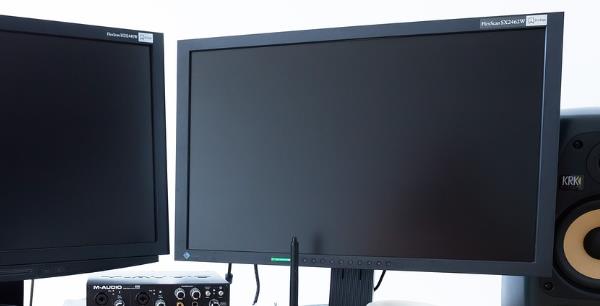
Connect an external display. Connect your laptop to an external monitor (such as a TV or desktop monitor) using an adapter, and then switch the display output mode (usually done by pressing F8 or another function key).
If the external monitor displays normally, then the problem may be a fault in the laptop's built-in display. If there is no signal from the external monitor as well, there may be a problem with the computer's motherboard or other hardware.
4. Driver updates
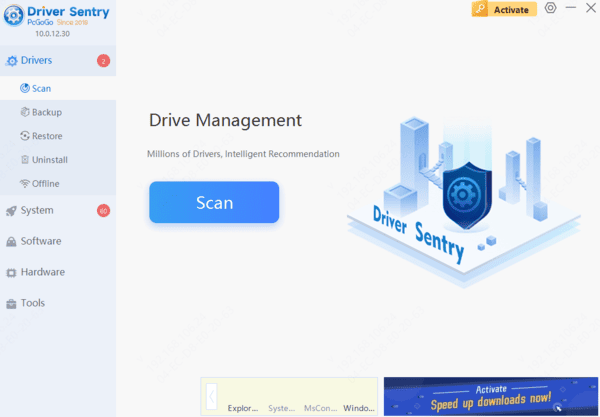
Drivers are an important part of ensuring that your laptop hardware and operating system can work together smoothly. Sometimes, incompatible or outdated drivers may also cause the computer can not start normally or other abnormalities. It is recommended to use Driver Sentry for automatic driver detection and updates, saving time and avoiding the risk of downloading or installing incorrect drivers.
5. Check memory sticks and hard disk connections
Loose or damaged memory sticks and hard disks can also cause the computer to fail to boot. Open the back cover of the laptop (you need to follow Dell's instructions) and check if the memory stick and hard disk connections are secure. If the memory stick is loose, you can re-insert and re-plug the memory stick to ensure good contact. For the hard disk, check for visible damage or looseness.
6. Reset BIOS settings
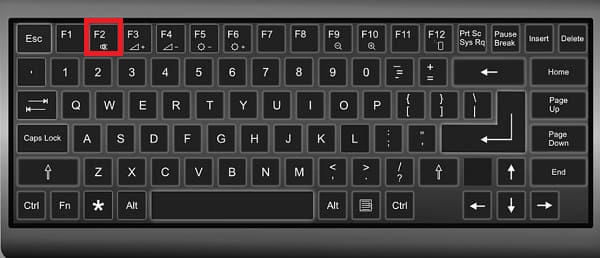
After shutting down the computer, press the F2 key to enter the BIOS setup.
In the BIOS interface, select Restore Defaults (usually the "Load Defaults" or "Restore Defaults" option).
Save and exit the BIOS, and restart the computer.
7. Reinstall the operating system
If your Dell laptop has a recovery partition, you can try to press F8 or F12 to enter recovery mode and select the "Repair Computer" option.
Boot up using a Windows installation USB flash drive, select "Repair Computer" and try to fix the boot problem.
If none of these methods work, you may need to backup your data and reinstall the operating system.




