






Update Dell WD19 docking station firmware safely to improve monitor, USB, network, and peripheral stability. Learn how to download official firmware, use Dell's automated update utility, prepare the dock correctly, complete the installation, maintain related drivers, and troubleshoot detection, installation, or power problems.
Why is Firmware Important for Dell WD19
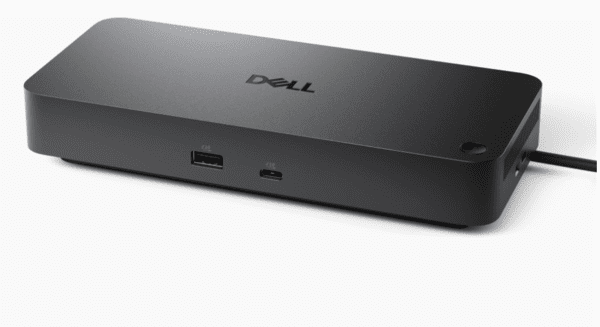
Firmware is essentially the software embedded in the hardware of the Dell WD19 docking station. It manages communication between the docking station and your laptop, ensuring that all connected devices function correctly
Updating the firmware can improve device stability, fix bugs, enhance compatibility with newer devices, and provide better performance for external monitors, USB peripherals, and other connected devices
Improved Performance: Firmware updates can optimize how your laptop and docking station communicate, improving data transfer speeds and overall functionality
Bug Fixes: Updates often include fixes for known issues that may affect device performance or cause system instability
New Features: Firmware updates can unlock new capabilities or enhance existing features of your docking station
Step-by-Step Guide to Updating Dell WD19 Firmware
Step 1: Downloading the Dell WD19 Firmware Update
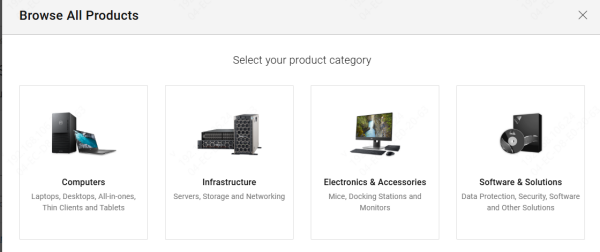
Visit Dell Support Website: Go to the official Dell Support website
Search for Your Docking Station: Enter the Dell WD19's service tag or navigate to the docking station section
Locate the Firmware Section: Once on the product page, find the Drivers & Downloads section
Download the Latest Firmware: Look for the latest firmware update under the Firmware category, select the correct version, and download the update file
Step 2: Install Dell Command | Update (Optional)
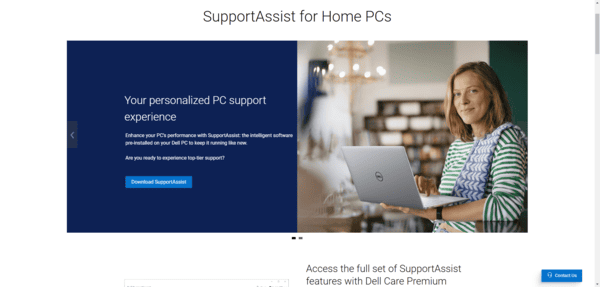
If you prefer a more automated approach, you can download Dell Command | Update, a tool that scans your system for outdated drivers and firmware
Download Dell Command | Update from the Dell website
Install the tool by following the on-screen prompts
Use the tool to scan for the latest updates, including firmware for the Dell WD19
Step 3: Running the Firmware Update
Launch the Update Utility: Open the downloaded firmware update file or Dell Command | Update
Follow the Prompts: Click on the install button and follow the on-screen instructions
Start the Update: The tool will apply the firmware update to your Dell WD19 docking station. Do not disconnect the docking station during this process
Step 4: Completing the Firmware Update
Once the update is complete:
Restart your laptop to finalize the changes
Test your Dell WD19 docking station by reconnecting peripherals and external displays to ensure everything is functioning properly
Tip to promote docking station performance
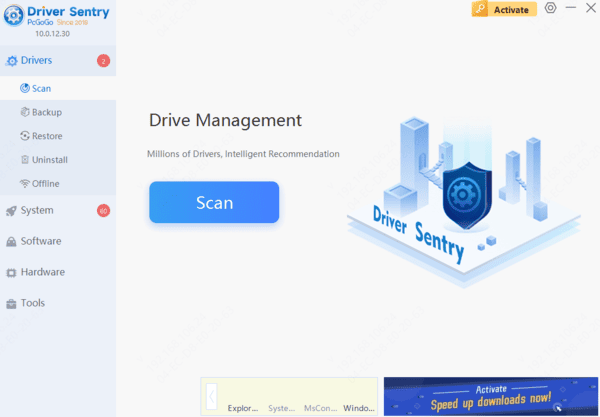
To make the process of keeping your Dell WD19 docking station, along with other system components, updated even easier, Driver Sentry is a great tool to consider. This software automatically detects outdated drivers and firmware on your system and updates them to the latest compatible versions, saving you time and reducing the risk of errors.
Automatically scan and update all your drivers, including docking station firmware, in just a few clicks
Ensure you're always using the latest, most compatible versions of drivers to maintain optimal performance
Fix driver-related issues and prevent system crashes caused by outdated or missing drivers
Troubleshooting Common Firmware Update Issues
Firmware Update Fails to Install
Ensure the docking station is properly connected to your laptop
Restart your system and try the update process again
Docking Station Not Detected After Update
Unplug the docking station, wait a few seconds, and reconnect it
Check Device Manager for any error signs, and reinstall the drivers if necessary
Power Issues Post-Update
Disconnect all peripherals and power cycle the docking station by unplugging it for 10-15 seconds before reconnecting it
Conclusion
Keeping your Dell WD19 docking station firmware updated ensures that it works at its best, providing seamless connectivity for your devices. By following this guide, you can easily update your firmware, troubleshoot any problems that may arise, and maintain smooth operation. Regular updates will help your docking station remain compatible with newer devices and operating systems, ensuring optimal performance and long-term reliability.




