



Discord is one of the most popular communication platforms for gamers, communities, and remote teams. However, sometimes the application refuses to start because it gets stuck installing an update.
Instead of opening your chats and servers, Discord may display an "Update Failed — Retrying" message. The application repeatedly attempts to download or install an update, but the process never finishes.
This problem can occur on Windows 10 and Windows 11, even when your internet connection appears to be working normally.
If Discord keeps saying Update Failed, follow the troubleshooting methods below to restore normal operation.
Fix 1: Restart Discord
Press Ctrl + Shift + Esc to open Task Manager.
Select the Processes tab.
Look for Discord and related update processes.
Right-click any stuck Discord process.
Select End task.
Fix 2: Check Discord Server Status
Visit the official Discord status page.
Look for incidents involving application services, downloads, or other relevant infrastructure.
If Discord is experiencing a widespread problem, local troubleshooting may not resolve the update failure immediately.
Wait until the service is restored and try launching Discord again.
If no relevant incident is reported, continue checking your computer.
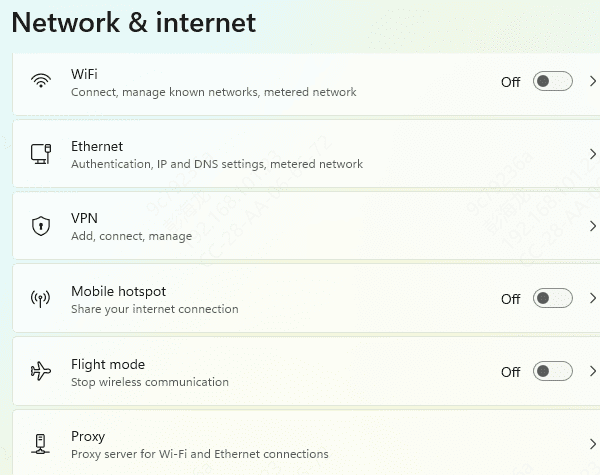
Fix 3: Check Your Internet Connection
Close Discord.
Open your browser and visit several websites.
Check whether downloads work normally.
Restart your router if the connection appears unstable.
Reconnect your computer to Wi-Fi or Ethernet.
Launch Discord again.
Fix 4: Clear Corrupted Discord Update Files
Close Discord completely.
Open Task Manager and end any remaining Discord processes.
Press Windows + R.
Type %localappdata%.
Press Enter.
Locate the Discord folder.
Rename it to Discord_backup.
Download a fresh Discord installer from the official website.
Run the installer.

Fix 5: Check Windows Administrator Permissions
Download the latest Discord installer.
Locate the downloaded installer.
Right-click the file.
Select Run as administrator, if available.
Approve the Windows User Account Control prompt if you trust the installer.
Follow the installation instructions.
After installation, launch Discord normally.
Fix 6: Review Firewall and Antivirus Restrictions
Check Windows Security
Open Windows Security.
Select Virus & threat protection.
Open Protection history.
Review recent blocked or quarantined items.
Fix 7: Temporarily Disconnect VPN or Proxy Services
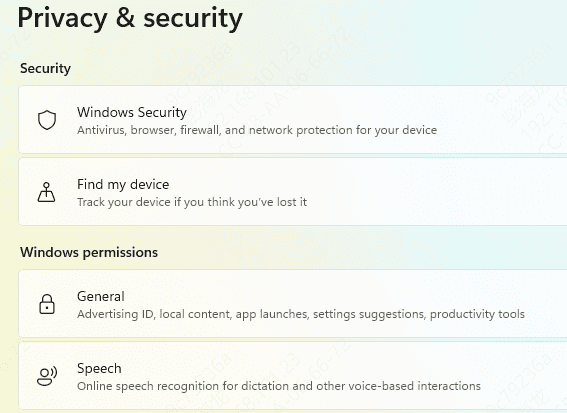
Check Proxy Settings on Windows 11
Press Windows + I.
Open Network & internet.
Select Proxy.
Review the configured proxy settings.
Fix 8: Refresh Windows DNS Settings
DNS allows Windows to resolve website names into network addresses.
If your computer has outdated or incorrect DNS information, Discord may have difficulty connecting to some online resources.
Flushing the DNS cache can help resolve certain name-resolution problems.
Flush the DNS Cache
Type cmd in Windows Search.
Open Command Prompt.
Enter the following command:
ipconfig /flushdns
Press Enter.
Wait for the confirmation message.
Restart Discord.
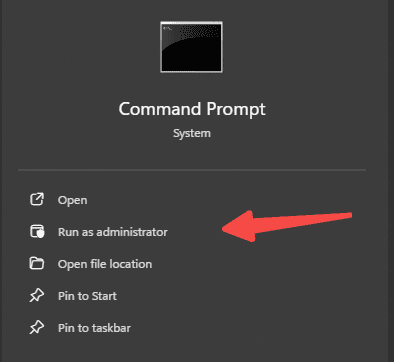
This command clears the local DNS resolver cache.
It does not delete Discord messages or account information.
If the update continues failing, check whether other applications also experience network problems.
Fix 9: Check Network Drivers
Network adapter drivers allow Windows to communicate with Wi-Fi and Ethernet hardware.
If a network driver becomes corrupted or incompatible, your computer may experience connection interruptions or unreliable downloads.
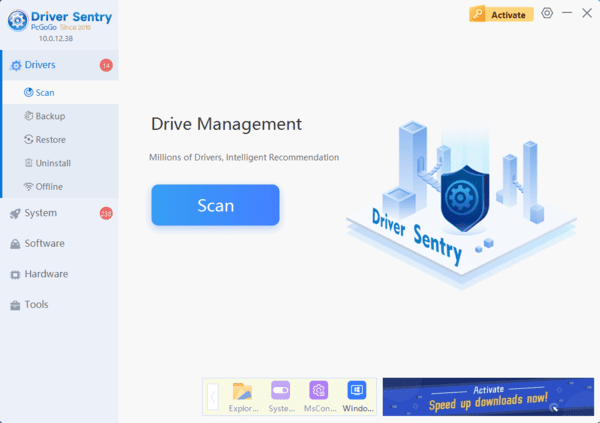
Driver Sentry is a Windows driver management utility that can identify supported missing, outdated, or problematic drivers.
Download Driver Sentry.
Install and launch the application.
Run a system driver scan.
Review any detected network adapter driver issues.
Install appropriate compatible driver updates if available.
Restart Windows.
Launch Discord again.
You can also obtain compatible network drivers from your computer or network adapter manufacturer's official support website.
Driver Sentry may help with supported driver-related connectivity problems, but it cannot repair Discord server outages, corrupted Discord application files, or firewall policies.
If your internet connection works normally and only Discord fails to update, prioritize checking its installation files and security settings first.
Frequently Asked Questions
Why Does Discord Keep Saying Update Failed?
Discord may repeatedly report Update Failed because of unstable internet connectivity, corrupted installation files, blocked update connections, or temporary service problems.
Start by restarting Discord and checking its service status.
How Do I Fix Discord Update Failed Retrying?
Close all Discord processes, restart Windows, and check your internet connection.
If the error continues, rename the local Discord installation folder and reinstall the application using the official installer.
Will Reinstalling Discord Delete My Account or Messages?
No. Reinstalling the desktop application does not normally delete your Discord account, servers, or cloud-stored messages.
However, some local application settings and cached files may be removed.
Conclusion
Discord Update Failed can prevent the application from launching, but the problem is often related to temporary network interruptions, corrupted updater files, or Windows security restrictions.
Start by restarting Discord completely and checking the official service status. If the error continues, review your network connection, firewall settings, and local installation files.
Driver Sentry provides an additional way to check supported network driver issues when broader connectivity problems are suspected.
If simpler solutions do not work, reinstalling Discord from its official website can help restore the desktop application and its update process.