
Downloading YouTube videos can be useful for offline viewing, saving mobile data, or backing up content you own or have permission to use. However, videos should only be downloaded when YouTube provides an official download option or when the creator and applicable rights allow it. This guide explains two practical methods: using YouTube Premium for official offline playback and using PcGoGo Video Downloader for authorized videos that require additional format, resolution, or batch-download options.
Method 1: YouTube Premium
Subscribe to YouTube Premium: Sign up for YouTube Premium by visiting the YouTube Premium website. A subscription is required to use the download feature
Open the YouTube App: On your mobile device or desktop, launch the YouTube app (mobile or desktop version)
Find the Video You Want to Download: Browse or search for the video you want to save for offline viewing
Click the Download Button: Below the video player, you will see a Download button (usually next to the Like and Share buttons). Click it
Select Video Quality: Choose your preferred video quality (e.g., 720p, 1080p). YouTube Premium offers multiple quality options depending on the video and your device

Method 2: PcGoGo Video Downloader
For those who want more flexibility and additional features, PcGoGo Video Downloader is a powerful third-party tool that allows you to download YouTube videos with ease. This downloader supports high-quality video formats (up to 1080p or even 4K) and offers a fast, straightforward process to save videos to your computer.
Step 1: Install and Launch PcGoGo Video Downloader
Click the Download button to get the PcGoGo Video Downloader installer
Once the download is complete, open the installer and follow the on-screen instructions to install the program on your computer
After installation, launch the PcGoGo Video Downloader application
Step 2: Copy the Video URL
Open your web browser and navigate to the YouTube video you want to download
Highlight the URL in the address bar, then right-click and select Copy, or press Ctrl + C on Windows
Step 3: Paste and Analyze the URL
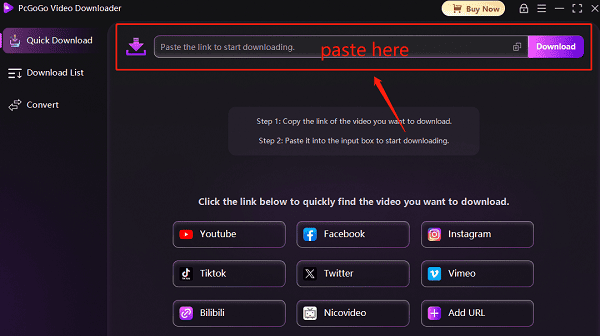
Return to the PcGoGo Video Downloader app. In the main interface, locate the field for pasting a URL. Right-click and select Paste, or press Ctrl + V
The software will process the link and analyze the video, detecting all available formats and resolutions
Step 4: Select Quality and Start Download
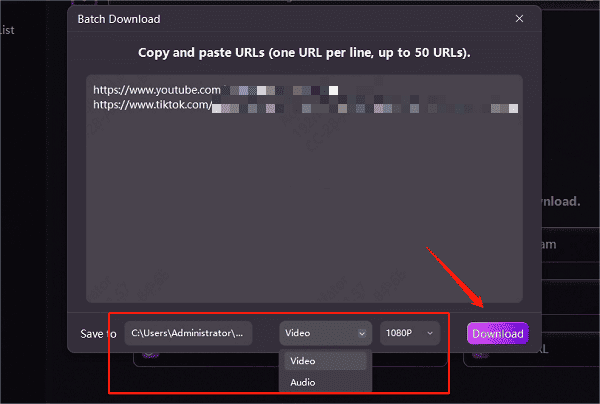
Once the analysis is complete, PcGoGo Video Downloader will display all download options, including different resolutions (e.g., 720p, 1080p) and file formats
If you want to download multiple videos, you can paste several URLs at once, as the software supports batch downloads
Choose your desired format and resolution, select a download folder on your computer, and then click Download to start saving the video(s)
To sum up, downloading YouTube videos can be done effectively through YouTube Premium, which provides a legitimate and simple way to save videos for offline viewing, or PcGoGo Video Downloader, which offers advanced features like watermark removal and supports multiple platforms. While YouTube Premium is the official, hassle-free solution, PcGoGo gives users more control over video quality and format, making it a great option for those seeking more flexibility in their downloads.