The "Driver Verifier Detected Violationz" blue screen error usually indicates that Windows has detected a faulty, outdated, or incompatible driver. This guide explains the main causes and fixes, including updating or reinstalling drivers with PcGoGo Driver Sentry, disabling Driver Verifier, checking RAM and hard drive health, restoring the system, and preventing future driver-related crashes. Follow these solutions to troubleshoot driver conflicts and restore Windows stability.
What Is "Driver Verifier Detected Violation"?
The "Driver Verifier Detected Violation" error is a sign that something's not right with your PC's drivers. There is a pre-installed utility in Windows known as Driver Verifier. Its job is to test drivers for any errors. When the Driver Verifier spots a problem, it stops the system. This is like a safety measure to prevent further damage. And that's when you get the blue screen with the "DRIVER_VERIFIER_DETECTED_VIOLATION" stop code.
This error often shows up after you've installed new hardware or software. It could also be a sign that your drivers are outdated or not working properly. For example, if you've just installed a new graphics card and then start getting this error, it might be because the driver for that card isn't compatible with your system.
Fix 1: Update or Reinstall Drivers
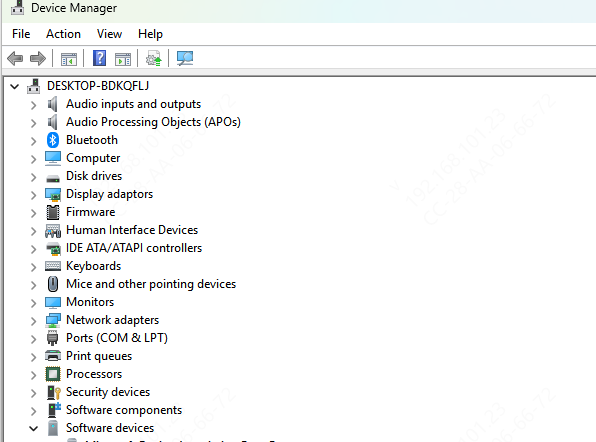
1. Simultaneously press the Windows key and the X key. Then, from the dropdown menu that pops up, choose "Device Manager".
2. In the Device Manager, look for any drivers with a yellow exclamation mark next to them. These are the drivers that might be causing problems.
3. Perform a right-click action on the driver that is causing issues and then choose the option "Update Driver". Proceed by adhering to the instructions displayed on the screen to finalize the update process.
4. If updating the driver doesn't work, you can try uninstalling it. Right-click on the driver again and select "Uninstall device". After uninstalling, restart your PC. Windows will then reinstall the driver automatically.
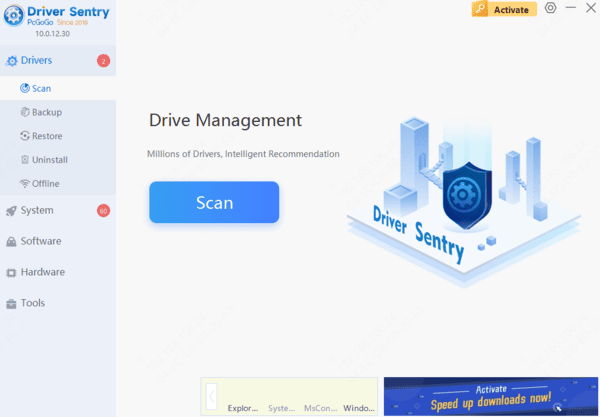
If you find these steps a bit tricky or you're not sure which driver to update, PcGoGo Driver Sentry can be a great help. PcGoGo Driver Sentry is a professional driver management tool. It can automatically scan your PC for available drivers. Whether you need to uninstall, reinstall, back up, or restore drivers, PcGoGo Driver Sentry makes it easy with just one click.
Fix 2: Disable Driver Verifier
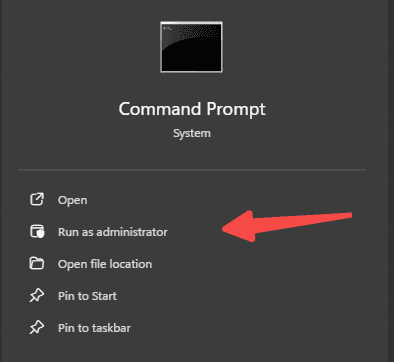
1. Press the Windows key and S. Type "Command Prompt" in the search bar. Right-click on "Command Prompt" and select "Run as administrator".
2. In the Command Prompt window, type "verifier /reset" and press Enter.
3. Restart your PC. This should stop the error from appearing if the Windows Driver Verifier is the cause.
Fix 3: Check Hardware
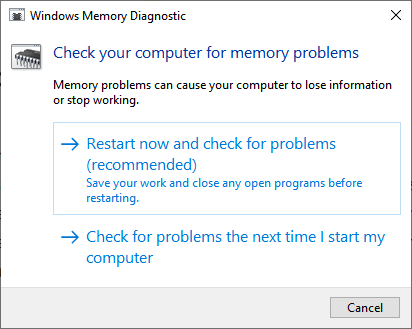
1. Utilize tools such as Windows Memory Diagnostic to conduct a test on your RAM. You can find this tool by searching for it in the Windows Start menu. It will check your RAM for any problems.
2. Check your hard drive for errors. You can use the CHKDSK tool for this. Open Command Prompt as an administrator and type "chkdsk C: /f" (replace "C:" with the drive letter of your hard drive).This will scan and fix any errors on your hard drive.
3. If any of the tests find problems, you might need to replace the faulty hardware.
Fix 4: Restore System
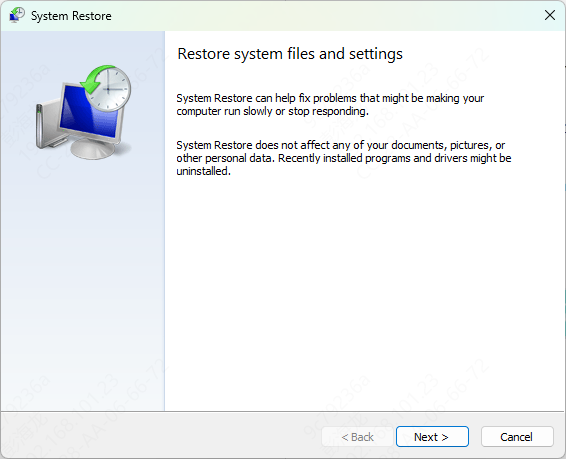
1. Press the Windows key and S. Type "System Restore" in the search bar and open it.
2. Choose a restore point that was created before the error started. You can usually tell by the date and time.
3. Follow the on-screen steps to restore your system.
Conclusion
Dealing with the "Driver Verifier Detected Violation" error doesn't have to be a never-ending nightmare. By following the methods outlined in this guide, you can systematically diagnose and resolve the issue. Remember, PcGoGo Driver Sentry is your ally in maintaining a healthy driver environment, preventing many of these problems from cropping up in the first place. Whether you're a tech novice or a seasoned pro, these solutions are designed to get your Windows system back on track. If you encounter any challenges along the way or have additional tips to share, feel free to leave a comment.