


Epic Games Launcher is supposed to make accessing your game library simple. However, that experience quickly becomes frustrating when the launcher suddenly goes offline, refuses to load the Store, or stops downloading games for no obvious reason.
What makes these problems confusing is that your internet connection may appear perfectly normal. Websites load without difficulty, streaming services work, and other gaming platforms connect successfully. Yet Epic Games Launcher continues reporting network connectivity issues.
If Epic Games Launcher is not connecting properly on your Windows 10 or Windows 11 PC, the following troubleshooting approach can help you identify the cause and restore access.
Solution 1: Restart Your Router and Refresh the Connection
Temporary router or network problems can interrupt communication with Epic Games services.
Restarting your network equipment may restore normal connectivity.
1. Close Epic Games Launcher.
2. Restart your Windows computer.
3. Disconnect your router's power supply.
4. Wait approximately 30 seconds.
5. Reconnect the router and allow it to start.
6. Reconnect your PC to Wi-Fi or Ethernet.
7. Open Epic Games Launcher again.
Solution 2: Fix Network Adapter Driver Problems
Network adapter drivers allow Windows to communicate with Wi-Fi and Ethernet hardware.
If a network driver becomes corrupted or incompatible, your computer may experience unstable connections, frequent disconnections, or difficulty accessing online services.
Checking the network driver is especially useful if Epic Games Launcher connection errors appear alongside other internet problems.
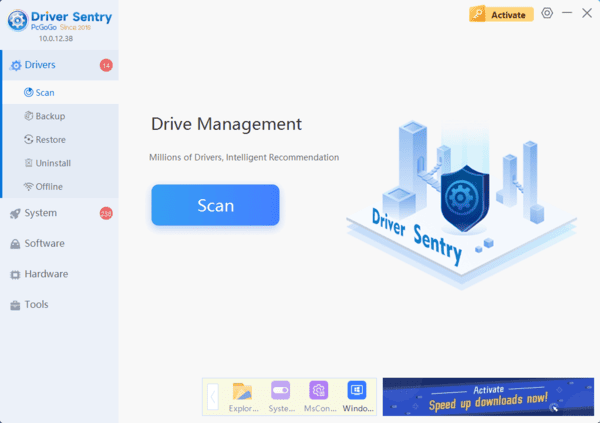
Check Network Drivers with Driver Sentry
Driver Sentry is a Windows driver management utility that can identify supported missing, outdated, or problematic drivers.
It provides an additional way to investigate network adapter driver issues on compatible Windows computers.
1. Download Driver Sentry.
2. Install and launch the application.
3. Click Scan to examine your computer.
4. Review any detected Wi-Fi or Ethernet driver issues.
5. Install appropriate compatible updates if available.
6. Restart Windows.
Update Network Drivers Manually
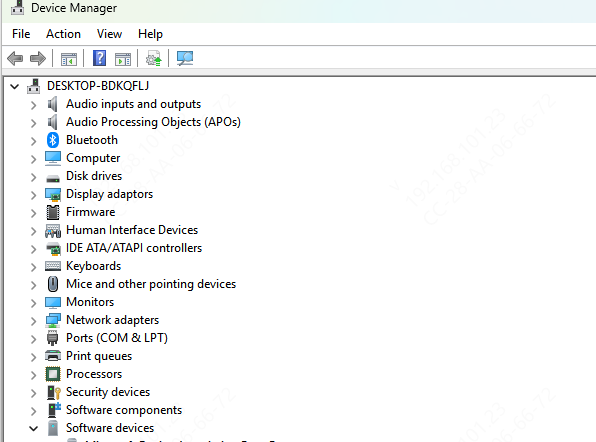
You can also check network drivers through Device Manager.
1. Press Windows + X.
2. Select Device Manager.
3. Expand Network adapters.
4. Right-click your active Wi-Fi or Ethernet adapter.
5. Select Update driver.
6. Choose Search automatically for drivers.
If Windows cannot find a suitable driver, visit your computer or network adapter manufacturer's official support website.
Download and install a compatible driver for your hardware.
Solution 3: Clear the Epic Games Launcher Web Cache
Epic Games Launcher stores temporary files to help load its interface and online content. If these cached files become corrupted, the Store may display blank pages or fail to load properly.
Clearing the web cache can help resolve certain launcher interface and connectivity symptoms.
1. Exit Epic Games Launcher completely.
2. Press Windows + R.
3. Enter %localappdata%.
4. Open the EpicGamesLauncher folder.
5. Navigate to the Saved folder.
6. Locate folders named webcache or similarly named webcache directories.
7. Delete only the relevant webcache folders.
8. Restart Epic Games Launcher.
Solution 4: Flush DNS and Reset Windows Network Components
DNS allows Windows applications to locate online services using domain names.
If cached DNS information becomes outdated or incorrect, certain connections may fail. Flushing the DNS cache is a useful troubleshooting step.
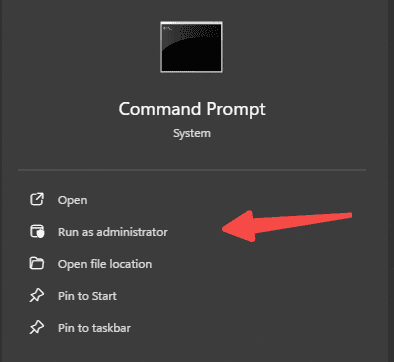
1. Type cmd in Windows Search.
2. Right-click Command Prompt.
3. Select Run as administrator.
4. Enter the following command:
ipconfig /flushdns
5. Press Enter and wait for confirmation.
If connectivity problems continue, you can also reset the Windows network socket configuration:
netsh winsock reset
Solution 5: Review VPN and Proxy Settings
VPN and proxy connections change how your computer communicates with online services.
Sometimes, routing restrictions or incorrect proxy settings can prevent Epic Games Launcher from connecting.
If you use a VPN, disconnect it temporarily and test the launcher.
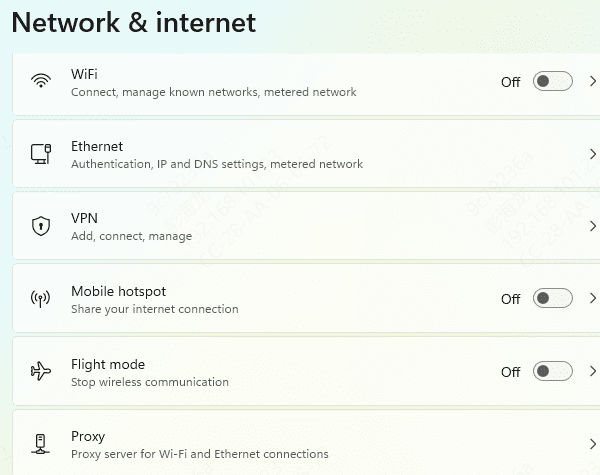
1. Open Settings.
2. Select Network & Internet.
3. Click Proxy.
4. Review the configured proxy options.
5. Disable an unintended manual proxy for testing.
6. Restart Epic Games Launcher.
Solution 6: Synchronize Windows Date and Time
Incorrect Windows date and time settings can interfere with secure connections and authentication.
If your system clock is significantly inaccurate, Epic Games Launcher may have trouble signing in.
1. Open Settings.
2. Select Time & language.
3. Open Date & time.
4. Enable Set time automatically.
5. Confirm that the time zone is correct.
6. Click Sync now if available.
Frequently Asked Questions
Why can I browse websites while Epic Games Launcher stays offline?
Different applications connect to different servers. A working browser does not rule out a launcher cache problem, routing issue, or restriction affecting Epic's connections.
Will clearing the launcher's web cache delete my installed games?
Deleting only the launcher's webcache folders should leave installed games intact. Close the launcher completely first, and avoid deleting game installation folders or unrelated data.
What does it mean if the launcher works through a mobile hotspot?
The difference suggests a problem involving your usual network, router, DNS, or routing. It does not identify the exact cause, but it helps narrow troubleshooting before reinstalling the launcher.
Conclusion
Epic Games Launcher network connectivity issues can result from unstable internet connections, corrupted cache files, outdated network drivers, or incorrect Windows settings. Start by restarting your router, clearing the launcher cache, and checking VPN or proxy configurations. If the problem persists, flush DNS, synchronize your system time, or use Driver Sentry to identify and update problematic network drivers. Following these troubleshooting steps can help restore Epic Games Launcher connectivity and ensure smoother game downloads and updates on Windows 10/11.