





An Epson printer not printing is a common issue that can affect both home and office users. It may be caused by driver problems, outdated software, connectivity issues, or hardware-related factors such as clogged print heads. In many cases, the printer itself is not faulty. This guide explains the most effective solutions to fix Epson printing problems and restore normal operation when your printer stops responding.
Common Reasons Why Epson Does Not Print
Before applying fixes, we must understand the root causes. If your Epson printer is not printing, these common reasons may be behind it:
Outdated or corrupt drivers
Clogged printhead or ink nozzles
Empty or incorrectly installed cartridges
Incorrect printer settings
USB/Wi-Fi connectivity issues
Spooler service errors in Windows
By identifying these, you can apply the most effective troubleshooting method.
Check Epson Printer Connections
When an Epson printer does not print, the first step is ensuring proper connection. A printer disconnected from the PC or Wi-Fi cannot send print jobs correctly.
If you use USB, make sure the cable is secure.
For Wi-Fi printers, check the router and reconnect the printer.
Verify the printer is set as the default printer in Windows settings.
A poor connection is often the simplest cause of the my Epson printer is not printing problem.
Update Epson Printer Drivers with PcGoGo Driver Sentry
One of the most common reasons an Epson does not print is outdated or corrupted drivers. A reliable way to resolve this is by updating drivers.
We recommend PcGoGo Driver Sentry, a powerful driver management tool designed to keep your system running smoothly.
Why PcGoGo Driver Sentry?
Automatically detects outdated Epson printer drivers
Downloads and installs official drivers in one click
Prevents printing errors and improves device stability
Easy-to-use interface for beginners and professionals
How to Update Epson Drivers with PcGoGo Driver Sentry
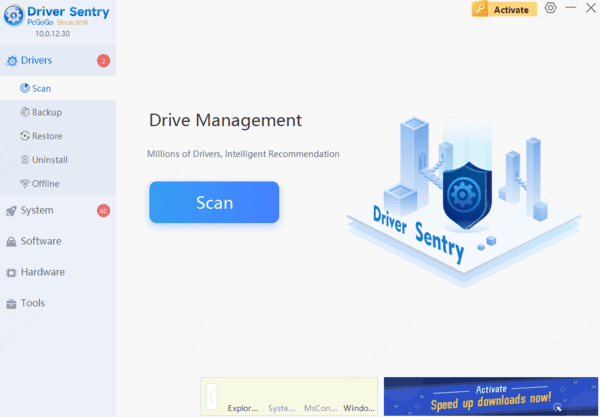
Download and install PcGoGo Driver Sentry.
Launch the program and scan your PC.
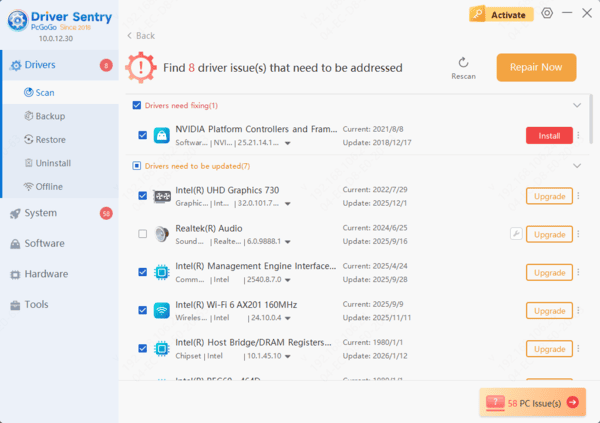
Locate the Epson printer driver in the list.
Click Update All to install the latest version.
Restart your PC and test the printer.
By using PcGoGo Driver Sentry, you eliminate one of the main causes of Epson printer not printing issues.
Run Windows Troubleshooter
Windows has built-in tools that can help when my Epson printer is not printing.
Press Windows + I to open Settings.
Navigate to Update & Security > Troubleshoot.
Select Printer Troubleshooter.
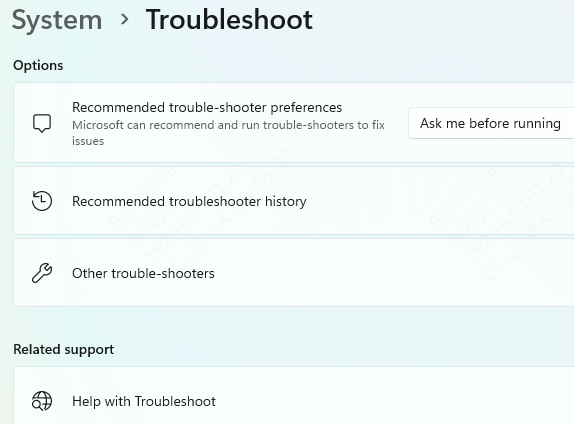
Let Windows detect and fix errors.
This method can resolve spooler errors, connectivity glitches, and other system-related printing problems.
Check Ink Cartridges and Printhead
When your Epson printer does not print, it may be due to ink problems.
Open the printer cover and ensure cartridges are correctly installed.
Replace any empty cartridges.
Use the printer software utility to run a nozzle check and head cleaning.
A clogged printhead is a major reason behind the Epson printer not printing error. Running cleaning cycles helps restore ink flow.
Reset Epson Printer Spooler Service
If the print queue is stuck, your Epson does not print even if everything else seems fine. Resetting the spooler service often resolves this.
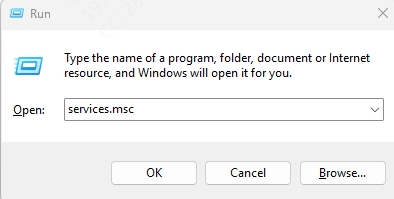
Press Windows + R, type services.msc, and hit Enter.
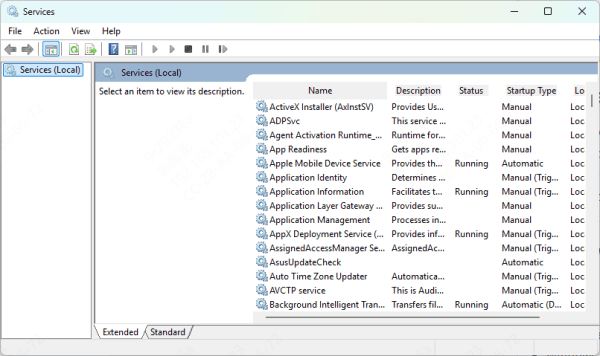
Locate Print Spooler service.
Right-click and choose Restart.
Clear pending print jobs and retry printing.
This clears jammed print commands and helps solve Epson printer not printing errors quickly.
Conclusion
An Epson printer not printing can disrupt both home and office tasks. Whether the issue is caused by driver errors, ink clogs, or spooler problems, the fixes outlined here provide a complete solution. For long-term reliability, updating drivers with PcGoGo Driver Sentry is the most effective step to ensure smooth and uninterrupted printing.




