





Setting up an external monitor on Windows but facing no signal, flickering, or detection issues? This guide covers 7 methods — updating graphics drivers with Driver Sentry, detecting the monitor in Display settings, selecting the correct input source, adjusting resolution and refresh rate, using Windows + P shortcuts, checking cable compatibility, and updating the monitor driver — to get your external display working properly.
Step-by-Step External Monitor Setup on Windows
Once drivers are updated, follow these steps to configure your external display correctly.
Method 1: Connect and Detect the Monitor
Right-click on the desktop and select Display settings.
Scroll down and click "Detect".
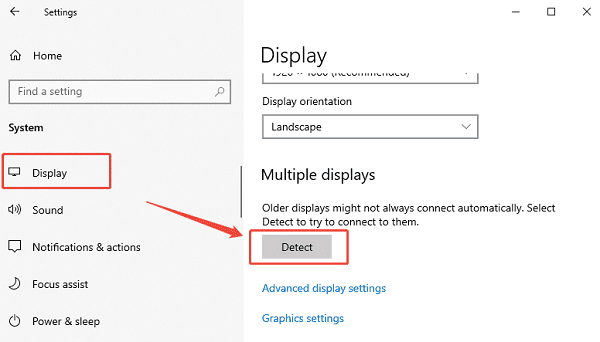
Under Multiple displays, choose "Extend these displays" or "Duplicate these displays".
Confirm the monitor arrangement by dragging display icons.
Click Apply to save settings.
Method 2: Set the Correct Input Source on the Monitor
Incorrect input selection is a common issue.
Open the monitor's on-screen menu.
Manually select the input source matching your cable.
Confirm the signal is detected.
Method 3: Adjust Screen Resolution and Refresh Rate
Incorrect display settings can cause no signal or blurry output.
How to Adjust Display Settings:
Open Display settings.
Select the external monitor
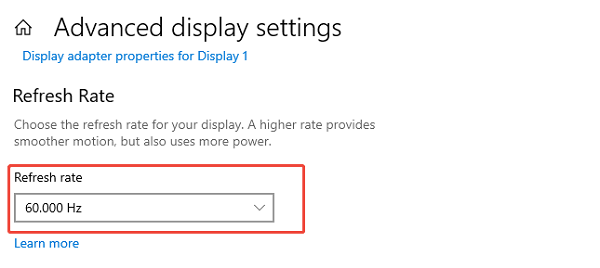
Click "Advanced display".
Choose the recommended resolution.
Set a supported refresh rate.
Apply changes.
Method 4: Use Keyboard Shortcuts to Switch Display Modes
Windows provides built-in shortcuts for display switching.
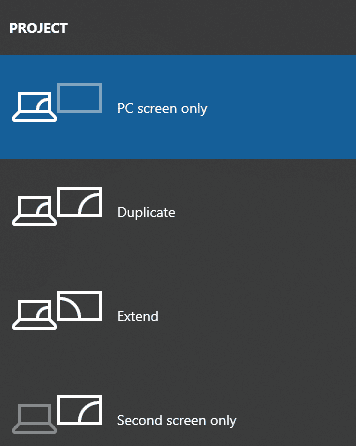
Press Windows + P.
Select Extend, Duplicate, Second screen only, or PC screen only.
Confirm the display behavior.
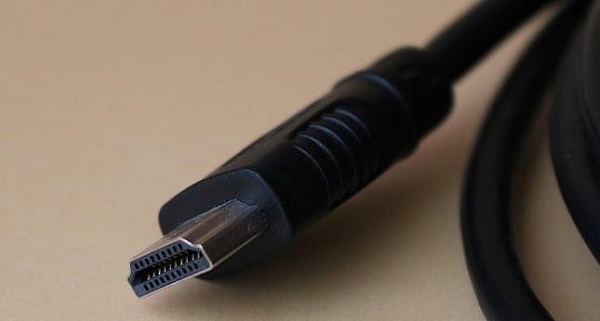
Method 5: Check Cable and Port Compatibility
Connection issues may prevent detection.
Use certified HDMI or DisplayPort cables.
Avoid damaged or excessively long cables.
Test another port on your PC or laptop.
Try a different cable type if available.
Method 6: Update Monitor Driver in Device Manager
Some monitors require specific drivers.
Open Device Manager.
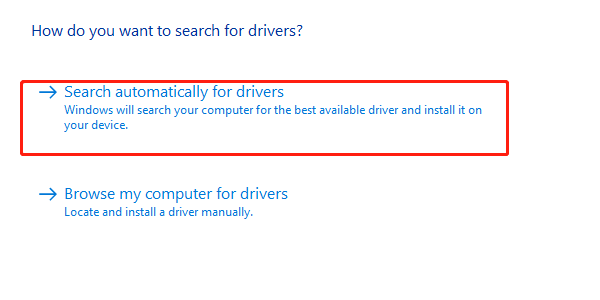
Expand "Monitors", right-click the external display and select "Update driver".
Choose "Search automatically for drivers".
Method 7: Update Windows System Components
System updates may include display fixes.
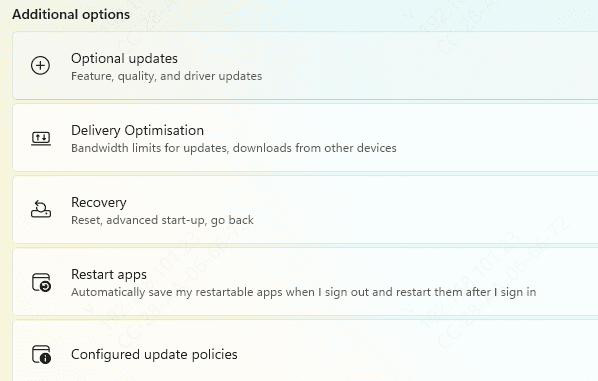
Open Settings > Update & Security.
Go to "Windows Update".
Click "Check for updates".
Install all available updates.
Restart the computer.
Update Graphics Drivers
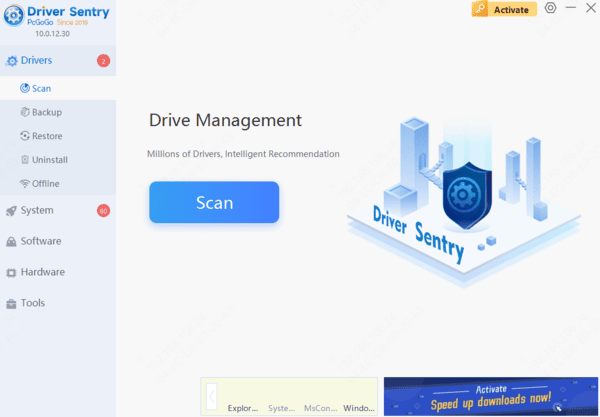
Graphics driver compatibility plays a critical role in external monitor detection and display stability. Driver Sentry helps automatically detect your graphics hardware and install the correct drivers for Windows.
Common External Monitor Issues and Causes
External monitor not detected due to outdated graphics drivers.
No signal caused by incorrect input source.
Flickering screen due to incompatible refresh rate.
Blurry display caused by incorrect resolution.
Conclusion
Proper external display monitor setup on Windows depends heavily on up-to-date graphics drivers and correct configuration. Updating drivers with Driver Sentry should be the first step, as it ensures full compatibility between your GPU and external monitor. By following the setup methods and troubleshooting steps in this guide, you can resolve most external monitor issues and achieve a stable, high-quality display experience on Windows systems.




