
Extracting audio from a YouTube video can be useful when you want to save music, interviews, podcasts, lectures, or other audio content for offline listening. Instead of downloading the entire video, PcGoGo Video Downloader allows you to paste a YouTube link, choose an available audio format, and save the audio directly to your computer. This guide explains the complete process step by step, from copying the video URL to selecting the format and downloading the extracted audio, while also highlighting important copyright and storage considerations.
Steps to Extract Audio
Follow these simple steps to convert any YouTube video into an audio file.
Install and Launch PcGoGo Video Downloader
Download PcGoGo Video Downloader from the official website and install it on your PC
Open the software after installation
Copy the YouTube Video Link
Go to YouTube and find the video whose audio you want to extract
Copy the URL from your browser's address bar
Paste the URL
Open PcGoGo Video Downloader and paste the copied link into the download bar
The system will automatically parse the video details

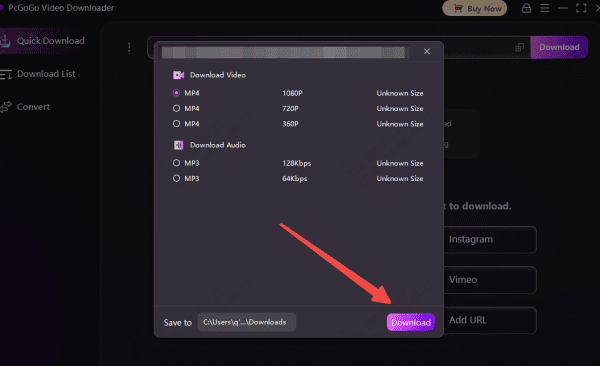
Choose Format
After parsing, PcGoGo Video Downloader will show available download options
Select the format you want
Click Download
PcGoGo Video Downloader will extract and convert the audio within seconds using its high-speed engine
Please check Download List later
Important Notes
Respect Copyright Regulations: When saving or reusing videos created by others, ensure you adhere to copyright rules. If you plan to distribute or repost someone else's content, make sure you have the necessary permissions or that the material is free to use under public domain licenses
Ensure a Stable Internet Connection: A dependable internet connection is essential for smooth downloading. Make sure your network speed is sufficient to avoid long wait times or interrupted downloads
Check Available Storage: High-resolution content, such as HD, 4K, or 8K files, can occupy substantial storage space. Confirm that your device has enough free capacity before initiating any downloads