






When using a printer, Windows users may encounter the "Printer in Error State" issue, preventing them from printing documents properly. This article provides effective solutions to help you quickly restore your printer to normal operation.
1. Check Printer Connection and Power
Check Power: Ensure the printer is powered on and the power cable is securely connected.
Check Connection: Try using a different USB port or cable. If using a wireless printer, make sure both the printer and computer are connected to the same Wi-Fi network.
Restart Devices: Turn off the printer and computer, wait a few minutes, and then restart them.
2. Update Printer Drivers
Outdated or corrupted drivers are a common cause of printer errors. Updating to the latest drivers can effectively resolve the issue. Driver Sentry is recommended for automatically detecting and updating drivers, saving time and avoiding incorrect installations.
Click the download button to get the latest version of Driver Sentry. Install and open the software, then click "Scan".
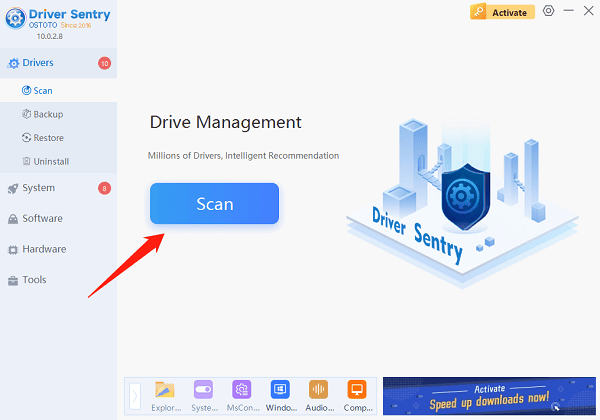
After scanning, the software will list missing or outdated drivers. Find the printer driver and click "Upgrade".
Restart the computer after updating to ensure the changes take effect.
3. Check Print Spooler Service
Press Win + R, type "services.msc", and press Enter.
Locate "Print Spooler" in the list of services and ensure it is running.
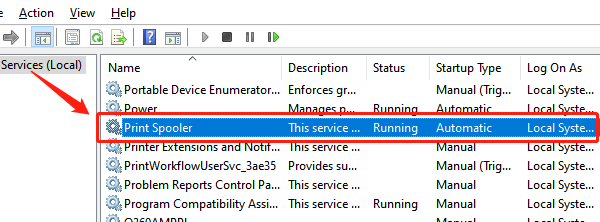
If not running, right-click it and select "Start".
Right-click "Print Spooler", select "Properties", set the Startup type to "Automatic", then click "Apply" and "OK".
4. Run Windows Troubleshooter
Press Win + I to open Settings.
Go to "Update & Security" > "Troubleshoot".
Click "Additional troubleshooters" > "Printer" > "Run the troubleshooter".
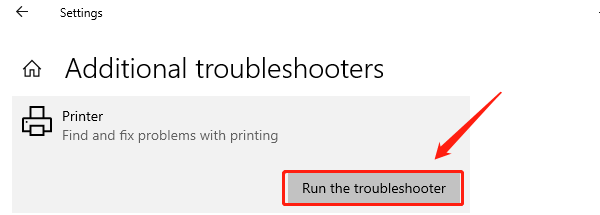
Follow the on-screen instructions to fix any detected issues and restart your computer.
Reconnect your printer and check if the issue is resolved.
5. Set as Default Printer
Press Win + I to open Settings.
Navigate to "Devices" > "Printers & scanners".
Locate your printer, click "Manage", then select "Set as default".
Try printing a document to see if the issue is resolved.
6. Check Printer Status
Open Control Panel by searching for it in the Windows search bar.
Click "Devices and Printers", then find your printer.
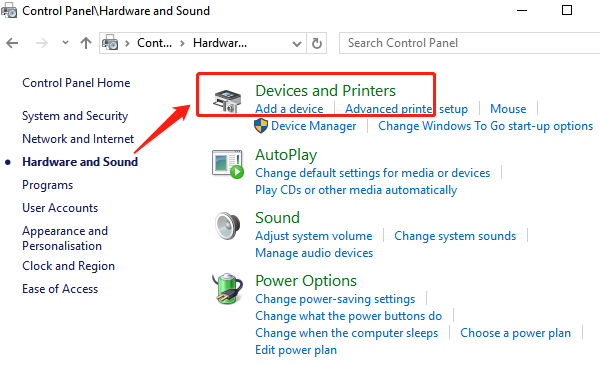
Ensure the printer status is not "Offline" or "Error". If it is "Offline", right-click the printer icon and select "Use this device" to restore the connection.
The above methods should effectively fix the "Printer in Error State" issue. If the problem persists, consider contacting the printer manufacturer or seeking professional technical support for further troubleshooting.
See also:
Solutions to Fix the Windows 11 Unidentified Network Issue
Solutions to Fix WiFi Connected but No Internet Issue




