
Battlefield 5 is a popular first-person shooter, but many players may experience crashes on PC. This article offers effective solutions to help you resolve the issue and enjoy smooth gameplay.
1. Update Drivers
Ensure that the drivers related to Battlefield 5 are up to date to improve game performance and reduce the likelihood of crashes. It's recommended to use Driver Sentry to automatically detect driver updates, saving time and avoiding the risk of downloading or installing incorrect drivers.
Click the download button to get the latest version of Driver Sentry, then open the software after installation and click "Scan".

Once the scan is complete, it will display which drivers are not installed or need updates. Find the driver that needs updating (such as the graphics driver) in the results list and click the "Upgrade" button.
After the update is complete, it's advisable to restart your computer to ensure the updated drivers take effect.
2. Verify Game File Integrity
Launch the game platform you are using, such as Steam, Epic Games, or Origin.
Find and click on "Library" or "My Games" to view the list of installed games.
Right-click on the game that is experiencing issues and select "Properties" or "Game Settings".
In the properties window, locate the "Local Files" tab, then click the "Verify Integrity of Game Files" button. The platform will automatically check and repair any corrupted or missing files.
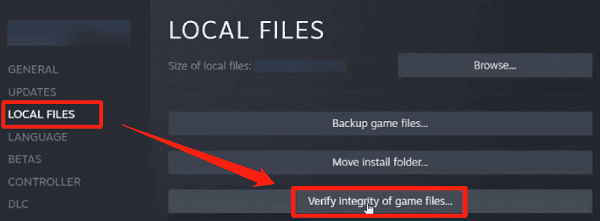
Once the verification is complete, restart the game to see if the issue is resolved.
3. Disable In-Game Overlay
In the game platform, find the "Settings" or "Options" menu.
In the settings, locate the option related to "In-Game Overlay" or "Game Overlay".

Disable this feature, save the settings, and restart the game to check if the issue is resolved.
4. Update the Game
In the game platform, find the game you want to update and check for available update notifications.
If an update is available, click the "Update" button and wait for the download and installation to complete.
After the update, restart the game to check if the issue is resolved.
5. Perform a Clean Boot
Press Win + R, type "msconfig", and press Enter.
In the System Configuration window, select "Selective startup" and uncheck "Load startup items".
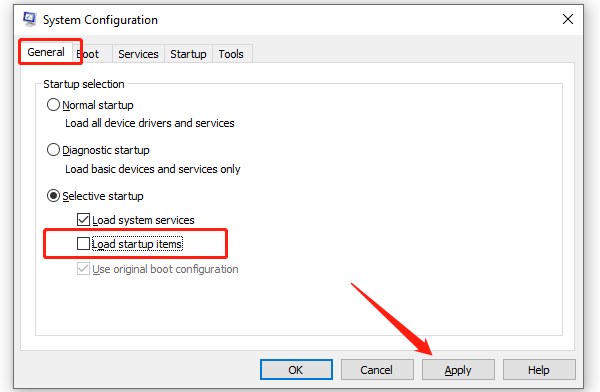
Click the "Services" tab, check "Hide all Microsoft services", then click "Disable all".
Click "Apply" and restart your computer, then try running the game to see if the issue is resolved.
6. Adjust Game Settings
Launch the game and enter the main menu, then find "Settings" or "Options".
Based on your computer's specifications, lower the graphic quality, resolution, or other settings to ease the system's load.
Save the settings and restart the game to see if the adjustments improve performance.
7. Check System Files
Press Win + R, type "cmd", and press Enter.
In the command prompt, type "sfc /scannow" and press Enter. This tool will scan and repair corrupted files in the system.
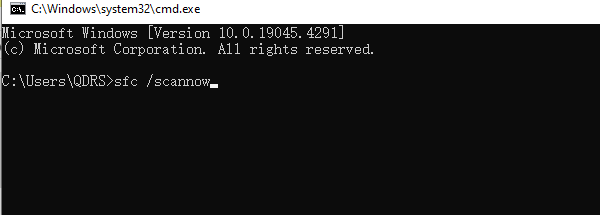
The scanning process may take some time; once complete, follow the prompts to proceed.
8. Stop Overclocking
Press a specific key during computer startup (usually F2, Del, or Esc) to enter BIOS settings.
In BIOS, find the settings related to CPU or memory overclocking, usually located under the "Advanced" or "Performance" menu.
Restore the overclocking settings to default, save, and exit BIOS, then restart the computer.
9. Reinstall the Game
If possible, back up your game save files to avoid losing progress.
In the game platform, find the game, right-click, and select "Uninstall" or "Delete".
Then, find the game in the platform, click the "Install" button, and follow the prompts to complete the installation.
Once installed, launch the game to check if the issue is resolved.
By following these steps, you can systematically troubleshoot and resolve game crashes or startup issues to ensure smooth gameplay. If the problem persists, it's recommended to contact EA Support for further assistance.
See also:
How to Fix Silent Hill 2 Remake Crashing
Fix Windows Boot Manager not showing in BIOS