







A black screen on a Windows computer can block use and occur at startup or during operation. This article offers effective methods to diagnose and fix the issue, helping your computer return to normal.
1. Check Power and Hardware Connections
Ensure that both the computer and monitor are correctly connected to power and that all cables are securely plugged in.
Verify that the monitor is turned on and try connecting it to another device to confirm its functionality. If you are using a laptop, try connecting an external monitor to check if the built-in display is the issue.
2. Update Drivers
Sometimes, black screen issues can be caused by incompatible or outdated graphics drivers. It is recommended to use Driver Sentry to automatically detect and update drivers, saving time and avoiding the risk of downloading or installing incorrect drivers.
Step 1: Enter Safe Mode
Restart your computer while holding down the Shift key and clicking "Restart".
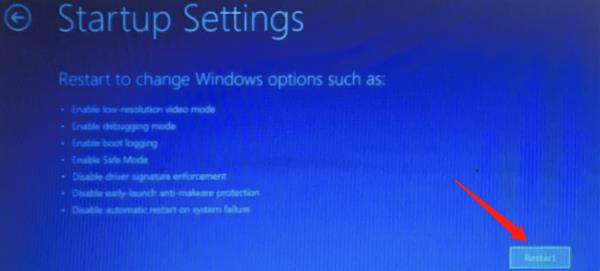
Choose "Troubleshoot" > "Advanced options" > "Startup Settings" > "Restart", and then press 4 or F4 to enter Safe Mode.
Step 2: Download and Install Driver Sentry
If you have the Driver Sentry installation file, run the installer in Safe Mode.
If you do not have the installation file, download Driver Sentry using another device and transfer it to your computer.
Step 3: Launch Driver Sentry
Open the software after installation and click "Scan".
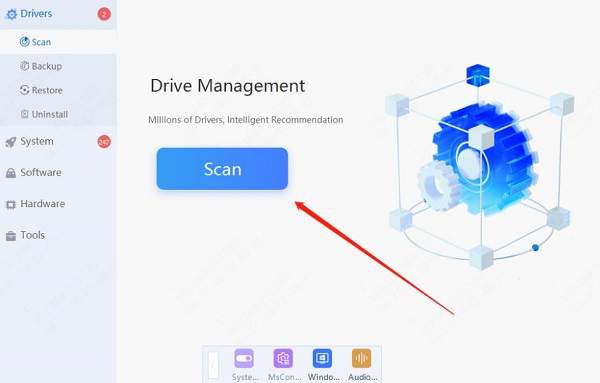
After the scan is complete, it will show which drivers need repair or updates. Find the graphics driver and click the "Update" button.
After updating, restart your computer to ensure the new drivers are effective.
3. Rollback Drivers
In Safe Mode, right-click the "Start" button and select "Device Manager".
Expand "Display adapters", right-click the graphics card, and select "Properties".
Go to the "Driver" tab and click "Roll Back Driver".
Follow the prompts to complete the rollback, then restart your computer.
4. Reset Display Driver
Press Windows+Ctrl+Shift+B to force a reset of the graphics driver, which may restore the display.
If successful, you will hear a brief beep and the screen may light up again.
5. Use Windows Startup Repair
Restart your computer while holding down the Shift key and clicking "Restart".
Choose "Troubleshoot" > "Advanced options" > "Startup Repair".
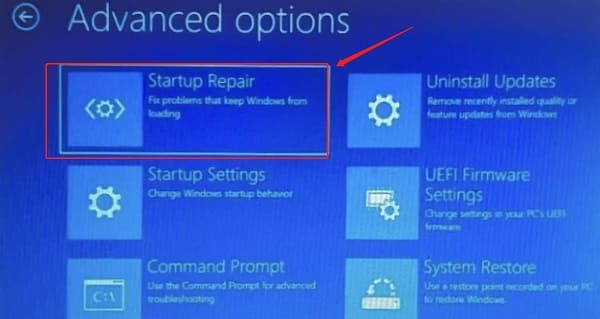
Windows will automatically detect and attempt to fix the problem. If the repair is successful, the system will restart and return to normal. If the problem persists, proceed with other methods.
6. Uninstall Recent Windows Updates
Follow the steps for "Using Windows Startup Repair" to enter the recovery environment.
Choose "Troubleshoot" > "Advanced options" > "Uninstall Updates".
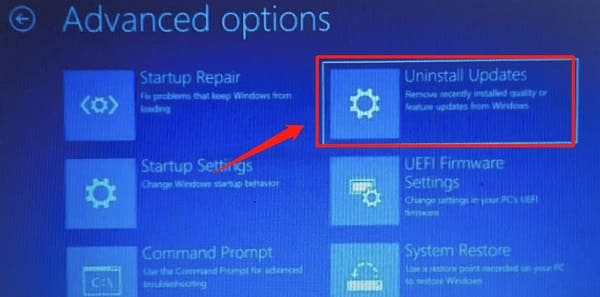
Select "Uninstall latest quality update" or "Uninstall latest feature update".
Follow the prompts to complete the process, then restart your computer.
7. Reset Windows
Follow the steps for "Using Windows Startup Repair" to enter the recovery environment.
Choose "Troubleshoot" > "Reset this PC".
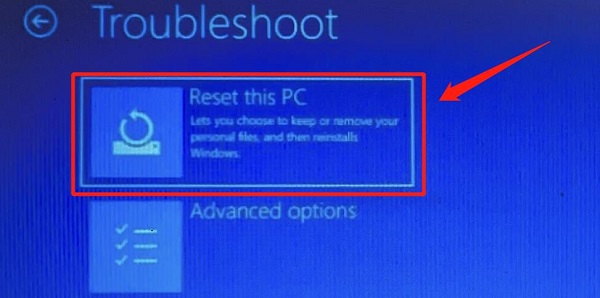
Select "Keep my files" or "Remove everything".
Follow the prompts to complete the reset process and wait for the system to reinstall.
Trying these methods should help resolve black screen issues on Windows. If the problem continues, seek professional technical support or contact the device manufacturer. This guide is designed to assist in restoring your computer to normal operation quickly.
See also:
8 Ways to Fix WiFi Adapter Not Working on Windows 10
Top 5 Methods to Open Task Manager on a Computer
