If your computer screen keeps flickering, flashing, or briefly going black, the problem may be caused by loose display cables, outdated graphics drivers, incorrect refresh rate settings, hardware acceleration conflicts, background software, or monitor hardware issues. Screen flickering can make everyday work, gaming, and video playback uncomfortable or difficult. This guide explains several practical ways to fix computer screen flickering, including checking cable connections, updating graphics drivers with Driver Sentry, adjusting the refresh rate, disabling hardware acceleration, performing a clean boot, and testing the monitor for physical problems.
1. Check the Display Cable Connections
One of the most common causes of screen flickering is a loose or damaged display cable. If you're using an external monitor, the cable connecting your computer to the display can be a weak link. Over time, cables can wear out or become loose, resulting in an unstable connection that causes flickering.
Turn off your computer and monitor.
Check the cable connections (HDMI, VGA, DisplayPort, etc.) on both your computer and monitor.
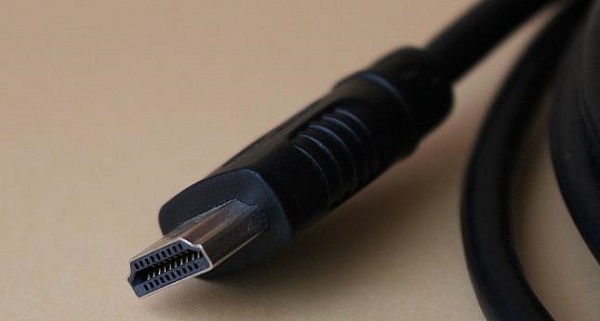
Ensure the cables are securely plugged in and are not bent or damaged.
If the cables are damaged, consider replacing them with new ones.
After ensuring the connections are secure, turn on your computer and check if the flickering persists.
2. Update Your Graphics Drivers
Another common reason for screen flickering is outdated or corrupted graphics drivers. Your graphics card's drivers are crucial for the proper functioning of your display, and an outdated or malfunctioning driver can cause visual issues, including flickering.
Driver Sentry is a tool that can simplify the process. It scans your system for outdated or corrupted drivers and helps you install the correct version automatically, which can prevent conflicts and hardware issues, including screen flickering.

3. Adjust the Refresh Rate
The refresh rate of your monitor is the number of times the screen refreshes per second. If the refresh rate set on your computer doesn't match what the monitor supports, it can cause screen flickering. Most modern monitors support refresh rates of 60Hz, 120Hz, or 144Hz, but older models might have a lower limit.
Right-click on the desktop and select Display settings.
Scroll down and click on Advanced display settings.
Under the Refresh rate, select the appropriate rate that matches your monitor's specifications (commonly 60Hz for older monitors, or higher for newer ones).
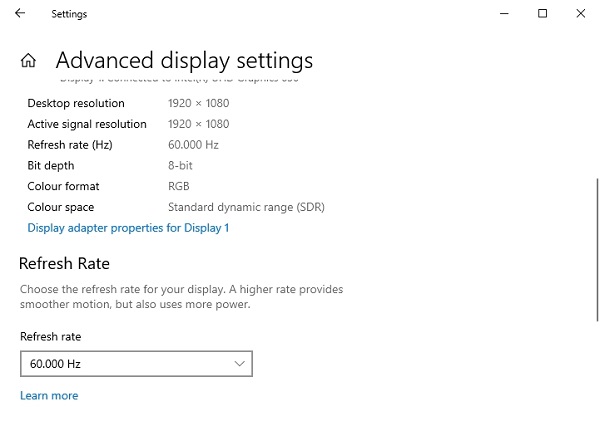
Click Apply and check if the flickering has stopped.
If your monitor supports a higher refresh rate, using it can lead to smoother visuals and eliminate flickering.
4. Disable Hardware Acceleration
Some applications, especially web browsers, use hardware acceleration to offload graphics rendering to your computer's GPU. While this can improve performance, it can also cause conflicts with certain hardware configurations, resulting in screen flickering.
If the flickering occurs while using a specific application, such as a web browser, try disabling hardware acceleration in that application.
For Google Chrome, go to the Settings menu, click Advanced, and under System, toggle off Use graphics acceleration when available.
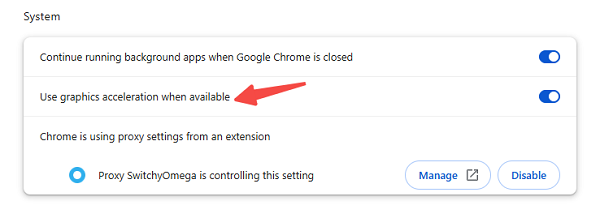
For Microsoft Edge, go to Settings > System and performance, and turn off Use graphics acceleration when available.
Restart the application to see if the flickering is resolved.
5. Check for Software Conflicts
Sometimes, background applications or software conflicts can cause screen flickering. This is especially true when there are conflicting video drivers, third-party software, or system utilities running simultaneously.
Perform a Clean Boot to disable unnecessary startup programs and services.
Press Win + R, type msconfig, and hit Enter.
In the System Configuration window, go to the Services tab and check the box for Hide all Microsoft services.
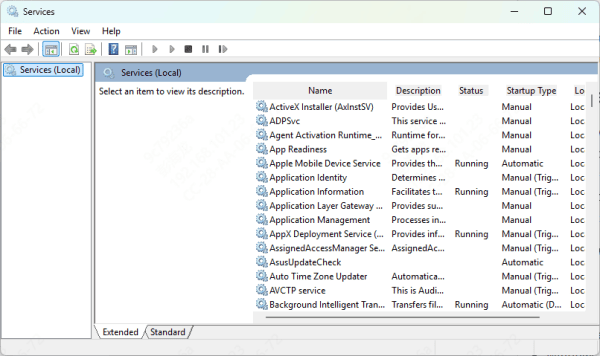
Click Disable All to disable third-party services.
Go to the Startup tab and click Open Task Manager. Disable any unnecessary startup programs.
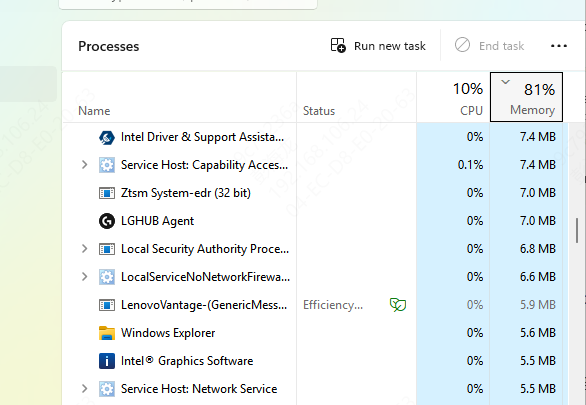
Restart your computer and check if the flickering issue has been resolved.
6. Check Your Monitor for Physical Issues
If you've gone through all the software-related solutions and the screen flickering still persists, your monitor could be malfunctioning. Over time, monitors can develop issues such as failing capacitors, damaged panels, or other hardware problems.
Test the monitor: If possible, connect your computer to another monitor. If the flickering stops on the second monitor, it's likely that your original monitor is the issue.

Test your computer on another device: Similarly, you can connect a different computer to the problematic monitor to see if the flickering is still present.
If the monitor itself is faulty, you may need to replace it or have it repaired.
By following the solutions outlined above, you should be able to stop the screen from flickering and restore your computer's display to its optimal performance. If none of the solutions work, consider seeking professional help to diagnose and fix the issue.