





Does your Windows 11 computer suddenly crash and display a blue screen with the stop code "CRITICAL_PROCESS_DIED"? This frustrating error can appear during startup, while running applications, or even when your PC seems to be working normally. It occurs when an essential Windows system process unexpectedly stops, forcing the operating system to shut down to prevent further problems. Common causes include corrupted system files, incompatible device drivers, disk errors, malware infections, and software conflicts. If the error keeps returning, it can interrupt your work and make your computer difficult to use. Fortunately, several troubleshooting methods may help restore system stability. This guide explains six ways to fix the CRITICAL_PROCESS_DIED error on Windows 11, including checking drivers with Driver Sentry, repairing system files, scanning your disk for errors, disabling Fast Startup, checking for malware, and resetting Windows as a last resort.
What Is the "Critical Process Died" Error
The "Critical Process Died" error is a common issue in the Windows operating system. It typically indicates that a critical process failed or was lost during system startup. This error can be caused by various factors, including corrupted system files, hardware problems, driver conflicts, and third-party software issues.
1. Check and Repair System Files
Search for "Command Prompt" and select "Run as administrator".
In the Command Prompt window, type the following command and press Enter: sfc /scannow
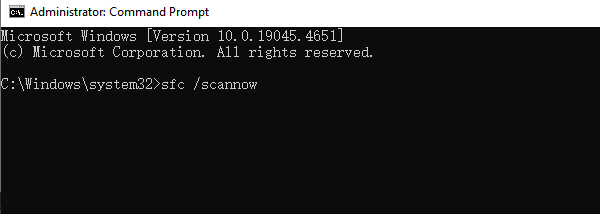
This command will begin scanning all protected system files. If any corrupted files are found, SFC will attempt to repair them automatically. This process may take a few minutes, so please be patient.
Once the scan is complete, the system will display the repair results. If corrupted files were found and fixed, you will see a confirmation message.
After the repair is finished, restart your computer to apply the changes and check if the issue is resolved.
2. Run the CHKDSK Command
Search for "Command Prompt" and select "Run as administrator".
In the Command Prompt window, type the following command and press Enter: chkdsk C: /f /r
If prompted to restart your computer, type "Y" and press Enter. Then, restart your computer, and the system will automatically scan and repair any detected disk errors.
3. Disable Fast Startup
Press Win + S to open the search bar, type "Control Panel", and open it.
In the Control Panel, select "Power Options".
Click "Choose what the power buttons do" from the left menu.
Click "Change settings that are currently unavailable" at the top of the page.
Under the "Shutdown settings" section, uncheck "Turn on fast start-up (recommended)", then click "Save changes".
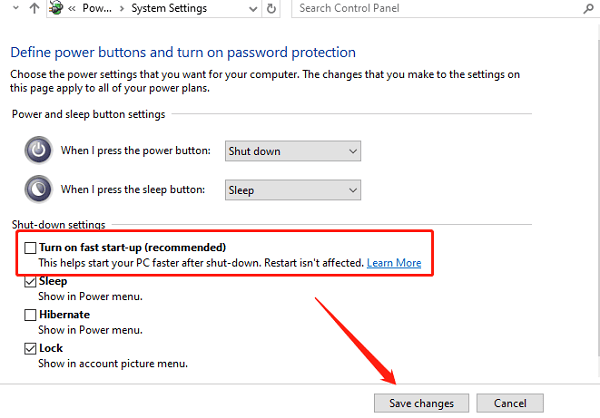
Restart your computer to apply the settings.
4. Check for Driver Updates
Outdated or incompatible drivers may trigger the "Critical Process Died" error. Ensuring that all drivers are up to date can effectively prevent this issue. It is recommended to use Driver Sentry for automatic driver detection and updates, saving time and effort while avoiding the risk of downloading or installing incorrect drivers.
Click the download button to get the latest version of Driver Sentry. After installation, open the software and click "Scan".
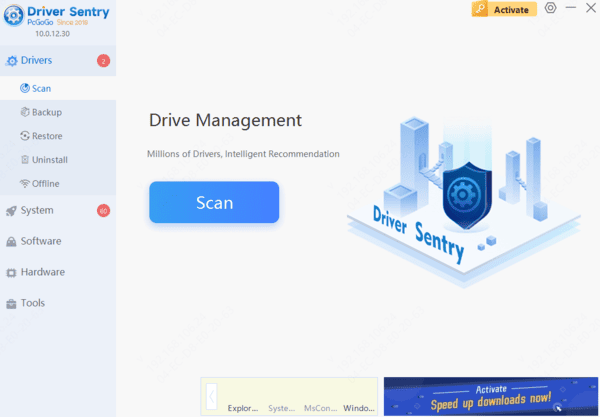
Once the scan is complete, a list of missing or outdated drivers will be displayed. Locate the drivers that need updating and click the "Update" button.
After the update is complete, restart your computer to ensure that the new drivers take effect properly.
5. Run Windows Defender
Press Win + S, type "Windows Security", and open it.
Click "Virus & threat protection" and select "Scan options".
Choose "Quick scan" or "Full scan", then click the "Scan Now" button.
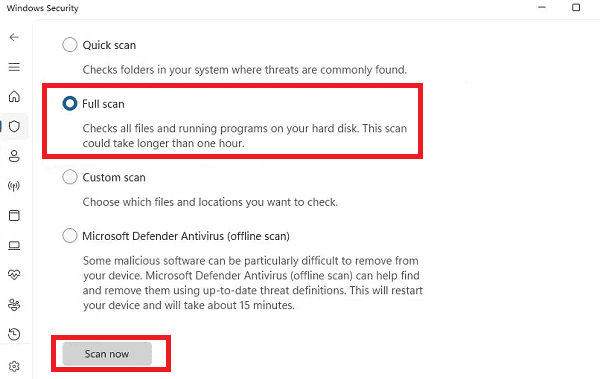
Wait for the scan to complete and follow any prompts to remove detected threats.
6. Reset Windows 11
Press Win + I to open "Settings".
Select "System" and click "Recovery".
Under the "Recovery options" section, find "Reset this PC" and click "Reset PC".
Choose either "Keep my files" or "Remove everything".
Select "Cloud download" or "Local reinstall" as the reset method, then follow the on-screen instructions to complete the reset.
Note: Choosing "Remove everything" will erase all your data. Make sure to back up important files beforehand.
7. Frequently Asked Questions
Can CRITICAL_PROCESS_DIED happen after Windows has started?
Yes. It can occur during startup or normal use whenever an essential Windows process unexpectedly terminates. The stop code alone does not identify the underlying cause.
What if SFC finds corrupted files but cannot repair them?
Open Command Prompt as administrator and run DISM /Online /Cleanup-Image /RestoreHealth. After it finishes successfully, run sfc /scannow again, then restart your computer.
Should I run CHKDSK before backing up my files?
Back up important files first, especially if the drive is unusually slow, makes abnormal noises, or repeatedly reports errors. CHKDSK can repair file-system problems, but it cannot fix physically failing hardware.
By following these methods, you can effectively resolve the "Critical Process Died" error in Windows 11. If the problem persists, consider contacting professional technical support for further assistance.