
Many users experience persistent crashes with Discord, affecting their experience and potentially leading to data loss. This article offers effective methods to resolve the issue and restore normal functionality.
Method 1: Update Device Drivers
Outdated drivers can cause application failures and crashes. Regularly updating drivers helps ensure Discord runs smoothly. Outdated, corrupted, or incompatible drivers may lead to decreased performance, hardware malfunctions, or system crashes. It's recommended to use Driver Sentry to automatically check for driver updates, saving time and avoiding the risk of downloading or installing incorrect drivers.
Click the download button to get the latest version of Driver Sentry. After installation, open the software and click "Scan".

Once the scan is complete, it will show which drivers are missing or need updating. Find the keyboard driver in the results list and click the "Upgrade" button.
After updating, it's advisable to restart your computer to ensure the new drivers take effect.
Method 2: End Discord Processes
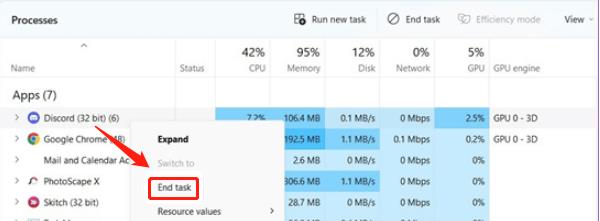
Right-click the taskbar and select "Task Manager", or press Ctrl + Shift + Esc.
In the "Processes" tab, find the Discord-related processes (usually "Discord" or "Discord.exe").
Right-click the process and select "End Task". This will force close Discord, after which you can restart the application to see if the issue is resolved.
Method 3: Clear Discord Cache
Press Win + R to open the Run dialog.
Type the following command and press Enter: %appdata%\Discord
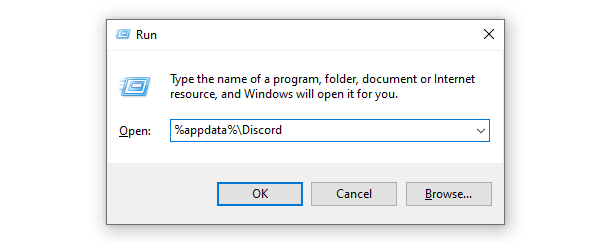
In the opened folder, locate the "Cache", "Code Cache", and "GPUCache" folders, right-click them, and select "Delete".
After clearing the cache, restart Discord to check if the issue is resolved.
Method 4: Remove Custom Keybinds
Launch Discord and click the gear icon in the lower left corner to open User Settings.
In the left menu, select "Keybinds".

Look for any custom keybinds and delete them by right-clicking on them and selecting "Delete".
Close the settings window and restart Discord.
Method 5: Disable Hardware Acceleration
In Discord, click the gear icon in the lower left corner.
In the left menu, select "Voice & Video".
Find the "Hardware Acceleration" option and turn it off. The system will prompt you to restart Discord.

Follow the prompt to restart Discord and check if the crashing issue is resolved.
Method 6: Check Firewall and Antivirus Settings
Press Win + R, type "control", and press Enter to open the Control Panel.
Select "System and Security", then choose "Windows Defender Firewall".
Click "Allow an app through Windows Defender Firewall", find Discord, and ensure both "Private" and "Public" network options are checked.
If you use third-party antivirus software, check its settings to ensure Discord is not being blocked.
Method 7: Update Discord
Launch the Discord application.
Discord usually checks for updates automatically at startup. You can also click the gear icon in the lower left corner, select "About", and click "Check for Updates".
If updates are available, follow the prompts to install them. After updating, restart Discord.
Method 8: Reinstall Discord
Press Win + R, type "appwiz.cpl", and press Enter to open the Programs and Features window. Find Discord, right-click it, and select "Uninstall".
After uninstalling, make sure to delete the leftover Discord files, usually located at:
%appdata%\Discord
%localappdata%\Discord
Delete these folders to clear all settings and cache.
Visit the official Discord website, download the latest version of the Discord client, and follow the prompts to install it.
After installation, launch Discord to check if the crashing issue is resolved.
By following these steps, you can effectively fix the persistent crashing issues in Discord. If the problem persists, it is recommended to contact Discord's technical support for further assistance.
See also:
6 Ways to Fix Network Adapter Not Working in Windows
Methods to Reset Network Adapter