
Users may encounter error code 0xc0000225 when using Windows 10. This article offers effective solutions to quickly fix the error and restore normal system operation.
What is Error Code 0xc0000225
Error code 0xc0000225 typically indicates that the system cannot find the required boot files. This may be due to file corruption, hard drive failure, or incorrect boot configuration. When this error occurs, users may face difficulties accessing the Windows system.
1. Check Hardware Connections
Ensure that the power cable, monitor cable, keyboard, and mouse connections are secure.
Disconnect all external devices (such as USB devices), then reconnect them to confirm they are working properly.
2. Update Computer Drivers
Outdated, damaged, or incompatible drivers can lead to performance degradation, hardware malfunctions, or system crashes. It is recommended to use Driver Sentry to automatically detect and update drivers, saving time and avoiding the risk of downloading incorrect drivers.
Click the download button to get the latest version of Driver Sentry, install it, and open the software to click "Scan".
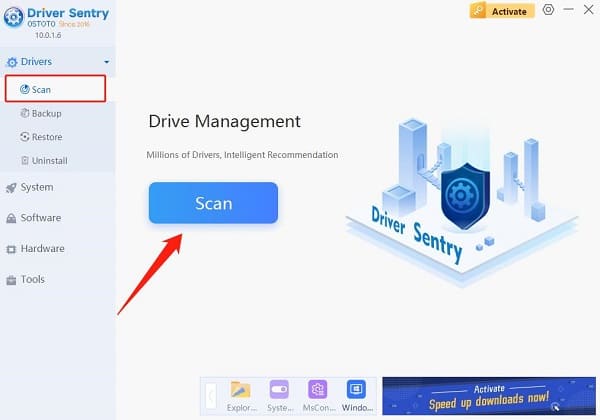
After scanning, it will display which drivers are missing or need updating. Find the driver that needs updating in the results list and click the "Upgrade" button.
After the update is complete, it is advisable to restart the computer to ensure the updated drivers function correctly.
3. Run Automatic Repair
Press F8 multiple times during startup or hold the Shift key and select Restart to enter recovery mode.
In the recovery menu, select the "Troubleshoot" option.
Click on "Advanced options" in the Troubleshoot menu.
Find and run "Automatic Repair", and the system will automatically detect and fix boot issues.
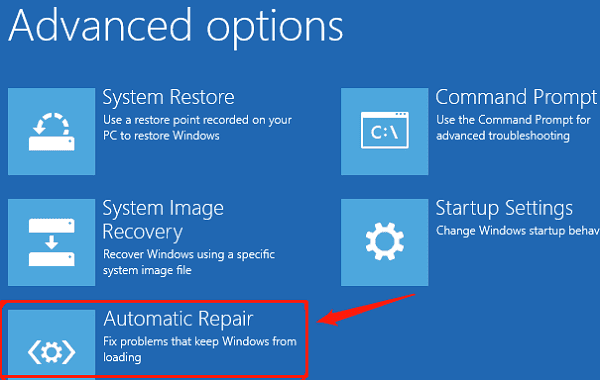
4. Check Disk Errors
In the Windows recovery environment, select "Command Prompt".
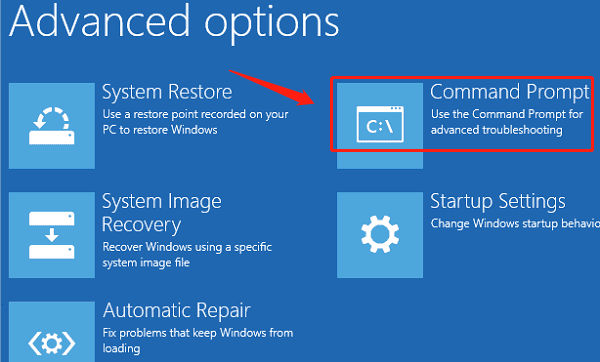
Enter the following command and press Enter: chkdsk C: /f /r
The system will check and fix disk errors. After completion, restart the computer.
5. Perform System File Check
In the Windows recovery environment, select "Command Prompt".
Enter the following command and press Enter: sfc /scannow
The system will automatically scan and repair corrupted system files. After completion, restart the computer.
6. Rebuild BCD
In the Windows recovery environment, select "Command Prompt".
Enter the following commands one by one and press Enter:
bootrec /scanos
bootrec /fixmbr
bootrec /fixboot
bootrec /rebuildbcd
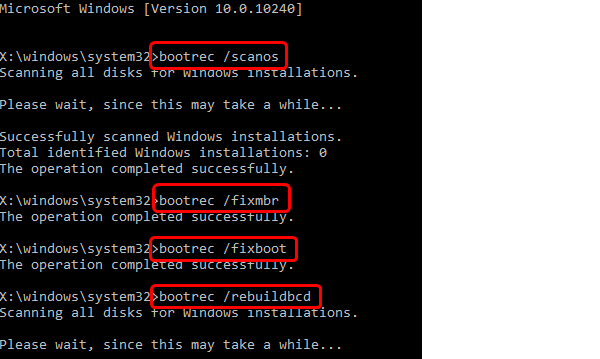
Check the prompts in the command prompt to confirm successful rebuilding, then restart the computer.
7. Check for Hardware Failures
Inspect components such as RAM, hard drive, and graphics card for physical damage.
If available, run hardware diagnostic tools to detect potential failures.
If the problem persists, it is recommended to seek professional technical support or service center for inspection and repair.
By following these steps, you can diagnose and fix boot issues, ensuring your computer runs normally. If you face difficulties, consider seeking professional support.
See also:
How to Fix Silent Hill 2 Remake Crashing
Fix Windows Boot Manager not showing in BIOS