The "Ethernet doesn't have a valid IP configuration" error prevents Windows from obtaining a proper IP address from your router, causing network connection failures. This problem is often related to incorrect network settings, router DHCP issues, or outdated network adapter drivers. This guide explains the common causes and provides effective solutions, including resetting network settings, refreshing IP configuration, updating drivers, and checking router settings to restore your Ethernet connection.
Method 1: Restart Your Router and Computer
Sometimes, the simplest solutions are the most effective. Here's what to do:
Restart your router: Turn off your router, wait about 1 minute, and then turn it back on. Once it has fully restarted, check if the network connection is restored.
Restart your computer: A quick reboot can refresh your computer's network settings, potentially resolving the issue.
Tip: If your router has been running for an extended period, it might fail to assign IP addresses properly. Regularly restarting it can help prevent this problem.

Method 2: Check Your Network Adapter Settings
Ensure the network adapter is enabled:
1. Right-click the network icon in the bottom-right corner of your desktop and select "Open Network & Internet Settings".
2. Click "Change adapter options" and locate your Ethernet connection. Make sure it's enabled.
Refresh your IP address:
1. Press "Win + R" to open the Run dialog box, type "cmd", and press Enter.
2. In the Command Prompt, type the following commands one by one and press Enter after each:
ipconfig /release
ipconfig /renew
These commands release your current IP address and attempt to obtain a new one.
Method 3: Update or Reinstall Your Network Driver
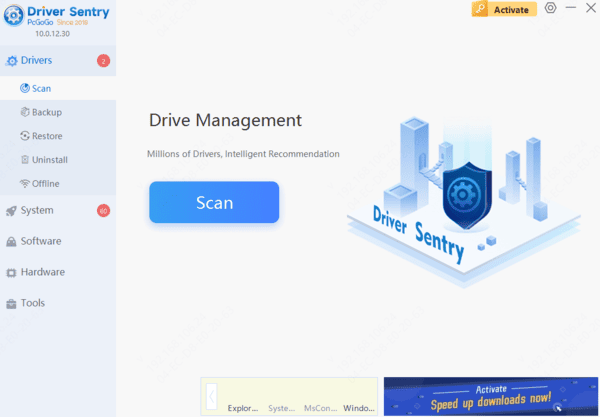
Outdated or faulty network drivers are a common cause of IP configuration errors. Using professional driver management software like Driver Sentry can make this process easier by automatically detecting outdated or faulty drivers and updating them with a single click.
Method 4: Check Your Router Configuration
If the above methods don't work, inspect your router's DHCP settings:
1. Log in to your router's admin panel:
Open a browser and enter your router's address (usually "192.168.0.1" or "192.168.1.1").
Enter your admin username and password to log in.
2. Verify DHCP settings:
Ensure that the DHCP service is enabled; otherwise, devices cannot automatically obtain IP addresses.
3. Reset your router:
If all settings are correct but the issue persists, consider restoring the router to factory settings and reconfiguring the network.
By following these steps, you should be able to resolve the "Ethernet doesn't have a valid IP configuration" error and restore your network connection. To minimize future issues, it's recommended to use tools like Driver Sentry to regularly check for driver updates, keeping your computer in optimal condition.