






Connecting a controller to a PC should be straightforward, but sometimes Windows refuses to recognize it or the connection becomes unstable during gameplay. The problem may affect wired, Bluetooth, and wireless receiver-based gamepads, with symptoms ranging from failed pairing and missing controller input to frequent disconnections. Instead of assuming the gamepad is broken, it is worth checking the drivers, connection method, Windows power settings, game support, and system updates first. The solutions below cover these key areas and can help you get your controller back in action.
1. Check the Bluetooth Connection Status
Press Win + I to open "Settings" and click on "Devices".
In "Bluetooth & other devices", make sure Bluetooth is enabled. If it's not, click the toggle to turn it on.
Check if the gamepad is listed under connected devices. If it's not connected, click "Add Bluetooth or other device" and select your gamepad to pair it.
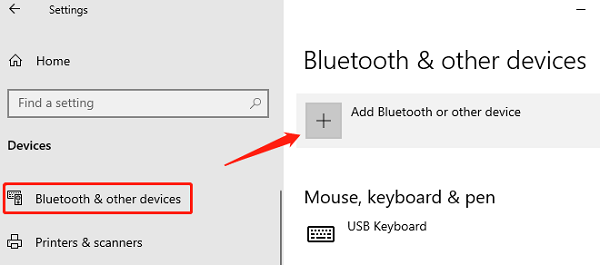
If pairing fails, try unpairing and reconnecting the gamepad.
2. Restart the Computer and Gamepad
Press Win + X and select "Restart" under "Shut down or sign out", then try connecting the gamepad again after the restart.
Hold down the power button on your gamepad (usually the center "Xbox" or "PS" button) for about 10 seconds to turn it off, then press it again to power it back on and reconnect.
3. Ensure the Game Supports the Gamepad
In the game's main menu, look for the "Settings" or "Controller Settings" option.
Check if there's an option to enable gamepad support within the game. Some games automatically detect the gamepad, while others require you to manually select the correct controller configuration.
If the game does not support a gamepad, check if there are any patches or plugins available or refer to the game's manual for more information.
4. Update the Drivers
Drivers are crucial for the proper functioning of a gamepad. Outdated or faulty drivers may cause connection issues. It's recommended to use Driver Sentry to automatically detect and update drivers, saving time and preventing errors.
Click the download button to get the latest version of Driver Sentry. Once installed, open the software and click "Scan".
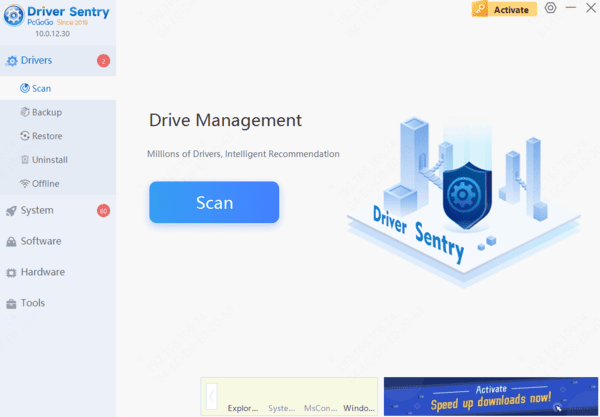
After the scan is complete, it will show which drivers are missing or need updating. In the results list, find the gamepad driver and click "Update".
Once updated, it's recommended to restart your PC to ensure the new drivers are applied properly.
5. Check the Gamepad Hardware Status
Wireless gamepads may not connect due to low battery power, so ensure the gamepad is charged or replace the batteries.
For wired gamepads, try using a different USB cable to ensure the cable is functioning correctly and tightly connected.
Test the gamepad on another PC or gaming console to determine if the problem is with the gamepad itself. If it doesn't work on other devices, the gamepad hardware may be faulty.
6. Change Power Settings
Press Win + X and select "Device Manager".
Find "Bluetooth" or "Universal Serial Bus Controllers", right-click, and select "Properties".
Go to the "Power Management" tab and make sure the "Allow the computer to turn off this device to save power" option is unchecked.
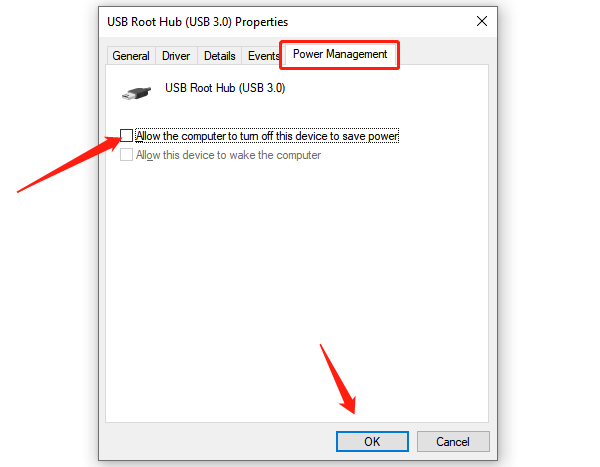
Click "OK" to save changes, then restart the computer and try connecting the gamepad again.
7. Check the Operating System Version
Press Win + I to open the "Settings" menu.
Go to "Update & Security" and click on "Windows Update" in the left panel.
Click "Check for updates", and the system will automatically search for and download any available updates.
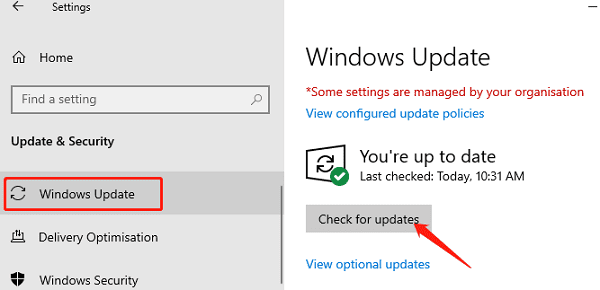
If updates are available, install them and restart your PC to ensure the latest drivers and system features provide the best support for the gamepad.
Frequently Asked Questions
Why does my wired controller charge but not connect?
Some USB cables carry power but no data. Try a cable known to support data transfer and connect it directly to another USB port on the PC.
Why does a Bluetooth gamepad keep disconnecting?
Low battery, wireless interference, or a problem with the PC's Bluetooth adapter may be responsible. Charge the controller, move closer to the PC, and test it with other nearby Bluetooth devices disconnected.
Does every wireless gamepad connect through Bluetooth?
No. Some models require a dedicated USB receiver, while others support both connection methods. Check the controller's model and pairing instructions before troubleshooting Bluetooth settings.
Following these steps should resolve most gamepad connection issues with your PC. If the issue continues, contact the manufacturer's support or consider replacing the gamepad or adapter. Regularly updating your drivers and system can also prevent future problems.




