A GPU fan that suddenly stops spinning can be worrying, especially when you rely on your graphics card for gaming, video editing, or other demanding tasks. However, a stopped fan does not always mean the graphics card is damaged. Many modern GPUs use zero RPM technology, while other causes may include outdated drivers, power connection issues, dust buildup, or fan hardware failure. In this guide, we'll explain the common reasons why GPU fans stop spinning and provide effective solutions to help restore proper cooling performance.
1. Check for "Zero RPM" Mode
Many modern GPUs (including NVIDIA and AMD models) feature an intelligent fan stop function. This means the fans stay off during low workloads or cool temperatures to reduce noise and extend fan lifespan. If your fan isn't spinning at idle, this might be intentional.
How to test:
Launch a graphics-intensive game or stress-testing tool to heat up the GPU. If the fan starts spinning once temperatures rise (typically above 50°C), the zero-RPM mode is working as designed.
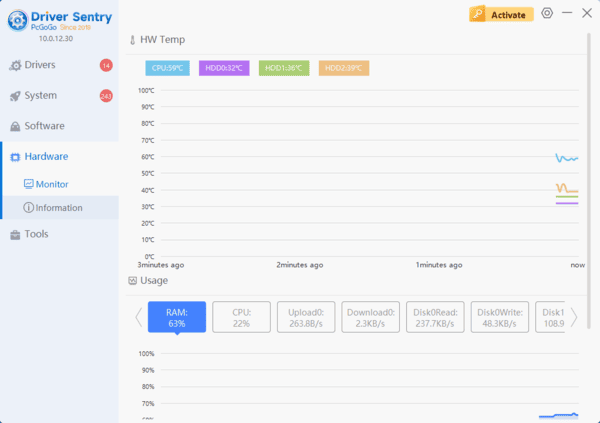
Use monitoring software (e.g., Driver Sentry) to track GPU temps. If temps climb but the fan still doesn't spin, proceed to the next steps.
2. Update or Reinstall Graphics Drivers
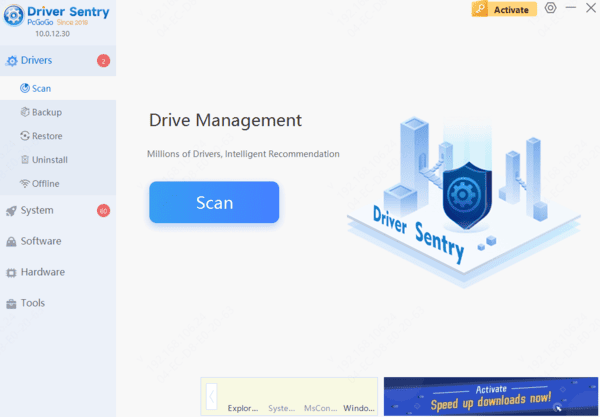
Outdated or corrupted drivers can disrupt fan control. This is especially common after driver updates or system upgrades. Use Driver Sentry to scan for outdated drivers.
3. Verify Power Connections
Shut down your PC and unplug the power cable.
Check that the GPU's power connectors (6-pin/8-pin) are securely plugged into both the card and the power supply (PSU).
Ensure your PSU meets the GPU's power requirements. Low-wattage PSUs (e.g., under 400W) may struggle to power high-end cards.
4. Clean Dust or Debris
Use compressed air (hold fans still to avoid overspinning) or a soft brush to remove dust.
For stubborn grime, gently wipe fan blades with a microfiber cloth dipped in isopropyl alcohol.
Apply a drop of lubricant (e.g., WD-40) to the fan bearing if friction persists.
5. Test for Hardware Failure
Use GPU monitoring software to check fan speed readings. A constant "0 RPM" indicates a dead fan.
If under warranty, contact the manufacturer for repair/replacement. For older cards, consider installing an aftermarket cooler.