When using your computer under high loads for extended periods, your GPU temperature may rise dramatically. Persistent overheating can not only affect your system's stability but also shorten the lifespan of your GPU. So, what should you do when your GPU overheats? Here are some practical solutions to help you tackle the issue.
Why Does a GPU Overheat?
1. Insufficient Cooling
GPUs generate significant heat during operation. If the cooling system is inefficient, heat may build up, causing the temperature to rise. Common cooling issues include damaged fans, dust accumulation on the heatsink, or poor cooling design.
2. High Workload
Running intensive games, video rendering, or other demanding applications can push your GPU to its limits, generating excessive heat. Without adequate cooling support, this can lead to overheating.
3. Overclocking
While overclocking boosts GPU performance, it also increases power consumption and heat output. Without a robust cooling system, overclocked GPUs are more prone to overheating.
4. Driver or System Issues
Sometimes, outdated GPU drivers or system software settings can cause overheating. For instance, failing to update drivers or incorrect power management settings can disrupt GPU performance and lead to abnormal temperature increases.
What Is a Normal GPU Temperature?
There is no fixed standard for GPU temperatures, as they vary by brand and model. Generally:
- Idle temperatures: 86°F–122°F (30°C–50°C)
- Under load: 140°F–194°F (60°C–90°C)
How to Fix GPU Overheating
1. Clean the GPU Heatsink
Dust buildup on the GPU's heatsink can block airflow and reduce cooling efficiency. Use a can of compressed air to carefully remove dust from the heatsink and fans, ensuring proper ventilation.
2. Improve Case Ventilation
Proper airflow within your PC case is essential to keep temperatures down. Check if all case fans are working, clean the case interior, and ensure there's enough space for airflow. If needed, consider adding additional case fans to improve circulation.
3. Upgrade the GPU Cooling System
If the stock GPU cooler isn't sufficient, consider upgrading to a more effective aftermarket cooling system. Many third-party GPU coolers offer superior heat dissipation, helping your GPU stay cool even under heavy loads.
4. Adjust GPU Settings
For overclocked GPUs, lowering or reverting to default clock settings can reduce heat output. This adjustment minimizes the risk of overheating.
5. Update GPU Drivers
Keeping your GPU drivers up to date can resolve software-related overheating issues. Tools like Driver Sentry make it easy to update drivers. Launch the program, scan for outdated drivers, and upgrade them with one click.

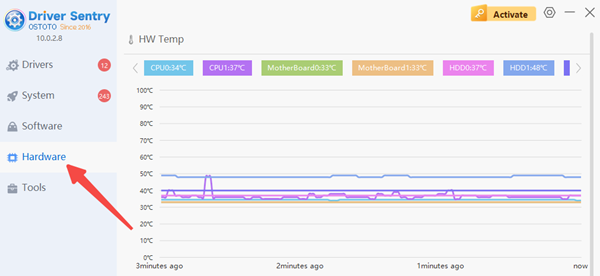
Beyond driver updates, Driver Sentry also provides real-time monitoring of GPU, CPU, and fan speeds, enabling you to spot overheating issues early and take corrective action.
How to Prevent GPU Overheating
1. Regularly Clean Your PC
Clean the interior of your PC, especially the GPU heatsink and fans, to ensure optimal cooling performance.
2. Avoid Long High-Load Sessions
Try to limit prolonged high-load usage without adequate cooling. If high-performance tasks are necessary, ensure the environment is cool and the cooling system is robust.
3. Set Overclocking Properly
If you need to overclock, understand your GPU's cooling capacity and apply moderate overclocking to prevent excessive heat.
4. Update Drivers Regularly
Frequent driver updates using tools like Driver Sentry ensure your GPU runs at peak efficiency, preventing performance drops and overheating caused by software issues.
GPU overheating can impact performance and damage your hardware. Maintaining effective cooling is crucial for all PC users. By following these tips, you can keep your GPU cool and your computer running smoothly and efficiently!
See also:
How do I compare my GPU to others?
How to Update NVIDIA Graphics Driver
How To Fix Graphics Card Not Detected
Why is every game stuttering after installing a new graphics card?